The functionality in Flowlink Cipher is accessed through two main toolbars:
• the expanding sidebar at the left side of the page
• the toolbar at the top of the page
The expanding sidebar gives access to the main areas of the application, as well as the settings for the application. Each area can be accessed by clicking the relevant button in the sidebar. These buttons are populated according to the roles of the current user; some buttons may not be available if the user does not have the roles required to access the functionality.
Button
Description
Dashboard
A Dashboard is the initial page displayed when Flowlink Cipher is launched. A dashboard contains "gadgets" to provide a quick overview of important data such as graphs, notes, alarms and so on. The gadgets displayed in a dashboard are selected and positioned by each user and remembered each time that user accesses the application. Users can have more than one dashboard if needed. For more information on dashboards, see Dashboards.
Map
The Map page displays a map of all accessible site locations. The extents of the map are determined by the sites accessible to the current user; by default the map will be sized to display all available sites. See Map for more information.
Sites
The Sites page is used to monitor and manage all sites accessible to the current user. Sites are locations of sensors and other measuring equipment. This page consists of two different sections. Click the links below to learn about each of the Site screens.
The Alarms page provides users with a list of events created to record alarms generated by the system. Alarms notify users when a predefined condition has been detected by sensors at a site based on the data values being ingested from a device. This page consists of two screens. Click the links below to learn about each of the Alarm screens.
The Analysis page is used to organize incoming sensor data into graphs that can then be used for data analysis. This page is divided into three screens. Click the links below to learn about each of the Analysis screens.
The Users page is used to view, create, edit and manage user accounts in the Flowlink Cipher system. Different functionality is available based on the user role assigned to the currently active user account. Click the links below to learn about the Users page.
The Settings page provides administrator users with access to global system information and settings. Click the link below to learn about the Settings page.
This button is used to expand or collapse the navigation bar on the left side of the application. When expanded, full names are displayed for each section of the application. When collapsed, only the section buttons are displayed.
The toolbar at the top of the interface provides common navigation buttons that are available in all areas of the application. These buttons are described in the table below.
Tool
Description
Hide Sidebar
Completely hide the expanding sidebar from the interface. This button functions as a toggle to hide or display the sidebar.
1. Click Hide Sidebar.
The sidebar is completely collapsed into the border of the application.
2. Click the button again.
The sidebar is returned to the display in either the expanded or collapsed state, based on the state that was applied when the sidebar was hidden.
See Notifications
View site notifications received by the application. New notifications are shown as a number beside the SeeNotifications button when they are received by the system. For example, a single new notification would appear as shown below.
1. Click See Notifications.
A list of notifications is displayed.
2. For an individual notification click the Mark as viewed button to change the status of the notification to VIEWED.
3. Click the Mark all as viewed button to change the status of all the notifications to VIEWED.
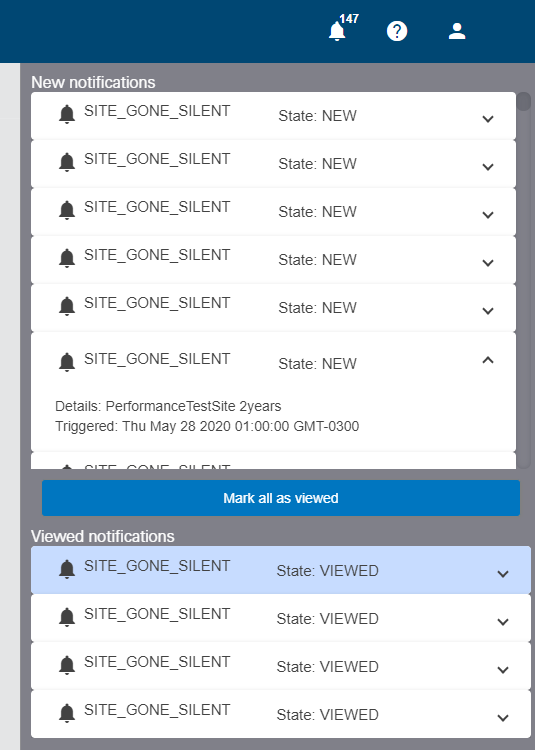
4. Click the View All button to view the list of the notifications in a panel that expands from the right edge of the application. In this list, you can click each notification to view more details. As each notification is opened it is marked as VIEWED and moves to the Viewed notifications list at the bottom of the panel. The panel contains a Mark all as viewed button to change the status of all the notifications to VIEWED. When notifications are acknowledged, the number on the SeeNotifications button is decreased or cleared.
Help
The Help button opens a menu that provides access to the following functions:
• Online Help
• Feedback
• About
These functions are each explained below.
Online Help
View online help for the currently active screen.
1. Click Help.
The help topic for the screen is displayed in a separate browser tab.
Feedback
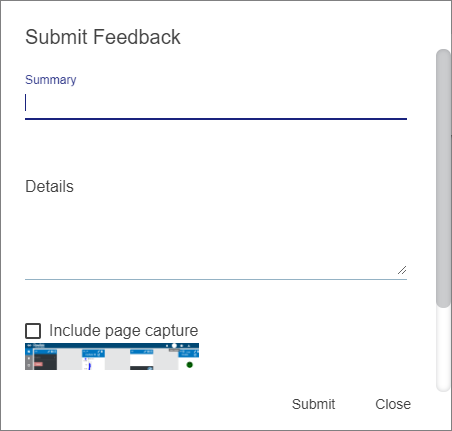
Submit text and graphics to an email account at Teledyne ISCO which is monitored for feedback from Flowlink Cipher users.
1. Click Report Feedback.
The Submit Feedback dialog box is displayed.
2. Type a brief description in the Summary field.
3. Type a more detailed description in the Details section.
You can include a screen capture of the currently active page (for example, a graph).
4. Select the Include page capture check box.
5. Click Submit.
About
Launch the About Flowlink Cipher dialog box, which contains the version ID of the application and the Terms of Use for the application license.
1. Click Close to return to the application.
Profile
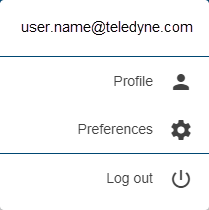
The Profile button displays the following menu:
In this menu you will find:
• the email address of the user account currently logged into the application
• a link to the profile settings of the current user account, see User Profile for more information on this tool


 button to change the status of the notification to VIEWED.
 button to change the status of all the notifications to VIEWED.
 button to view the list of the notifications in a panel that expands from the right edge of the application. In this list, you can click each notification to view more details. As each notification is opened it is marked as VIEWED and moves to the