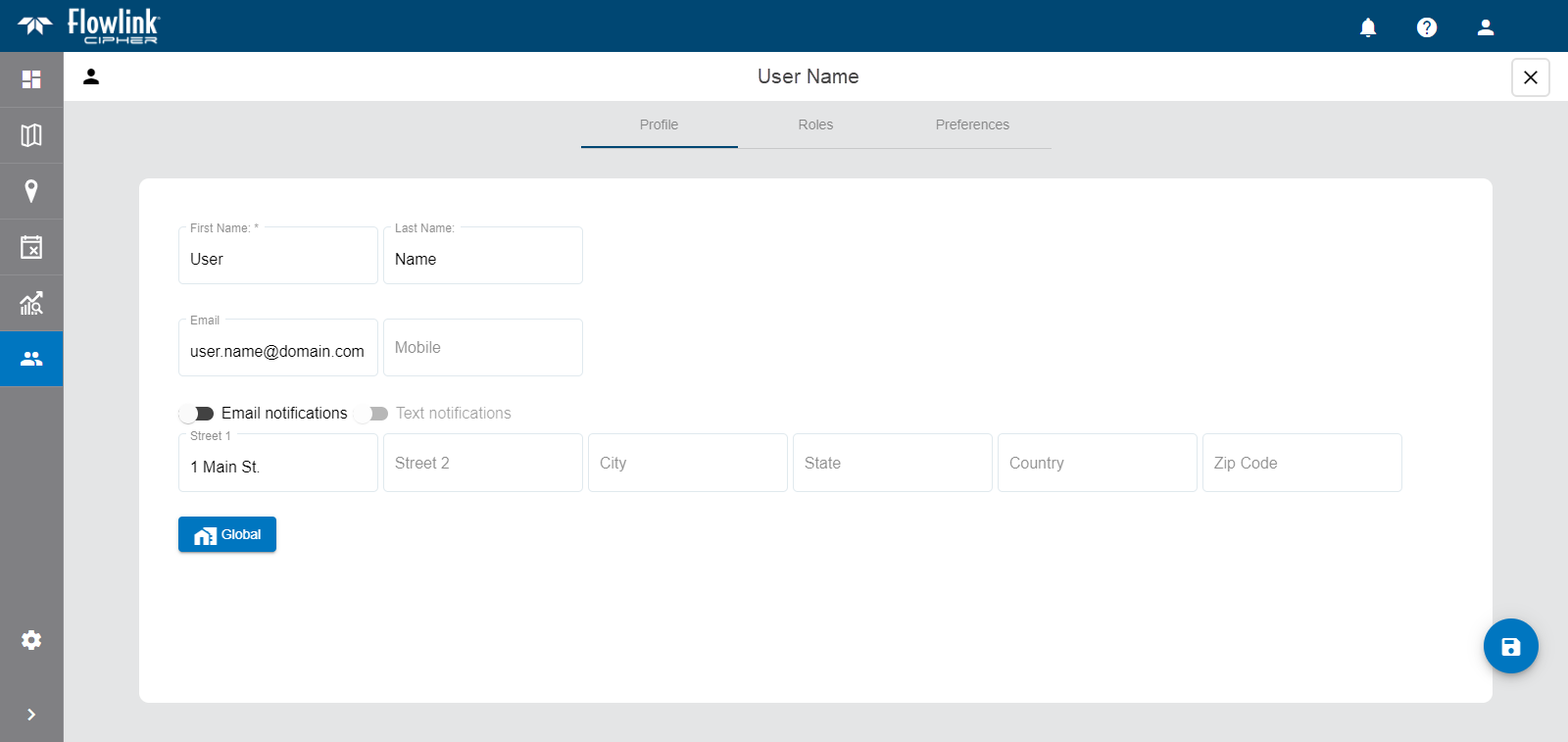
The Profile page for a user provides detailed information about the user account. This information can be viewed by all users with access to Flowlink Cipher.
The information on this page is provided in three separate tabs:
• Profile, which contains the user’s personal information.
• Roles, which controls the roles assigned to the user account.
• Preferences, which controls the user’s default settings for creating graphs and datasets.
Detailed information about each tab, as well as information about editing profile settings, is provided in the links below. Click each link to view the information.
Profile
The Profile tab contains a user’s name, mailing address, email address, mobile phone number and notification settings. The name and email address are populated using the values that were used to create the account. The mailing address and mobile phone number must be entered manually. This information can be entered or changed by users with an Administrator role or by a user viewing their own profile.
The notification toggles included in the Profile information are used to turn on/off email and/or text notifications. Email notifications is enabled by default. To enable Text notifications, the Mobile field must be populated with the phone number of a device that is capable of receiving text messages.
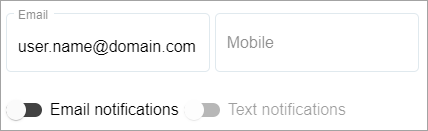
When turned on, the user will receive notifications at the specified email address and/or cell phone number.
Roles
The Roles tab is used to view and assign roles for a user account.
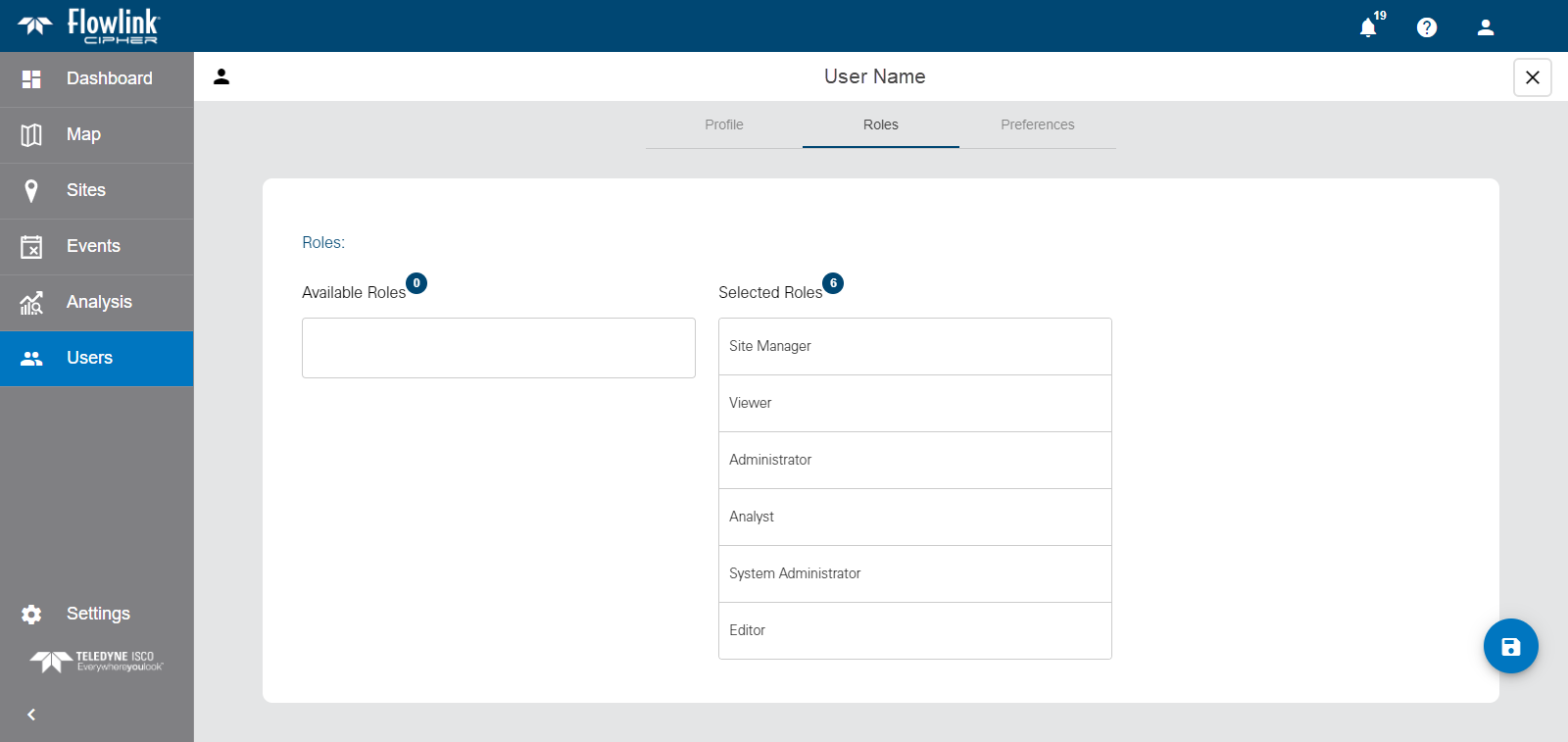
Roles provide a user account with permissions to perform tasks in the application. At least one role must be assigned to a user when the account is created. Roles can be changed by any user with the Administrator role. Different functionality is allowed with each role. The available roles are:
Role | Description |
|---|---|
System Administrator | The System Administrator role is used solely for managing tenants. This role should only be assigned to a single user in each organization. |
Administrator | The Administrator role is used to manage user accounts and global options shared by all users. Users with this role can create, edit and delete user accounts in the Users page, and view and edit the application settings in the Settings page. This role also has access to the Dashboard functionality, but only for Note type gadgets. This role cannot be used to create, edit or view sites, graphs or alarms. |
Site Manager | The Site Manager role is used to manage the sites and devices monitored by Flowlink Cipher. Users with this role have full permissions for the Dashboard, Sites and Alarms pages. The Site Manager role also has read-only access for graphs and alarms in the Analysis pages. |
Editor | The Editor role is used to edit data that has been ingested in the application. Users with this role have full permissions to the Dashboards, Alarms and Analysis pages, except for deleting graphs marked as Public. This role can also be used to view sites and generate graphs or datasets from the sites, but cannot be used to edit site information or site groups. |
Analyst | The Analyst role is used to analyse incoming data. Users with this role have the same permissions as the Editor role except that they cannot edit the data points in a dataset. |
Viewer | The Viewer role is a read-only account used for viewing information in Flowlink Cipher. Users with this role have full permissions on the Dashboard page and read-only access on most other pages. This role cannot be used to create graphs, datasets or alarms and can only view graphs and alarms that have been created by other users and set as Public. |
To move a role from one list to the other, click the role in its current list, it will automatically be moved to the other list.
Preferences
The Preferences tab is used to define default settings for graph creation.
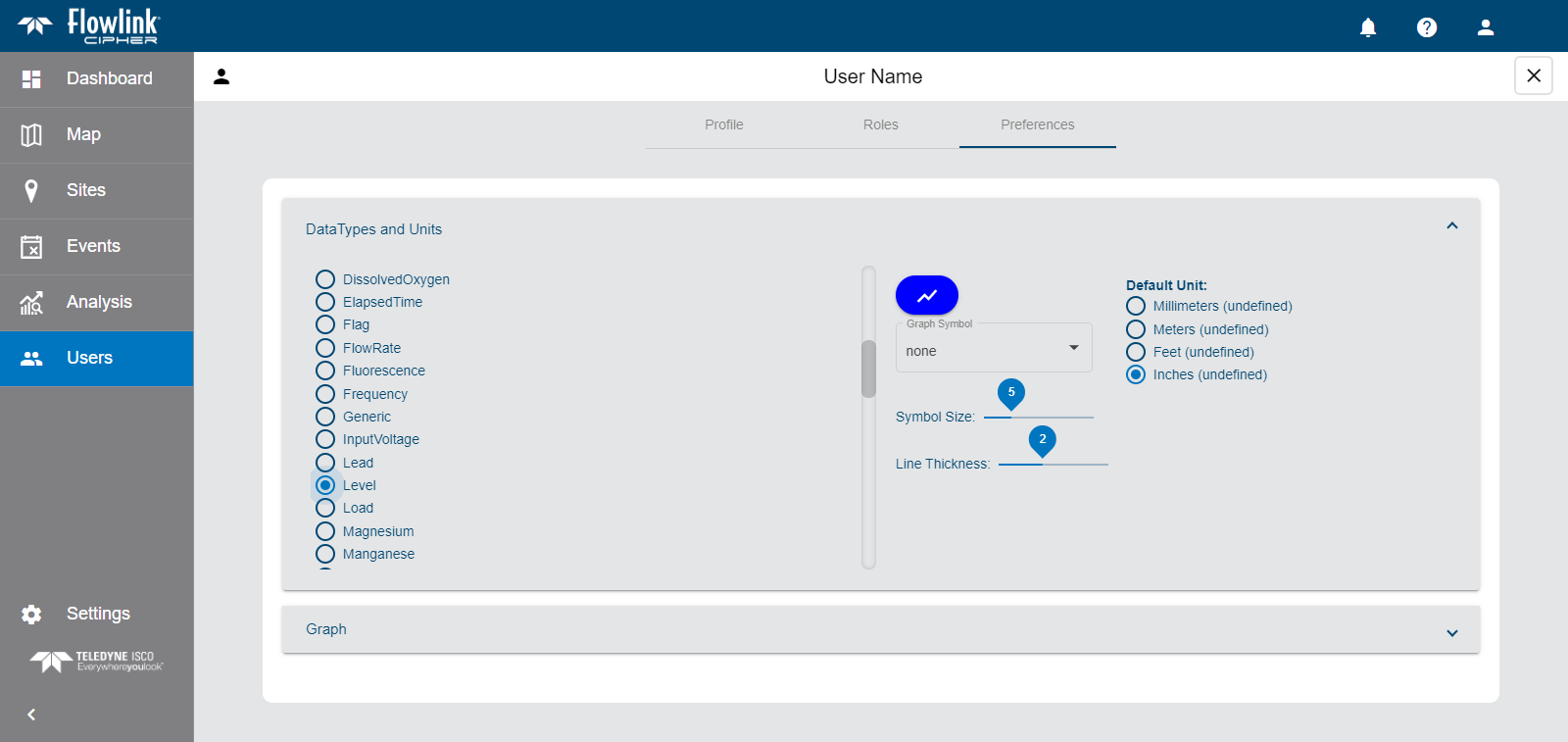
The Data Types and Units section is used to define default settings for each type of data that can be displayed in a graph. These settings will be applied automatically whenever a graph is populated with a dataset of a data type for which preferences have been selected. Different settings can be defined for each data type to provide easy identification of data when viewing a graph. The following settings can be defined:
Option | Description |
|---|---|
| The color used to display a dataset of the selected data type. 1. Select a data type from the list on the left. 2. Click the color button to launch the color picker. 3. Select a color in the dialog box. 4. Click Select. The button will change to the selected color. |
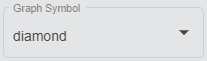
| The shape used to display points in a dataset of the selected data type. If points should not be displayed for the selected data type, the None setting can be selected. 1. Select a data type from the list on the left. 2. Select an option from the Graph Symbol drop-down list. |
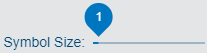
| The size of points when displayed in a dataset of the selected data type. 1. Select a data type from the list on the left. 2. Click and drag the Symbol Size control across the slider bar. 3. Release the mouse button when the preferred size is reached. |
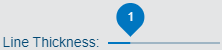
| The thickness of the line representing the data in a graph. 1. Select a data type from the list on the left. 2. Click and drag the Line Thickness control across the slider bar. 3. Release the mouse button when the preferred thickness is reached. |
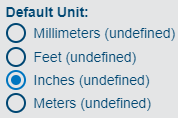
| The unit of measure that will be applied when displaying data of the selected data type. The list of possible units is populated based on the selected data type. 1. Select a data type from the list on the left. 2. Select a unit of measure from the Default Unit list. |
The Graph section is used to define default settings for graph configuration. Currently, this section contains the Start of the week option. This option defines the day of the week that will be used as the start of a week by certain tools and options in the application, such as the This Week and Last Week options in the navigation toolbar on a graph screen.
Editing a User Profile
To access the profile of the current user:
1. Click the Profile button  at the top of the page.
2. Select Profile from the menu that is displayed.
The profile of the current user is displayed.
To access the profile of another user:
1. Go to the Users page.
2. Click the Go to Profile button  in a user card on the Users page.
The profile of the selected user is displayed.
To make changes in a user profile:
1. Select the relevant tab at the top of the page.
2. Change settings as needed.
3. Click Save  when finished.
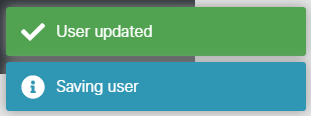
Messages will be displayed stating that the changes are being saved and the user has been updated.
4. To close the page and return to the Users page, click the X at the top of the profile page.