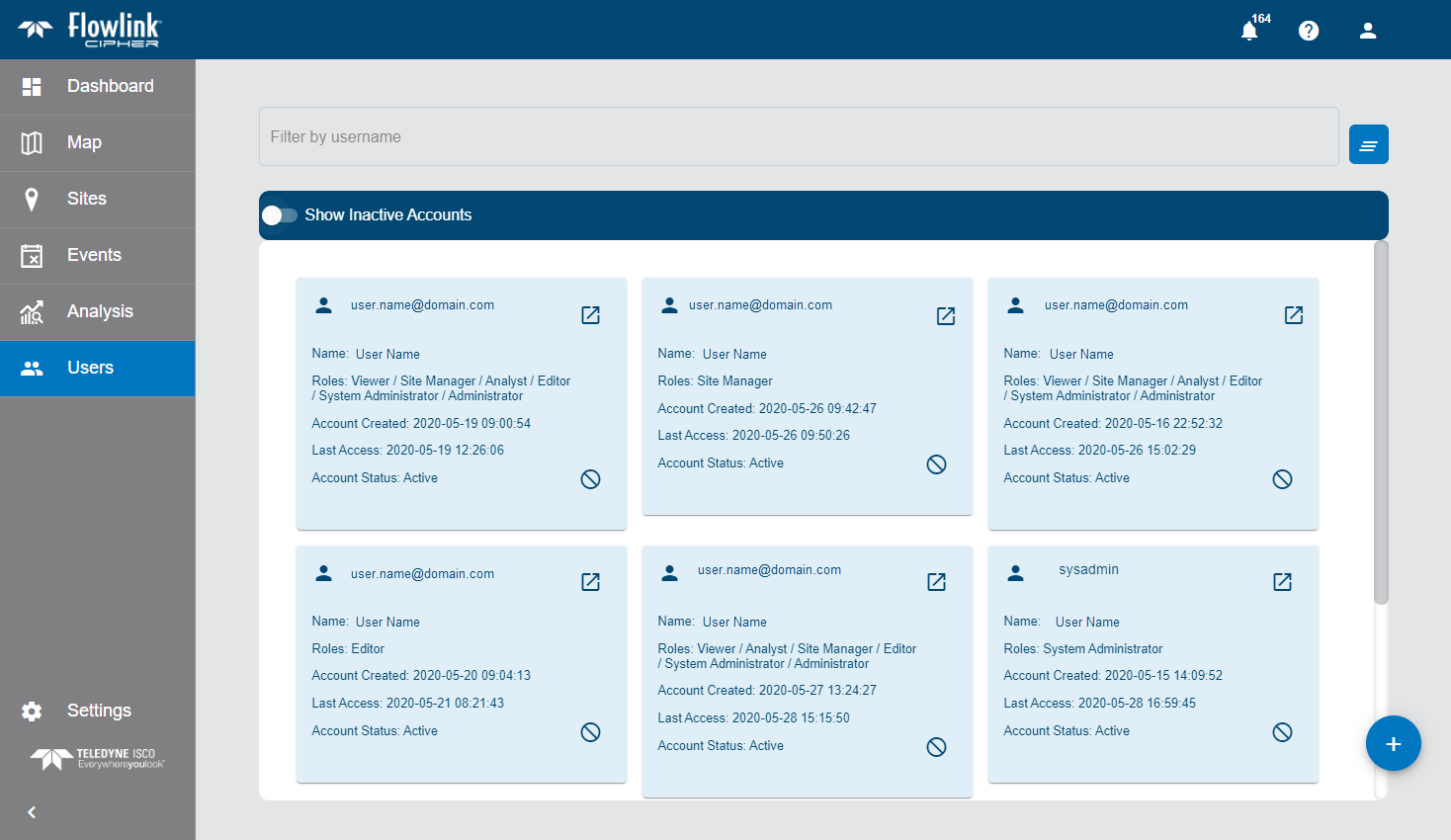
The Users screen displays a list of users that have access to Flowlink Cipher. Each user is represented by a card that provides the information about the user account.
Buttons in each user card provide additional options.
Button | Description |
|---|---|
| Go to Profile This button opens the profile page of the selected user account. This page contains the general information about the account. See User Profile for more information on profile pages. |
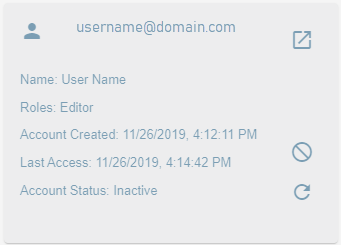
| Enable/Disable This button is used to change a user account status to active/inactive. 1. Click Disable (make inactive) or Enable (make active) in the user card. The user profile card is shown as normal (active) or faded (inactive). If the Inactive Accounts option is not enabled, disabling an account will cause the card to be removed from the list. |
| Resend Token This button is used to send an activation token to a user for an account that has been enabled after being disabled. This button is only available for accounts that have been disabled. 1. Click Resend Token. A message is displayed stating that an email was sent to the email address associated with the user account. The user must use the link in the email to reactivate the account and complete the account setup. |
Filter Users
The Filter by field can be used to search for a specific user using any of the characters that appear in the user's name. As characters are entered in the field, the list of available users will be filtered. The text is matched to consecutive characters in the user names. The filter is not case sensitive therefore upper or lower case characters can be entered. The filter terms are remembered when you leave the page and are automatically reapplied if you return. The Clear all filters button  can be used to clear the filtering of the user list.
Change Account Status
By default, only users with an Account Status of "Active" will be displayed on the page. User accounts with a status of "Inactive" have been disabled in the system and cannot be used to access Flowlink Cipher.
1. To display both active and inactive user accounts, click the Inactive Accounts check box.
Cards will be added for any inactive user accounts. These cards have a transparent appearance.
Add a New User
The Users page is also used to add new users to Flowlink Cipher.
1. Click the Add New User button  .
.
The Add a New User dialog box is displayed.
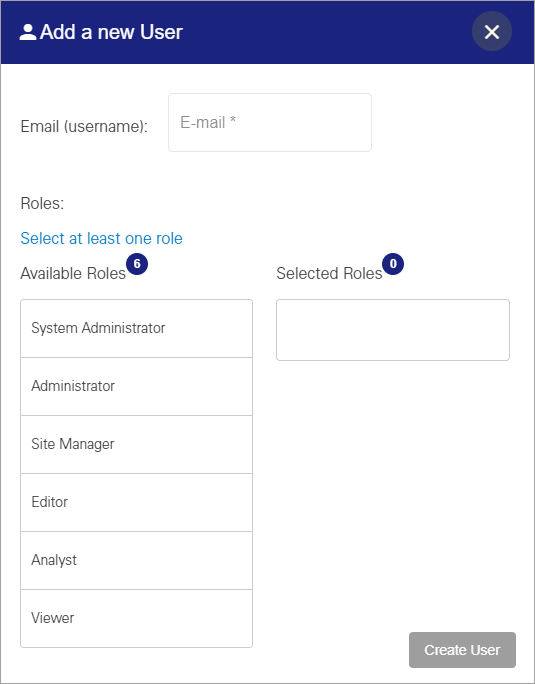
2. Type the Email address of the user. This is saved as the username for the user account.
If the Tenants option has been enabled on the Settings page, a Tenant field is available on the dialog box. By default, all users are assigned to the "Global" tenant, but can be assigned to another tenant that has been defined for your organization. See Settings for more information on tenants.
3. [Optional] Select a Tenant from the drop-down list.
All users must be assigned a role. A role provides a user account with permissions to perform tasks in the application. Different functionality is allowed with each role. The available roles are:
Role | Description |
|---|---|
System Administrator | The System Administrator role is used solely for managing tenants. This role should only be assigned to a single user in each organization. |
Administrator | The Administrator role is used to manage user accounts and global options shared by all users. Users with this role can create, edit and delete user accounts in the Users page, and view and edit the application settings in the Settings page. This role also has access to the Dashboard functionality, but only for Note type gadgets. This role cannot be used to create, edit or view sites, graphs or alarms. |
Site Manager | The Site Manager role is used to manage the sites and devices monitored by Flowlink Cipher. Users with this role have full permissions for the Dashboard, Sites and Alarms pages. The Site Manager role also has read-only access for graphs and alarms in the Analysis pages. |
Editor | The Editor role is used to edit data that has been ingested in the application. Users with this role have full permissions to the Dashboards, Alarms and Analysis pages, except for deleting graphs marked as Public. This role can also be used to view sites and generate graphs or datasets from the sites, but cannot be used to edit site information or site groups. |
Analyst | The Analyst role is used to analyse incoming data. Users with this role have the same permissions as the Editor role except that they cannot edit the data points in a dataset. |
Viewer | The Viewer role is a read-only account used for viewing information in Flowlink Cipher. Users with this role have full permissions on the Dashboard page and read-only access on most other pages. This role cannot be used to create graphs, datasets or alarms and can only view graphs and alarms that have been created by other users and set as Public. |
4. Click a role in the Available Roles list.
The role is added to the Selected Roles list. Roles can be moved back and forth between the lists as needed. It is also possible to move roles by clicking and dragging to the relevant location.
5. Click Create User.
An activation email is then sent to the email address specified and a message is displayed confirming that the email was sent.

In the email is a link to launch the Account Setup page and complete the account setup.
Account Setup
The Account Setup page is used to specify a password and profile information for the new user account. It also provides the Terms of Use for the application, which must be accepted before the user will be given access to Flowlink Cipher.
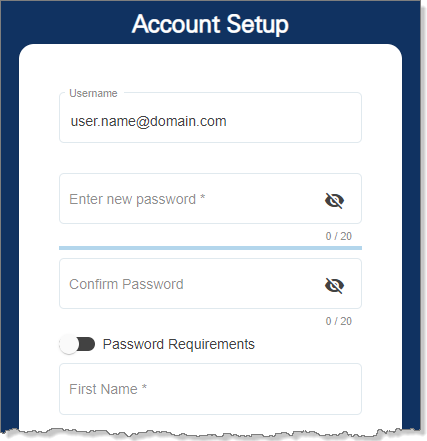
The Username is the email address that was entered by the administrator in the Add a new user dialog box and cannot be changed.
The password fields need to be populated with a password for the user account. The password must meet the security requirements in order to be accepted. The Password Requirements toggle can be used to view the requirements.
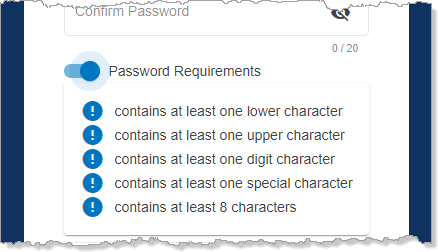
6. Type a password in the Enter new password field.
For security reasons, the characters will be hidden as the password is entered. The visible toggle  in each password field can be used to view the characters as they are entered.
7. Re-enter the password in the Confirm Password field.
8. Type the First Name and the Last Name of the user for which the account is being created.
9. Read the Terms of Use, making sure to scroll to the end of the content to enable the check box for the terms.
10. Click the Terms of Use check box to accept the terms.
11. Click Complete Account Setup.
The new account is created and added to the Users page. The Go to Profile button can now be clicked to go to the Profile page for the user account. This page is used to enter additional information about the user. See User Profile for more information.


