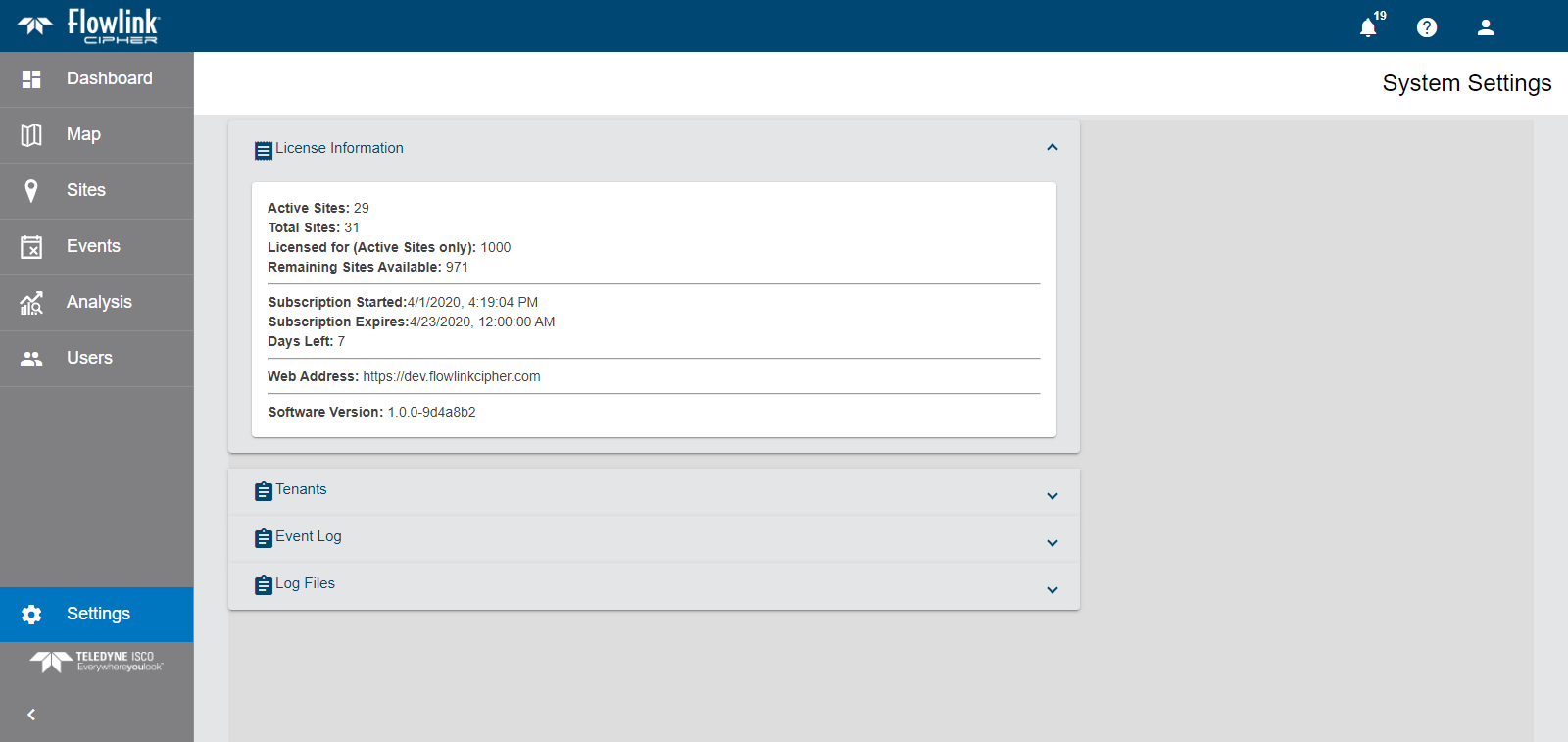
The Settings page provides access to system information and global settings. Only the Administrator and System Administrator roles can access this page.
This page contains four expandable panels.
1. Click each panel name to expand the panels and view the information.
• License Information: This section provides the licensing information for the instance of Flowlink Cipher in use. This information includes:
• The number of active sites currently using the license.
• The total number of sites in the system; this includes both active and inactive sites.
• The maximum number of active sites allowed with the license. If the maximum number of sites has been met, any additional sites will be added to the system, but will not be set to active and cannot receive data.
• The number of remaining sites available for the license.
• The subscription start and expiry dates.
• The expiry date of the license. A series of reminder emails will be sent to the system administrator accounts as the expiry date approaches. Emails will be sent 3 months, 2 months, 1 month and 1 week before the expiry date, as well as daily within the last week.
• The web address to which the deployment is connected.
• The current version of the Flowlink Cipher deployment.
• Tenants: This section is used to enable the tenants functionality. Tenants are used by a system administrator to segment sites and user accounts into separate private areas to control the access that specific user accounts have to a selection of sites. This capability is applicable to Flowlink Cipher subscription owners who are managing the sites and accounts for separate client end users. Once the Tenants feature has been enabled and a tenant has been created, user accounts and sites can be assigned to the tenant. Only users that have been assigned to a tenant can view the sites and data that have been added to the tenant. Sites that have not been assigned to a tenant will remain in the Global tenant, which is accessible to all users within the instance of Flowlink Cipher.

• Event Log: This section contains a log of all activity within the application that triggered the creation of an alarm or event. Each log entry identifies the activity that took place, the user that made the change (if applicable) and the timestamp of the activity.
A textual note can be added to an entry, if desired, to provide further information about the alarm. To add a note:
1. Click Add a note below the relevant log entry.
2. Enter the text in the field provided.
3. Click the Save button.
• Log Files: This section provides access to a series of system-level log files. Click the View label at the end of a row to open the log file.
Using Tenants
1. Click the Tenants label to expand the panel.
2. Click the Enabled check box to enable the tenant functionality.
3. Click Apply.
Fields will be added to the panel to show the default Global tenant and to create new tenants.
4. Enter a name for the new tenant.
5. Click Create.
The new tenant is added as a new row in the Tenants panel. Tools are now available in various pages to assign users and sites to the tenants as needed.
6. On the Users or Sites page, click the Tenant button  of a relevant card.
7. Select a tenant from the list.
The user/site is now assigned to that tenant.