Flowlink Cipher : Flowlink Cipher : Dashboards
 

Dashboards

The Dashboard is the first page displayed when Flowlink Cipher is launched. This page displays a collection of gadgets that provide a quick overview of incoming data and site statuses.

Users can also create multiple dashboards to help organize gadgets. This allows all related gadgets to be kept in a single dashboard separated from unrelated gadgets, keeping the dashboard uncluttered and allowing larger real estate for each gadget. This also provides users with a one-step option of viewing all information pertaining to a specific area or subject.

A Note type gadget is added to the dashboard the first time that a user connects to Flowlink Cipher. This gadget is populated with a welcome message containing information to help a new user get started. All other gadgets are manually added to the dashboard by the user.

The types of gadgets available include:

Gadget Type

Icon

Description

Graphing

This gadget is used to show a live preview of an existing graph. Moving the mouse cursor over the graph will show values for each dataset at the cursor location. The wheel button on the mouse can be used to zoom in and out of the graph and the left mouse button can be used to drag the graph to the left and right to change the visible data range.

The Options button in the top-right corner of a graph gadget provides the following options:

Go to Graph: Go to the details page of the graph being displayed in the gadget.

Delete Gadget: Delete the gadget from the dashboard. This does not affect the data source associated with the gadget, it only removes the gadget.

Note

This gadget is used to display textual notes that have been manually entered by the user.

Alarms

This gadget is used to show statistics of alarms that have been triggered for a specific site.

The Options button in the top-right corner of an alarm gadget provides the following options:

Refresh Interval: The frequency at which the data in the gadget is refreshed. The possible intervals are 1 minute, 5 minutes, 10 minutes and 15 minutes.

Go to Alarm: Go to the details page of the alarm being displayed in the gadget.

Delete Gadget: Delete the gadget from the dashboard. This does not affect the data source associated with the gadget, it only removes the gadget.

Site

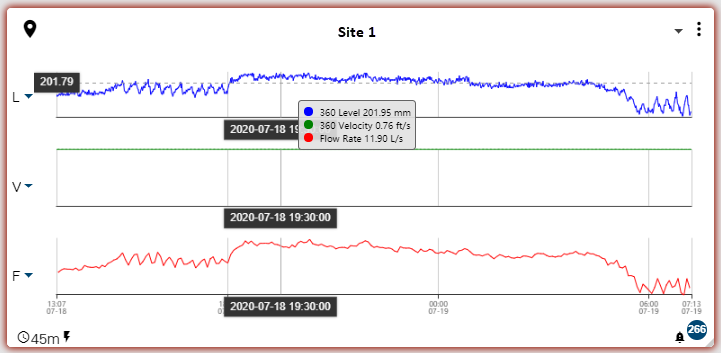
This gadget is used to display information about a specific site, including a graph of the most recent level, velocity and flow rate data and a timestamp of the last time data was ingested from the site.

When a site contains multiple datasets for the level, velocity and flow rate data types, the user can select which dataset to display in the gadget using the drop-down list of dataset names adjacent to the L, V, F labels.

The graph data will be displayed according to the settings in the Preferences tab of the user profile page. If these settings have not been defined, the following colors will be used by default:

Level - Blue

Velocity - Green

Flow Rate - Red

When the cursor is hovering over a dataset’s graph in the gadget a tooltip is displayed. The tooltip contains the dataset name and value with units at the location of the cursor.

Site gadgets will display with a colored border indicating the status of the site. This allows a quick visual check of the status of each site in the dashboard. The possible colors include:

Yellow: The site is not receiving data.

Red: An alarm has been triggered by the site. This can be any type of alarm.

The Options button in the top-right corner of a site gadget provides the following options:
Refresh Interval: The frequency at which the data in the gadget is refreshed. The possible intervals are 1 minute, 5 minutes, 10 minutes and 15 minutes.

Change Period: The time period for which data will be included in the graph displays. The available times are the last 24 hours, 48 hours or 72 hours.

Go to Site: Go to the details page of the site being displayed in the gadget.

Graph from Site: Go to the Configure Graph page with the site and datasets from the site gadget selected for a new graph. The datasets, and the order in which they are displayed in the site gadget, will be repeated in the new graph.

Delete Gadget: Delete the gadget from the dashboard. This does not affect the data source associated with the gadget, it only removes the gadget.

Along the bottom edge of the site gadget the following information and controls are located:

Elapsed time since last data received. If the site is receiving data, a clock symbol precedes the timestamp. If the site is no longer receiving data, a triangular symbol, with the tooltip Site is not receiving data, precedes the timestamp.

The last received values from all voltage type datasets.

A bell icon with a count of the number of alarms at the site. Click the bell icon to jump to the Alarms screen.

Gadgets are displayed on the dashboard in a grid format, with each gadget occupying one or more cells in the grid. As gadgets are added, they are automatically snapped to the next available cell in the grid, going from left to right, top to bottom. Each gadget can be resized and/or repositioned as needed.

To resize a gadget: Click the bottom-right corner of the gadget and drag the border until the gadget reaches the appropriate size then release the mouse button.

To reposition a gadget: Click the gadget-type icon in the top-left corner of the gadget and drag it to the desired location then release the mouse button.

Dragging a gadget to the edge of the page on the right side of the window will automatically expand the dashboard to add more columns to the grid. When the mouse button is released to drop the gadget, all gadgets will automatically be reduced in size to accommodate the additional columns in the dashboard. The layout of the dashboard will be remembered each time a user logs into the system with the same user account.

The table below describes the various functions available on a dashboard page. Expand each section by clicking each task in the table.

I want to...

Add a Gadget

To add a gadget to a dashboard:

1. Click the plus button on the right side of the page to open the tools panel.
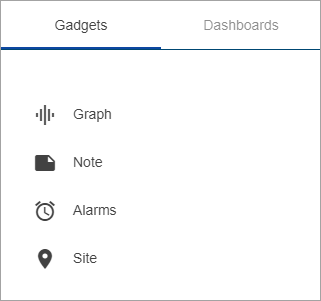
2. Click the Gadgets tab if it is not the active tab.

A list of the available gadget types is displayed.

3. Click the type of gadget you want to add.

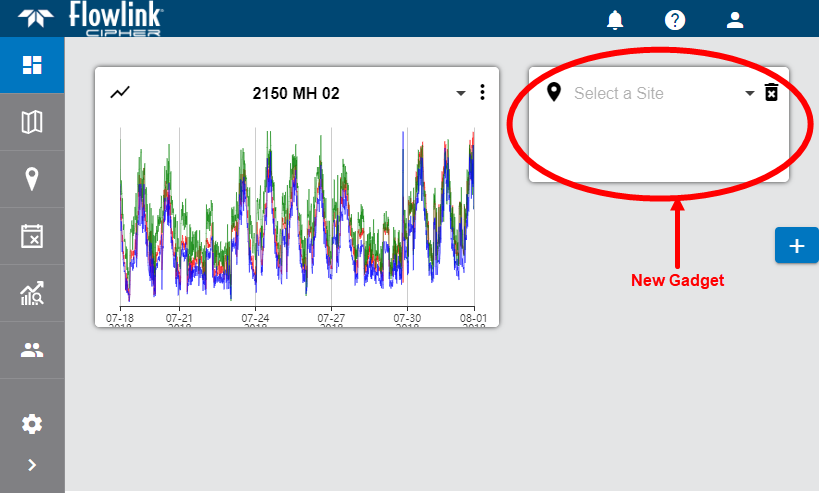
4. A new gadget will be added to the dashboard. By default, the gadget will be added as a single cell in the next available grid cell.

5. For a graph, alarm or site type gadget, you must select the data you want displayed.

6. Click the drop-down list in the gadget and select the data source to be displayed.

The gadget is populated with data from the selected data source.

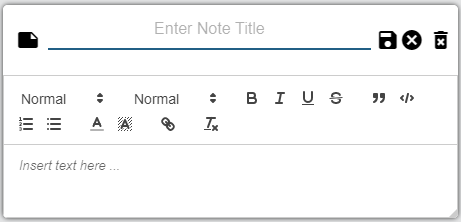
For a note type gadget, you must enter the text you want to display in the note. To do this, the gadget must be in edit mode.

7. Click the Edit button in the bottom-left corner of the note gadget.

A text editing toolbar and a text entry field will be added to the gadget.

8. Enter the desired text in the field.

9. Click the Save button to save the text and exit edit mode.

The note is now displayed in the gadget on the dashboard.

Edit a Gadget

Existing gadgets can be edited if needed. This includes changing the data source for a graph, site or alarm gadget, or editing the text in a note gadget.

To edit a graph, site or alarm gadget:

1. Select a new data source from the drop-down list at the top of the gadget.

2. Click the Options button in the top-right corner of the gadget to display a list of options.

3. Select the relevant setting from the options list.

To edit a note gadget:

1. Click the Edit button in the top-right corner of the gadget.

2. Make any necessary changes.

3. Click the Save button .

Add a New Dashboard

Users can have multiple dashboards, with each one being unique from the others.

To add a new dashboard:

1. Click the plus button on the right side of the page to open the tools panel.

2. Select the Dashboards tab.

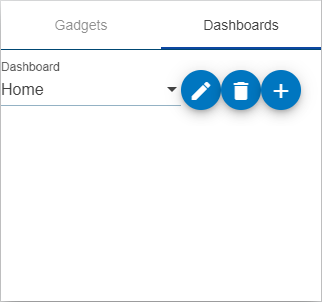
This tab provides a drop-down list of available dashboards, as well as tools to edit, delete or create dashboards.

3. Click the plus button .

The Dashboard drop-down list displays the name "New Dashboard".

Click the Edit button and type a new name for the dashboard.

Click the Save button to save the dashboard name.

Because this new dashboard is currently selected in the drop-down list, this is the active dashboard.

4. Click anywhere outside the tools panel to close the panel.

Display a Different Dashboard

When a user has multiple dashboards, it is necessary to change the active dashboard in order to view the gadgets on each one.

To change the active dashboard:

1. Click the plus button on the right side of the page to open the tools panel.

2. Select the Dashboards tab.

3. Expand the Dashboard drop-down list and select the relevant dashboard.

4. Click anywhere outside the tools panel to close the panel.

The display is updated to show the gadgets of the selected dashboard.

Rename a Dashboard

The name of a dashboard should be related to the content in this dashboard to easily identify its purpose and the information it provides. If the purpose or content of a dashboard changes, or is unknown at the time of creation, it may be necessary to rename the dashboard.

To rename a dashboard:

1. Click the plus button on the right side of the page to open a tools panel.

2. Select the Dashboards tab.

3. If the dashboard to be renamed is not currently active, expand the Dashboard drop-down list and select the relevant dashboard.

4. Click the Edit button and type a new name for the dashboard.

5. Click the Save button to save the dashboard name.

The dashboard is now renamed.

Delete a Dashboard

If a dashboard is no longer needed, it can be deleted.

To delete a dashboard:

1. Click the plus button on the right side of the page to open the tools panel.

2. Select the Dashboards tab.

3. If the dashboard to be deleted is not currently active, expand the Dashboard drop-down list and select the relevant dashboard.

4. Click the Delete button.

A message will be displayed confirming that the dashboard will be deleted.

5. Click Yes to continue.

The dashboard will be removed from the drop-down list and the default Home dashboard will be displayed.