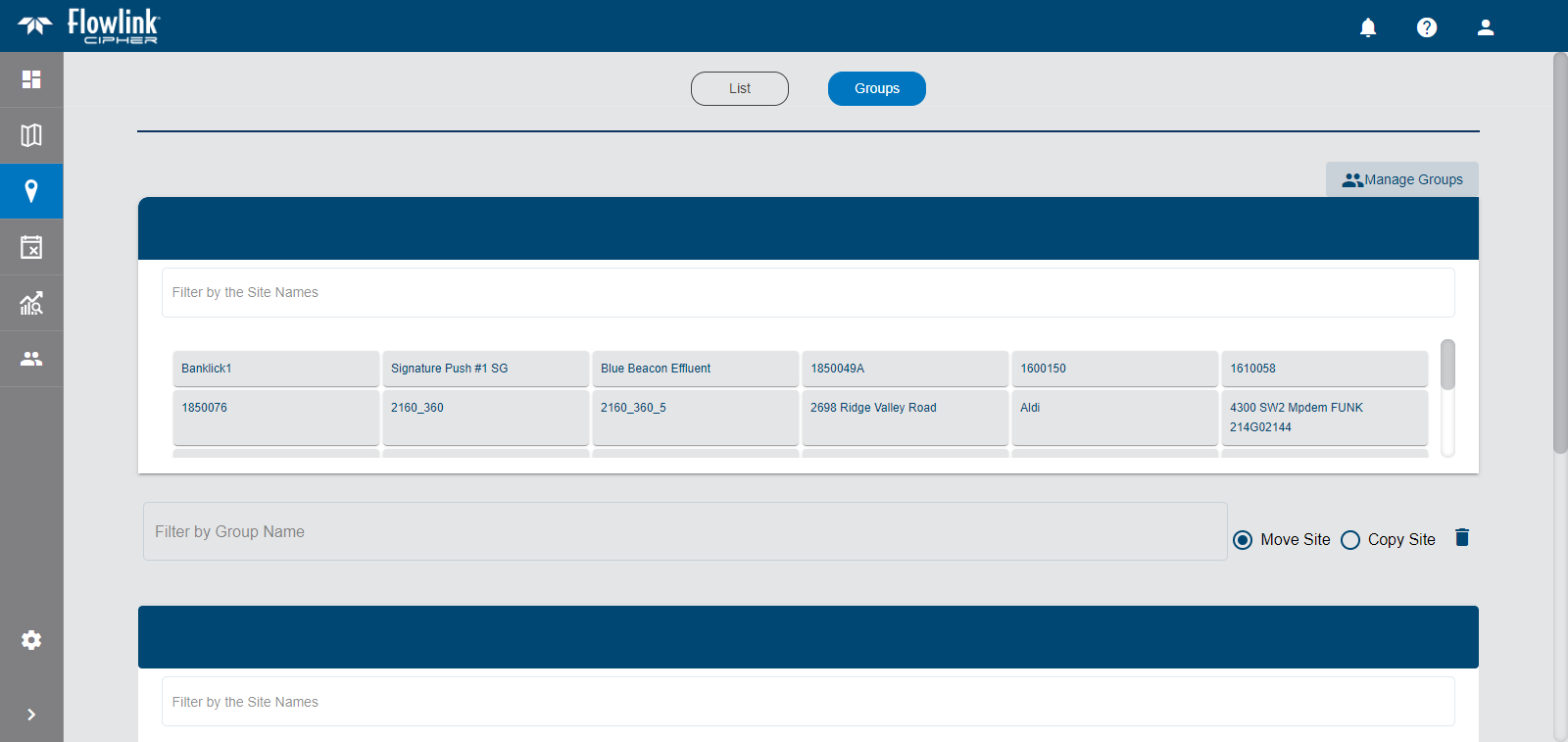
The Site Groups page is used to assign sites to groups to help identify and organize sites. All sites are initially listed in the Unassigned group until they have been added to a group.
Filter by Name
The Filter fields allow you to filter the groups displayed or filter the sites within a group using either the group name or the site name. This is a text-based search.
1. Type a group or site name in either the Filter by Group Name or Filter by the Site Names field.
As text is added to the Filter field, a drop-down list is displayed containing all group or site names that contain the specified text.
2. Select the relevant name from the list.
The list of available groups or sites now only includes those that match the filter criteria.
Manage Site Groups
Before you can assign a site to a group, you need to first create the necessary groups. This is done using the Manage Site Groups tool.
1. Click Manage Groups to launch the Manage Site Groups tool.
The Manage Site Groups tool is displayed.
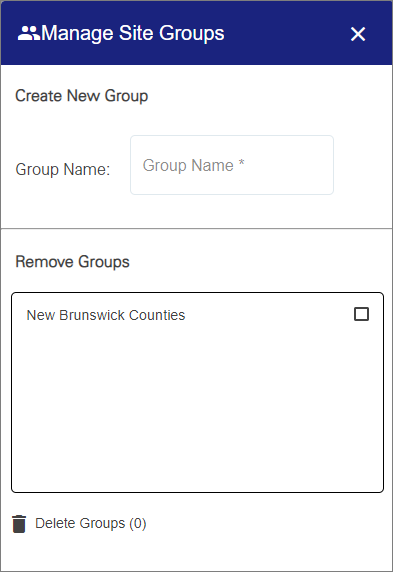
With this tool, users can create and remove groups as needed. Refer to the topics in the table below for information on this tool. Click each task heading to expand each section.
I want to... |
|---|
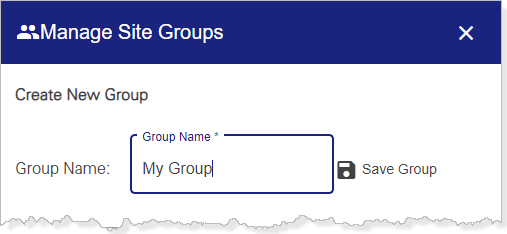
Add a Group To add a group: 1. Type a name in the Group Name field. A Save Group button will display beside the Group Name field.
2. Click Save Group to create the new group. A message will be displayed confirming that the group was created successfully. You can now assign sites to this group. |
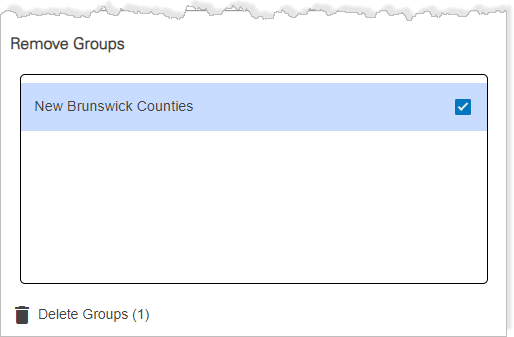
Remove a Group Users can remove any group they have created if a group is no longer needed. All groups that have been created by the current user will be listed in the Remove Groups box. 1. Click the group in the list that you want to remove. The group will be highlighted in red and the check box for that group will be populated.
2. [Optional] Select any other groups that you want to remove. As groups are selected, the number beside the Delete Groups button will increase to reflect the number of groups selected. 3. Click Delete Groups. The selected groups are removed from the Remove Groups list and a message is displayed confirming that the groups were removed. If there were sites assigned to a deleted group, those sites will return to the Unassigned list. |
Assign Sites to Groups
To assign a site to a group:
1. Expand the destination group list.
2. Click the site to be assigned and drag it into the destination group list.
The site is now assigned to the selected group and is removed from the Unassigned group. When a site is assigned to a group, the group name is included in the General information of the site on the Site Information page.
A site can also be assigned to multiple groups using the Copy Site option.

By default, Move Site is selected, which moves a site from one group to another when it is dragged into a new group. If Copy Site is selected, the site is copied into each group that it is dragged into.
Related topics:
• Sites