Databases that have been backed up can be restored. Data that was previously backed up is restored to a database, either overwriting existing files or populating a new database. To restore data, first restore the data in the RDBMS using database tools, and then complete the process using BDB Administration Tools.
Please refer to the following resources for information on restoring a database in the RDBMS:
• pgAdmin documentation on the Windows Start menu
• http://docs.oracle.com/database/121/nav/portal_4.htm
Further details on administration tasks in the RDBMS are also available upon request from CARIS Customer Service. |
Before you can restore a database, it must be registered in the Node Manager. If you are overwriting a database that already exists in your node location, the database may need to be re-registered if it has been unregistered. If you are restoring a backup of a database created by another user, you will first need to extract the zipped database to your node location, then register it.
To extract a database backup to your node location, use the Extract Database Dump command. See Extract Database Dump for information on this command. To register a database in your Node Manager, use the Register command. See Register a Database for information on this command.
Once the database is registered, it will be listed in the Database Properties as an available database and can be restored.
A database must have a status of "Stopped" before you can begin the restore process (see Stop a Database). |
To restore a database:
1. Connect to a Node Manager.
2. Double-click the Database Properties icon in the Tools Panel.
The Node Manager and its registered databases are listed.
3. Select the database in the Available Databases list that you want to restore.
4. Select the Restore Database command.
Menu | Database > Restore |
Pop-up | Available Databases > selected database > Restore |
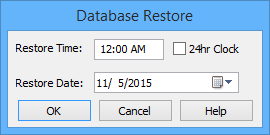
The Database Restore dialog box is displayed.
In this dialog box you are going to identify the time and date of the backup that you want to restore. The application will restore the most recent full backup which occurred before the time-stamp entered plus all incremental backups which occurred after the full backup, but before the time-stamp.
For example, you might do full backups every Sunday at midnight, and incremental backups Monday to Saturday at midnight. If you do a restore on Wednesday at 5:00 pm, the restore function will find the full backup from Sunday and the incrementals from Monday and Tuesday.
If you do not know the date at which the backup was performed, you can either use the Date Modified value of the file, or you can view the Node Manager system log to find the date of the backup you want. Look for entries similar to the following:
• [3/4/13 2:45:01 PM] - Database backup started (Global_DB_20130304_1445_FULL.bdbzip)
[3/4/13 2:45:02 PM] - Database backup finished (Global_DB_20130304_1445_FULL.bdbzip)
• [3/4/13 3:10:01 PM] - Database backup started (TrainingDB_20130304_1510_INCR.bdbzip)
[3/4/13 3:10:01 PM] - Database backup finished (TrainingDB_20130304_1510_INCR.bdbzip)
The log entries will only be useful if the backup was performed on the Node Manager to which you are currently restoring the database. |
5. [Optional] Click the 24hr Clock check box to set the time using 24 hour format.
6. Use the <Up Arrow> and <Down Arrow> keys to adjust the values for hour, minute and (if applicable) AM/PM.
Each element of the Restore Time field is adjustable in preset increments: hourly for the hour element and 5 minute increments for the minute element. The AM/PM element toggles between AM and PM. |
7. Type a value or use the calendar tool to select a date.
8. Click OK.
Depending on the size of the selected database, the restore process may take a few minutes to complete. If overwriting an existing database, the original database files are moved to the Temp folder until the backup files are unzipped and restored successfully. If the files are not restored successfully, the restore is aborted and the database files are moved back into the database folder, unchanged.
When finished, the selected database is restored and the files in the Temp folder are deleted.
If necessary, the Node Manager system log can also be viewed to determine which backup was used to restore the database. Look for entries similar to: |