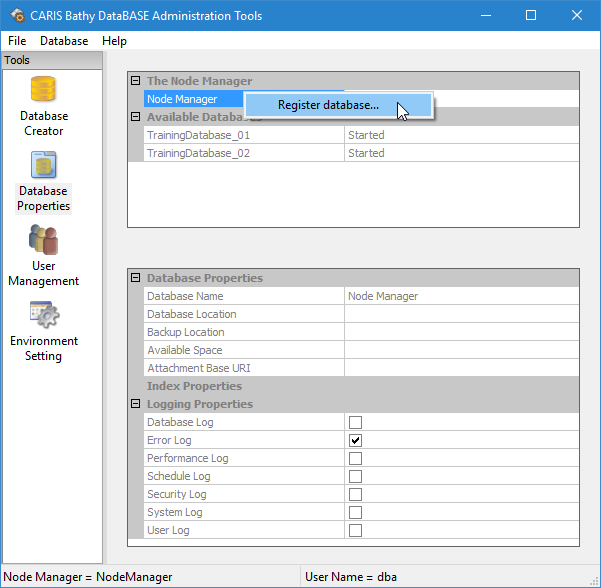
All databases must be registered in the Node Manager in order to be started in Administration Tools and accessed from BASE Editor. This is done automatically when a new database is created. In addition to new databases, you can also register an existing database, for example, a database created from an older version of the software that is not registered with the current Node Manager.
Make sure the desired database folder is in a node location for the current Node Manager. If it is not in a defined node location, it will not be displayed in the list of databases available for registration. You can either move the folder to a defined node location, or you can define its current location as a node location for the Node Manager. For more information on adding node locations, see Add a New Location.
To register a database:
1. Connect to a Node Manager.
2. Double-click the Database Properties tool.
3. In the Node Manager properties panel, select the Node Manager.
4. Select the Register Database command.
Menu | Database > Register |
Pop-up | Register Database |
The Register Database dialog box is displayed.
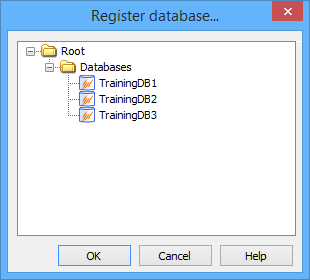
Any unregistered databases in the directories you defined as node locations in the Bathy Node Location Editor are listed.
5. Select the database you want to register.
6. Click OK.
If you were to click OK without selecting a database, the following message is displayed.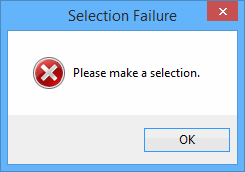
Click OK to close the message and make a valid selection.
7. [Optional] For each additional database to register, repeat steps 2 to 6.
The selected database is registered.