
When the Bathy Node Location Editor is open, you can add as many node locations as necessary.
To add a new location:
1. Right-click the Root location folder.
The Node Location pop-up menu is displayed.
Pop-ups | Insert Node Locations |
2. Select the Insert Node Location command.
The Insert Node Location dialog box is displayed.
This dialog box is used to define the name and location for the database node. You can type any value for the name. Selected locations may be used for new or existing databases.
3. Type a Name.
4. Click the Directory field browse button (...).
The Choose a directory dialog box is displayed.
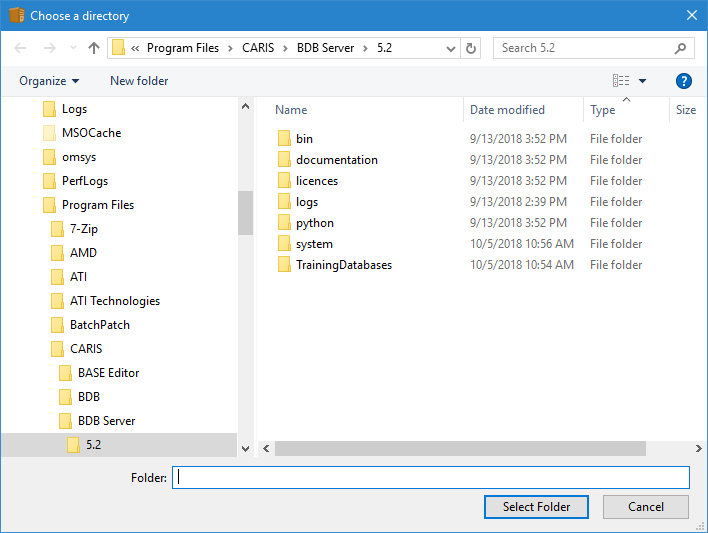
To create a node for new databases, you can either make a new folder or use an existing folder. The local system account is used by the Node Manager service to communicate with the node locations. If this account does not have permissions to the selected locations, you will need to configure the permissions of the account assigned to the service. For more information, see Configure the Node Manager Service.
To create a node for existing databases, you must select the parent folder containing the database folders - not an actual database folder itself. For example, to be able to connect to a database located in the TrainingDatabases folder (shown above) via the Administration Tools application, you must make the TrainingDatabases folder a node location.
5. Create or select a folder.
6. Click Select Folder.
When the node location is being setup, checks are performed on the selected path to ensure that the Node Manager will be able to write to the directory. If the user account assigned to the service does not have the necessary permissions for the selected location, an error will be displayed and entries will be made in the Error and System logs.
If successful, the new node location is displayed in the editor.
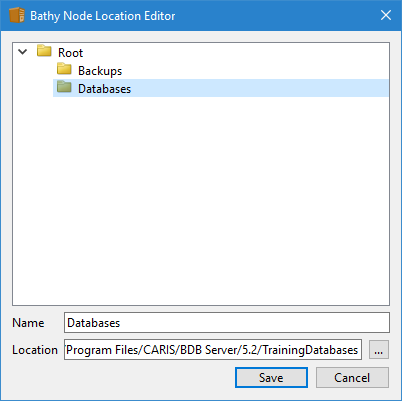
7. [Optional] To insert additional nodes, repeat steps 2 to 6.
8. To save your updates to the table file, click Save.
The Bathy Node Location Editor is closed and the filesystemtable.bfs file is updated.