The Log On options and attributes are displayed.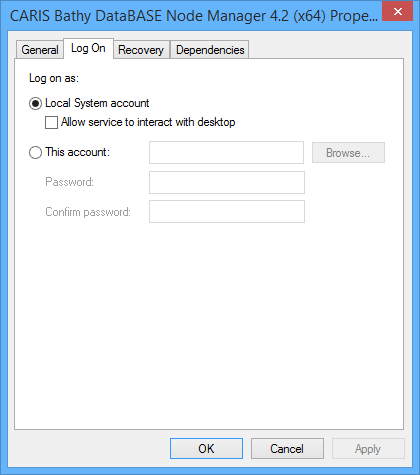
Node locations may be shared, so you may need special user permissions required to access these locations.
By default, the Bathy Node Manager service is installed to run with the local system account. This means that the service will use that account to access the directories of the node locations you set up. The default account may not have permission to write to certain directories, especially shared, network directories. If you create a node location that points to a location to which the account does not have the necessary permissions, you will be unable to create or backup a database in that node.
If you wish to create nodes in locations that require special permissions, you will need to change the Log On property of the service to an account that has the permissions needed to work with data in these locations.
To change the CARIS Bathy DataBASE Node Manager service Log On property:
1. Open the Windows Control Panel.
2. Locate and click Administrative Tools.
3. In the Administrative Tools dialog box, double-click Services.
4. In the Services dialog box, locate the CARIS Bathy DataBASE Node Manager <version> service.
5. Right-click the service and select Properties.
The Properties dialog box is displayed.
6. Select the Log On tab.
The Log On options and attributes are displayed.
The Local System account option is selected by default.
7. Select the This account option and click Browse.
The Select User dialog box will be displayed.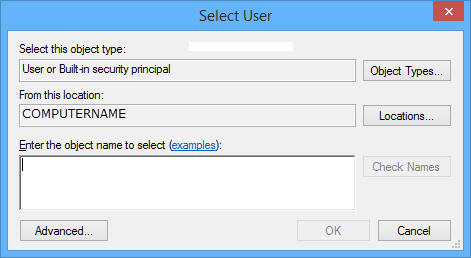
8. In this dialog box, click Locations.
The Locations dialog box will be displayed. From here, you can access all locations on your network that contain users.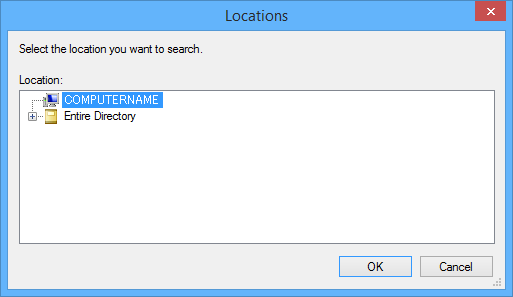
9. Navigate to the location that contains the desired user account, select it and click OK.
You are returned to the Select User dialog box with the selected location displayed.
10. In the text entry box, enter the name of the user to be assigned to the service and click Check Names.
The selected location will be searched for an account containing that name. If found, the user name and domain information will be added to the field.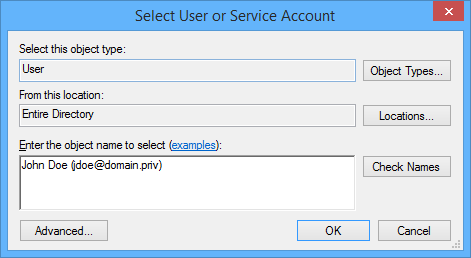
11. Click OK to select this user account and return to the Properties dialog box.
12. In each Password field, enter the password used by this account to access network locations.
13. Click OK.
The account for the CARIS Bathy DataBASE Node Manager service now is updated with the appropriate permissions for working with the selected node locations.