To configure a connection to the relational database, you must define settings for the Server installation and the database connection credentials.
It is recommended that the Server Setup Utility be started using the Run as Administrator option if launched from the Start menu, as it will access system files that cannot be edited without the appropriate permissions.
1. Right-click the Server Setup Utility <version> command and choose Run as Administrator.
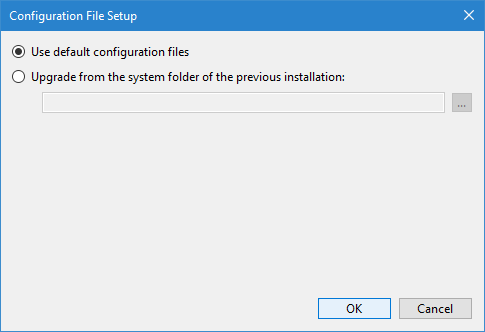
The Configuration File Setup dialog box is displayed.
The first time you run the Server Setup Utility, you need to tell it which configuration files you want to use for setup. This can be either the default files provided with the installation, or the files found in the "System" directory of a previous installation. Once a configuration option is selected, the utility will launch without displaying this dialog box.
If you are upgrading from a previous version, it is recommended that you install using the files from the existing installation. If you opt to use the default files from the installer, existing user accounts will not be updated for changes to user permissions and therefore will not function on the new installation. The administrator user will then be required to manually reassign the necessary privileges to all existing user accounts.
2. Choose one of the following options:
• If you are upgrading from an existing server setup, select Upgrade from the system folder of the previous installation.
• If you are setting up a new installation, select Use default configuration files.
For the upgrade option, the setup process will configure the server using the following support files from the System folder you selected:
• bathyserver.conf
• filesystemtable.bfs
• bathynodemanagerconfig.xml
3. [Optional] If you chose the Upgrade option, click the Browse button (...) and select the folder containing the system files from the previous installation. Click OK to return to the Configuration File Setup dialog box.
4. Click OK to close the Configuration File Setup dialog box and launch the Server Setup Utility.
Server Setup
The CARIS Bathy DataBASE Server Setup dialog box is displayed. With this dialog box, you can define the settings for the server as well as the database connection settings.
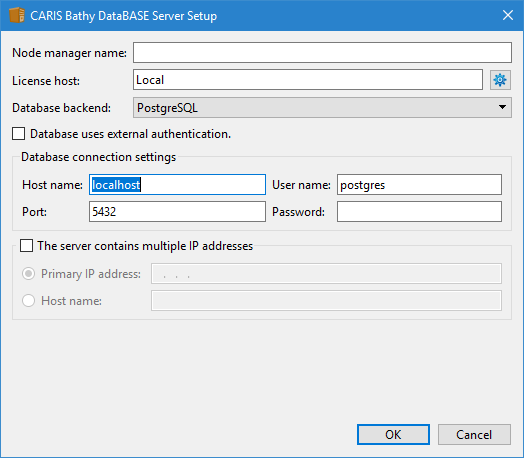
The server settings are contained in the bathynodemanagerconfig.xml file. These settings are often defined following installation, but can be changed at any time. Any settings changed in the Server Setup Utility will be updated in the configuration file.
The available settings include:
• Node manager name: The node manager is used to define the directories for databases and their content. Users must connect to the node manager in order to access their databases. This field assigns a name to the node manager, which will be provided by users when connecting to the node manager. This setting can also be changed in the Environment Settings tab of the Administration Tools using the NodeManagerName variable.
• License host: This field displays the license settings that have been defined for the installation using the License Manager. The License Manager is launched from the Configure (gear) button. In this tool you can launch the License Setup wizard and either:
• activate a local license online using the Entitlement ID provided in the entitlement email that was sent with the application subscription.
• point to the license file for either a local license that is to be used offline (the license must already have been activated online) or a commuter license that has been checked out from a network commuter license.
• point to a server providing a network license.
The License Manager can also be used to simply view the current license settings of the installation once they have been defined. For more information about the License Manager, see License Manager. For information about the License Setup wizard, see License Activation.
• Database backend: The database backend is the RDBMS system being used for your server. The available options are PostgreSQL and Oracle. To select either one of these options, you must already have the necessary clients installed on the appropriate machines.
• Database uses external authentication: Enable this option if user accounts are to be managed in an external directory service, such as Lightweight Directory Access Protocol (LDAP) system or Active Directory (AD), rather than the RDBMS. When using this option, user account management cannot be performed in the BDB Administration tools. See User Management for more information.
Depending on the Database backend option selected, the Database connection settings fields displayed will differ.
Database Connection Settings: PostgreSQL
For PostgreSQL, the Server Setup utility is used to define the following settings:
• Host name: the name of the computer on which PostgreSQL is installed. This field is populated automatically based on the settings in PostgreSQL. If the current computer is the server computer, the field is populated with "localhost".
• Port: the number of the port being used to connect to the PostgreSQL server computer. This field is populated automatically based on the settings in PostgreSQL.
• User name and Password: the credentials used by BDB Server when connecting to PostgreSQL. The credentials entered must belong to a user with system privileges. This is commonly the "postgres" superuser administrator account created when the PostgreSQL software was installed; however, another user with the same privileges can be used. These credentials will be encrypted within the Bathy DataBASE Node Manager configuration file.
Database Connection Settings: Oracle
For Oracle, the following Database connection settings are displayed:
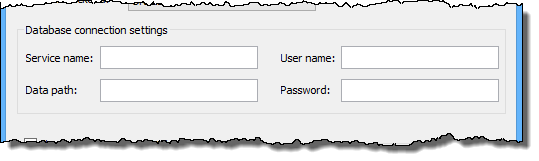
• Service name: the name of the service used to connect BDB Server to Oracle. This value is found in the tnsnames.ora file for your Oracle setup. This file can be viewed in a text editor application to acquire the setting.
• Data path: the file path that defines where on the file system to store tablespaces created in Oracle.
• User name and Password: the credentials used by BDB Server when connecting to Oracle. The credentials entered must belong to a user with system privileges in Oracle. This is commonly the "system" Oracle administrator account, however, another user with the same privileges can be used.
If you have installed Oracle as the backend database, you have the option of using the New BDB System User tool from the Server Setup Utility to create new administrator users. See Create a New Oracle Administrator User for more information. |
5. Enter values in each field as necessary.
Server IP Settings
This option is used if the server contains multiple IP addresses that can be used by both backend types. It is used to identify the IP address or the computer name of the Node Manager computer that will be used to connect to BDB Server across the network. This setting is only needed if the Node Manager computer has more than one network card or uses both an internal and an external IP address.
6. Enter values in each field as necessary.
7. [Optional] Select the ...multiple IP addresses check box.
8. [Optional] Select either Primary IP address or Host name.
9. [Optional] Enter the IP address of the network card or the computer name of the Node Manager computer.
10. Click OK.
When you click OK, the connection to the server will be tested using the specified settings.
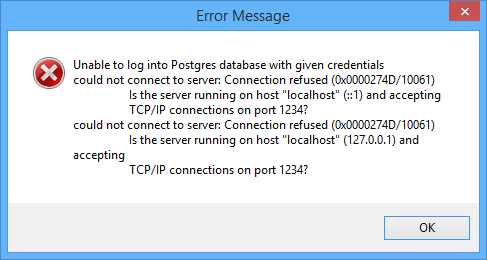
If a connection cannot be established using the settings entered in this dialog box, an error message will be displayed relevant to the setting causing the problem. For example, the following error is displayed if the password is incorrect,
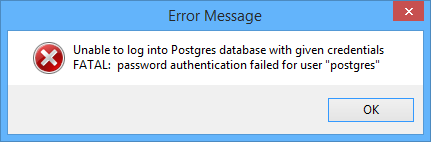
whereas this message would be displayed if the PostgreSQL port number is wrong.
In order for this test to be performed, you must have an RDBMS installed and running prior to setting up your server. |
If no errors are displayed, the server connection configuration setup is complete.
To connect to databases created for the node manager, you may need to edit the node locations using the Bathy Node Location Editor. See Edit Node Locations for more information.