Menu | Database > Queries > New Query |
Tool |
|
Pop-up | Queries > New Query |
Database data is displayed when a query is created and run on a connected database. For details on database connection requirements and the login process, see Connect to a Database. There are five possible methods for creating a database query:
• New Query: This command is accessible from the database menu and the pop-up menu for the database connection layer. This launches the Database Query dialog box and is explained in detail below.
• Queries: This command is accessible from the database menu and the pop-up menu for the database connection layer. This launches the Queries dialog box that is used to manage queries. See Queries for more information on this tool.
• By Attribute Value: This command is accessible from the Create menu and the pop-up menu for the database connection layer. It launches the Create by Attribute Value dialog box that is used to create a temporary query layer filtered on a specific attribute value. See Query by Attribute Value for more information on this tool.
• By Rule Wizard: This command is accessible from the Create menu and the pop-up menu for the database connection layer. This command launches the Rule Wizard that is used to create rule files. These files are then used to create temporary query layers based on the defined rule. See Query by Attribute Value for more information on filter layers and Query by Rule Wizard for more information on this tool.
• By Rule File: This command is accessible from the Create menu and the pop-up menu for the database connection layer. This command is used to apply an existing rule file to the database to create a temporary query layer based on the defined rule. See Query by Attribute Value for more information on filter layers and Query by Rule File for more information on this tool.
To create a database query:
1. In the Layers window, select a database layer.
Menu | Database > Queries > New Query |
Tool |
|
Pop-up | Queries > New Query |
2. Select the New Query command.
The Database Query dialog box is displayed.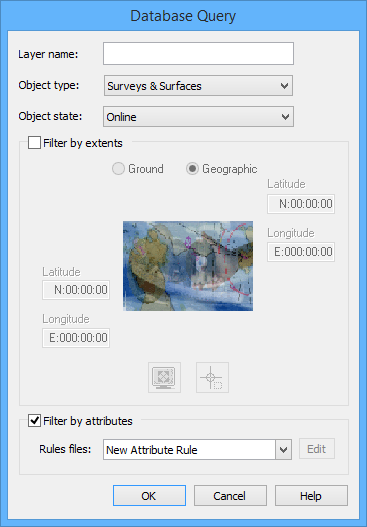
3. Type a Layer name.
Queries can be created on data from any combination of surfaces and surveys available on the selected database.
4. Select an Object type.
The state of the selected objects can be online or offline.
5. Select an Object state.
6. [Optional] Use an extent to filter the data returned by the query using one of the methods described in the following table.
The following table shows the methods available for defining spatial extents.
Method | Steps |
Enter Manually | 1. Select Ground or Geographic as the coordinate type. 2. Type a value in each of the Coordinate fields. You can use <Tab> to toggle between the entry fields. |
Display Window | 1. Select Ground or Geographic as the coordinate type. 2. Click the Display Window Extents tool. The Display window extents are copied into the Coordinate fields. |
Bounding Box | 1. Select Ground or Geographic as the coordinate type. 2. Click the Bounding Box tool. The cursor in the Display window changes to a crosshair. 3. Press and hold the mouse button, then drag the cursor across the Display window. A rectangular bounding box is drawn around the area you selected. This defines the extents. 4. If necessary, move the bounding box as follows: • Position the cursor inside the box. The cursor changes to a four-headed arrow. • Press and hold the mouse button and drag the box to a new location. 5. If necessary, resize the bounding box as follows: • Position the cursor on any of the box handles. The cursor changes to a two-headed arrow. • Press and hold the mouse button and drag the handle. The bounding box extents are copied into the Coordinate fields. |
7. [Optional] To filter the data returned by the query using a rules file, complete the following process:
a) Select the Filter by attributes option.
From the Rules files list, you can choose to create a new rule file, edit an existing rule file, or apply an existing rule file as is.
b) Select an option from the Rules files list.
If you chose to create or edit a rule file, the Rule Wizard is opened. See Query by Rule Wizard for information on creating and editing rule files. You can choose to export and/or import rule files from this wizard. To change the default location for rule files, update the Attribute Filter Rules folder option under the Files and Folders category of Tools > Options. Once you select the desired rule file, it is included in the query.
The query is now ready to be created.
8. To finish, click OK.
The query is created and run on the selected database.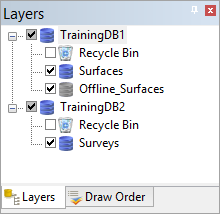
The database queries are saved and managed in an SQLite queries database and are available for future use with any other databases you connect to via the BASE Manager module.
• You can save or use an SQLite queries database stored in a location different from the default location by changing the value of the Database Query file option under the Files and Folders category of Tools > Options to the location of the desired database.
• To edit available queries in the selected queries database, see Queries.


