The Rule Wizard, for database queries, is displayed.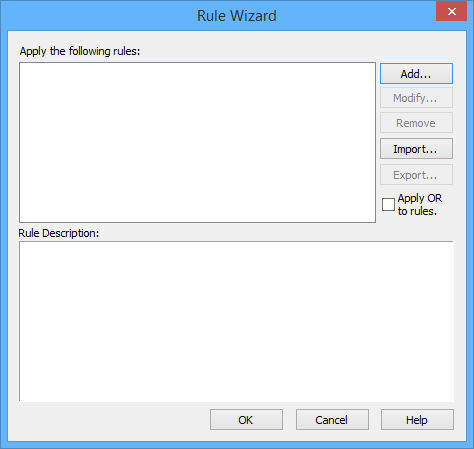
Filter layers can also be created using the following commands, both of which are accessible from the Create menu and the pop-up menu of the database connection layer:
• By Attribute Value, see Query by Attribute Value
• By Rule File, see Query by Rule File
Create a new rule file, or edit an existing rule file, for a database query.
1. Make sure that the Database Query dialog box is displayed and the Filter by attributes option is selected.
The Rules files field is enabled (not greyed out).
2. From the Rules files list do one of the following:
• to create a new rule, select the New Attribute Rule item; or,
• to edit an existing rule, select a rule file item and click Edit
The Rule Wizard, for database queries, is displayed.
3. To create a new rule, click Add.
4. [Optional] If you aare editing an existing rule, select the rule from the list and click Modify.
The first step of the Rule Wizard creation process is displayed.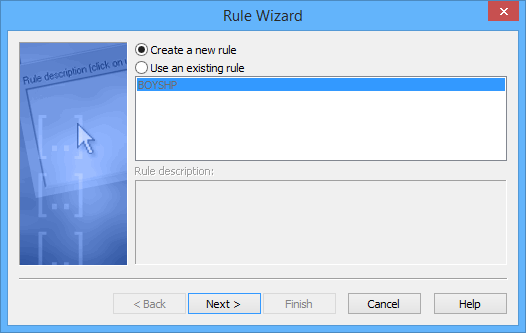
You can either create a new rule or use an existing rule as a template for the new rule. This step is only displayed if you clicked Add and rules have already been created and exported to the Attribute Filter Rules directory defined in the Files and Folders category of Tools > Options.
5. Select a rule option.
6. Click Next.
The Rule Conditions step is displayed.
7. Select one or more conditions.
Next, edit the inputs for the rule. For example, to include only CSAR Grid layers, select to include objects where the attribute srftyp is equal to 6.
8. For each condition selected, edit the inputs (underlined).
9. Click Next.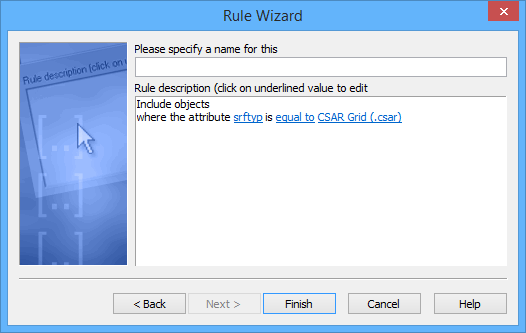
10. Type a name for the rule.
11. Click Finish.
The rule is now available in the list of rules.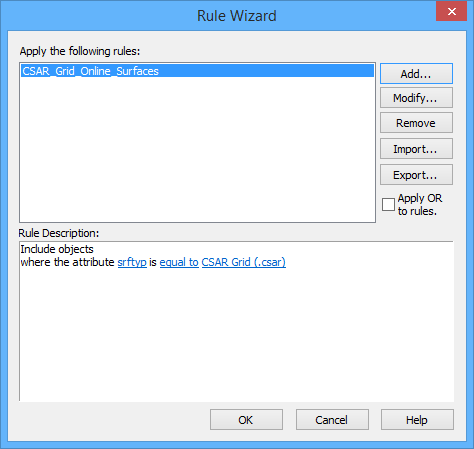
12. From the list of rules, select the rule to apply.
13. To finish, click OK.
The Rule Wizard closes and the Database Query dialog box is redisplayed.