Menu | Database > Connect to Database |
Tool |
|
To connect to a database:
1. Select the Connect to Database command.
Menu | Database > Connect to Database |
Tool |
|
The Login dialog box is displayed.
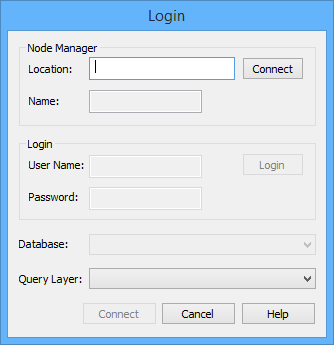
To connect to a database, you must first connect to the Node Manager (server) computer.
2. In the Location field, type the name or the IP address of the Node Manager computer.
3. Click Connect.
The name of the Node Manager is displayed. User accounts are assigned to databases on the Node Manager to identify which databases you can connect to. A user role is also assigned to the user account for each database, identifying the permissions the account has for the database. You now need to log in to the Node Manager to populate the Database list with the databases to which you have access.
4. Enter a valid User Name.
5. Enter a Password.
6. Click Login.
You are logged in to the selected Node Manager. You can now select any database running on the Node Manager that you have permission to access.
If there are no databases running on the selected Node Manager or there are none that you have permission to log into, a message to this effect will be displayed in the Database list.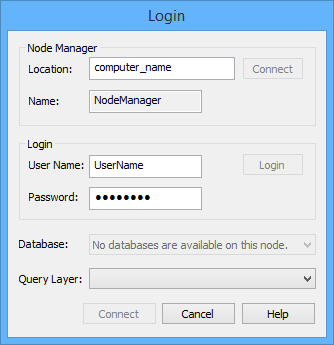
7. From Database, select a database.
All database queries performed on any of the databases available on the selected node manager will be saved and managed in an SQLite database for future use. These existing queries are available in, and can be selected from, the Query Layer list. When first connecting to a database you can use any available query to determine the data to display from the database. If you connect to a database without selecting a query, the connection is created (the database is listed in the Layers window) but no data is drawn in the Display window. For more information, see New Query.
8. [Optional] To use an available query, select a Query Layer option.
9. Click Connect.
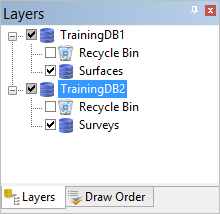
The database is connected and displayed in the Layers window. If you selected a query, it too is listed in the Layers window as a child layer of the database connection.
10. [Optional] To connect to additional databases, repeat steps 1 through 9.
A new layer is added to the Layers window for each database connection. You can connect to multiple databases in a session.