
Alarms are specific to a site and the data it is providing. To specify the conditions for an alarm you must select the site and dataset to be monitored.
1. Expand the Sites panel by clicking the Sites tab.
This tab contains the fields used to select the source data for the alarm. To simplify finding the correct site, you can filter the list of available sites by first choosing a site group.
2. [Optional] Click the Select a group field and choose a site group from the list.
3. Click the Select a site field and choose the relevant site from the list.
The Available Datasets and Computed Datasets lists will be populated with any datasets that have been created for the selected site.
4. Expand the Datasets drop-down lists to view the available datasets.
5. Select the dataset that you want to set a condition for and drag it to the top of the Start Condition list.
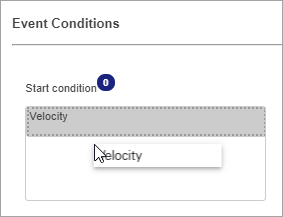
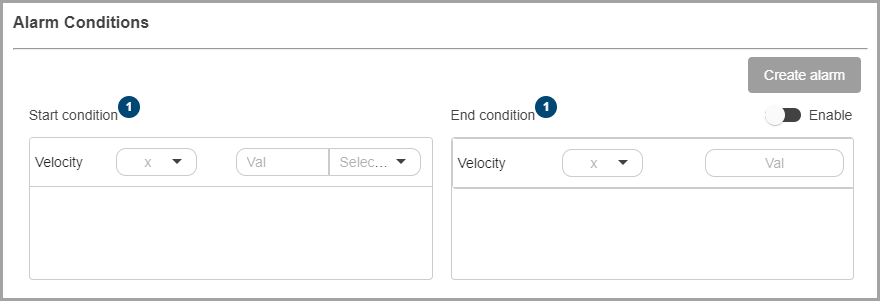
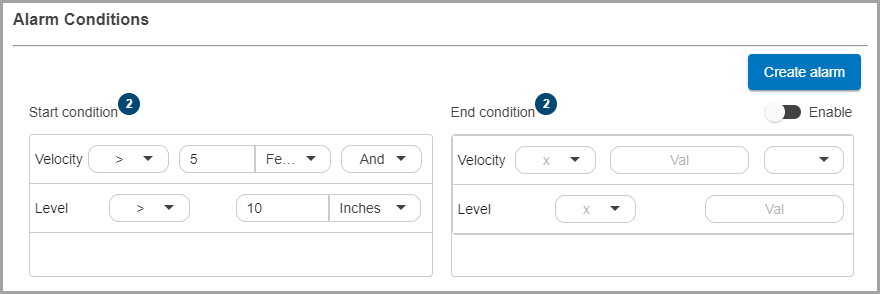
The same dataset is shown in both the Start condition and End condition fields, however, only the Start condition has an operator and value displayed. This is because, by default, the End condition is the opposite of the Start condition. If a different End condition is needed, the Enable button can be used to enable the fields in the End condition table.
6. Select a conditional operator by clicking the drop-down arrow inside the Start Condition field.
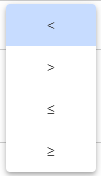
7. Click the Val field and type a value for the Start Condition.
8. Select a unit of measure for the value.
9. [Optional] Click Enable to enable editing the expression fields for the End condition.
10. [Optional] Select an operator and type a value for the End Condition.
The first condition is now complete.
11. Drag another dataset into the Start condition list to add a second condition. This can be either above or below the first condition.
Once a second dataset is added, an additional operator drop-down arrow is added to the first condition in the list. This list contains only boolean operators.
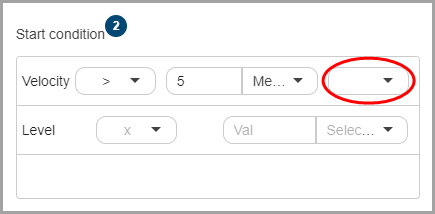
Boolean operators determine the relationship between conditions.
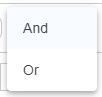
• And: Both conditions must be met to trigger or deactivate an alarm.
• Or: Either condition must be met to trigger or deactivate an alarm.
In the following example, an alarm can be triggered when Velocity goes above 5 feet per second and Level goes above 10 inches. The alarm condition ends when both fall below their End condition values.
12. Select a boolean operator for both the Start and End conditions.
13. Select a conditional operator for the second dataset.
14. Type the value for the second condition.
15. Select a unit of measure for the second condition.
The conditions are now complete.
16. Click Create Alarm.
You are returned to the Settings page and the new alarm is available in the list.
Related topics:
• Alarms