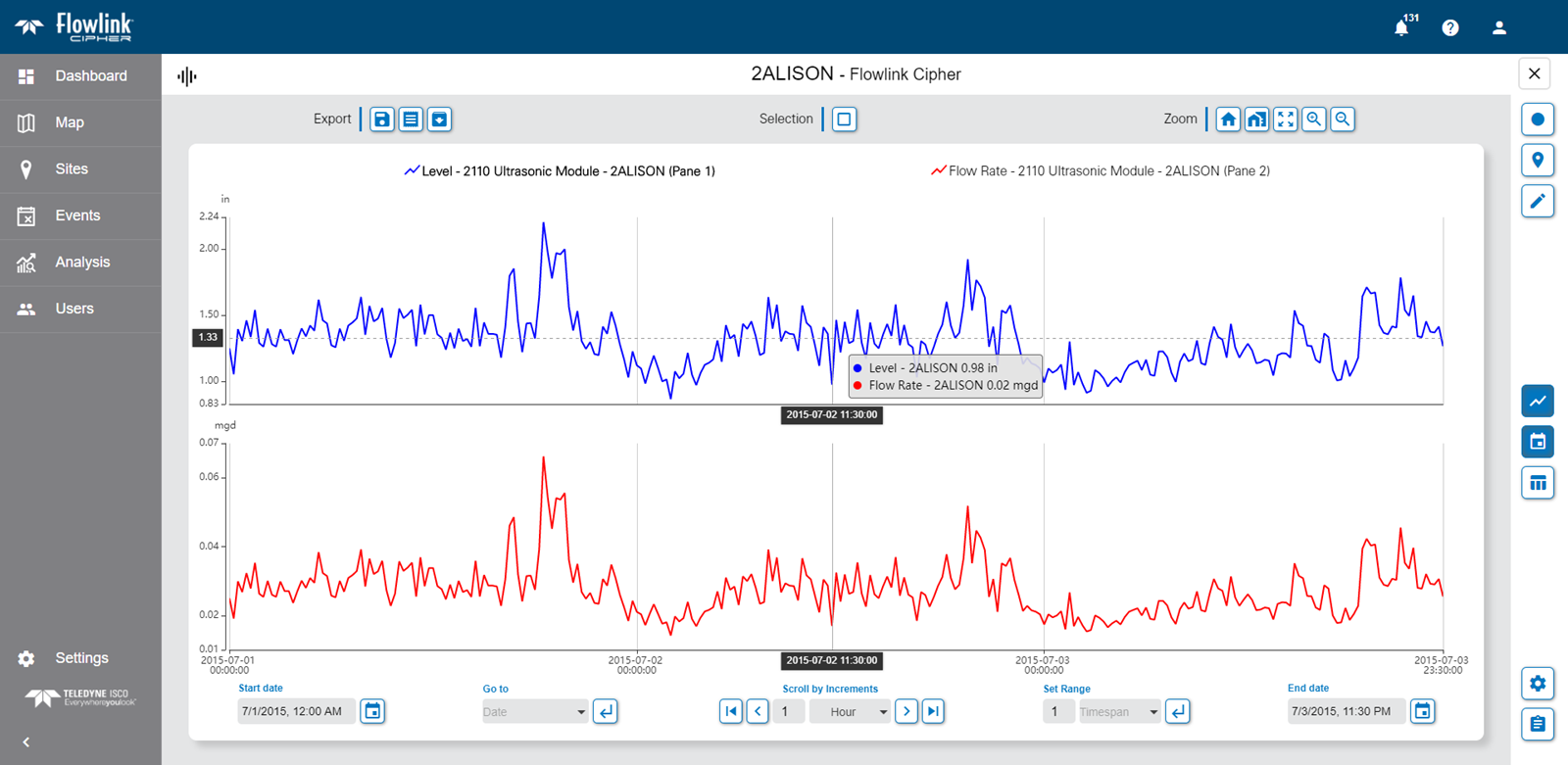
A graph view screen provides a full detailed view of a graph. This view is used to analyse and edit data in the graph.
When first displayed, the graph includes the full range of the data in the dataset.
Moving the mouse cursor over the data in the graph will cause a tooltip to be displayed. This tooltip displays the value for each visible dataset at the current location of the cursor.
The mouse can also be used to zoom and pan the view in the graph.
• To zoom using the mouse, position the mouse cursor in the graph area and scroll the middle mouse wheel forward or backward. The graph display will zoom in or out respectively.
• To pan using the mouse, click and hold the left mouse button anywhere in the graph area. With the button still pressed, drag the cursor to the left or right to pan the graph in that direction.
The axis values and labels for the graph are populated according to the type of graph and the data being displayed.
• For a time series graph, there is an X-axis at the bottom of the graph that is populated with the time period for the data and a Y-axis on the left of the graph containing the data values of the dataset presented in the graph. If the graph contains multiple datasets, additional Y-axis labels will be added on the right of the graph, one for each extra dataset. If the additional datasets use the same unit of measure, they can share a single Y-axis on the right.
• For a scatter plot graph, the points in the graph do not follow a linear time span, so each axis represents one of the datasets in the graph. The X-axis represents the data from the first dataset added to the graph when the graph was created in the Configure Graph page. The Y-axis represents the data from the second dataset added to the graph.
The legend at the top of the graph can be used to set the active dataset. When selecting and/or editing data, the active dataset is the only dataset that will be affected. To set a dataset as active, click the dataset name in the legend. The name of the active dataset will be displayed in bold text.

The legend can also be used to edit the graph settings. Double-clicking an item in the legend will launch the Configure Graph page. On this page, the graph and the display settings for the datasets can be changed. See Configure Graph for more information on this page.
Points in the dataset can be selected by clicking on them in the graph. To select multiple points, press and hold either the Shift key or the Ctrl key while clicking points in the graph. Alternatively, the Selection tool  can be enabled. When this tool is enabled, the mouse can be used to draw a rectangle around an area of the graph, selecting all points within the bounds of the area.
The graph view provides several toolbars for adjusting the graph and its data. These tools are explained in the sections below.
Sidebar Tools
The graph view provides a sidebar of tools at the right of the graph. These tools can be used to toggle data on and off on the page or to edit the graph and its data. These tools are explained below.
Button | Description |
|---|---|
| Toggle Original Data Display the original data for any points that have been edited, resulting in both the edited data and the original data being displayed. When enabled, the Y-axis values are updated to reflect the additional data values, if necessary. Original data is only displayed for the currently active dataset. Changing the active dataset while this option is enabled will automatically update the original data in the graph. |
| Toggle Alarms/Events Display indicators in the graph for any events that have been created for the data. When enabled, a red icon will be added to the display for each event found. Hovering the mouse cursor over an event indicator will display a tooltip with details about the event, such as the start and end times for the event. |
| Edit Data Enable or disable edit mode. When enabled, the data in the graph can be edited. When edit mode is enabled, an Edit toolbar is added to the top of the graph. Only users with the Editor role can enable edit mode. See Editing Graph Data for more information on this functionality. |
| Toggle Graph Turn on/off the graph display. If turned off, the graph is removed from the page completely. Data from the graph can still be viewed in the data table. |
| Toggle Date Toolbar Display the Date toolbar at the bottom of the graph. This toolbar provides controls for adjusting the range of data displayed in the graph according to time and date values. |
| Toggle Data Table Display the graph data in a table format. If both the graph and the data table are enabled, the table will be displayed below the graph. Clicking a row in the table selects that point. If the graph display is enabled, the point will be selected in the graph as well. The Up and Down Arrow keys on the keyboard can be used to change the selection in the table. Holding the Ctrl key while selecting points will select multiple discontinuous points. Holding the Shift key while selecting points will select all points in a continuous range. The Esc key can be used to clear the selection. |
| Edit Graph Launch the Configure Graph page to edit the settings used to create the graph. Graphs can only be edited by the user that created them; if a public graph is open, this tool cannot be used. |
| Calculate New Dataset Launch the Compute Datasets page and create a new computed dataset to display in the graph. See Compute Dataset for more information on this functionality. |
Navigation Tools
The controls below the graph can be used to adjust the range of data displayed in the graph based on time and date settings. These controls are explained in the table below.
Button | Description |
|---|---|
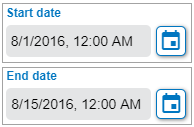
| Start Date/End Date The Start Date and End Date controls are used to define the date range to be displayed in the graph. 1. Click the calendar icon in the control to launch a calendar widget. 2. Use the arrows and drop-down list at the top of the calendar to select the relevant month and year. 3. Click in the calendar to select the desired date. 4. Adjust the time settings if needed. 5. Click Set. |
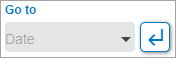
| Go To The Go To control is used to limit the graph to a specific length of time, such as the current day, the previous day, the current week, the current month, etc. When a selection is made, the Start date, End date and Set Range controls are automatically updated to reflect the length of time selected. 1. Click in the field to display a list of available options. 2. Select the desired option. 3. Click the Go To button |
| Scroll by Increments The Scroll by Increments control is used to scroll through the data in the graph, changing the display by a specific time increment with each scroll. Click in the increment units field to display a list of available options. Select an option from the list. Enter the span to be used for the selected unit, such as 2 to scroll by an increment of 2 days. Once an increment has been defined, the Go Back The Go to Start |
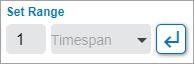
| Set Range The Set Range control is used to define the range of time to be displayed in the graph based on a timespan. When a timespan is selected (Hour, Day, Week, Month, Year), the graph will begin at the current Start date timestamp and will end at the selected range amount. Multiples of the selected range amount are possible by entering a number in the Span field. 1. Select a Timespan from the list. 2. Enter a number in the Span field. 3. Click the Set Range button |
Zoom Tools
The tools in the Zoom toolbar can be used to focus on a particular section of the data. This is helpful when analyzing and editing the data. See Editing Graph Data for information on editing the data. The zoom tools are explained in the table below.
Button | Keyboard Shortcut | Description |
|---|---|---|
| -- | Go Home Zoom and center the graph to the Home extents defined using the Set Home function. If Set Home has not been applied, attempting to use this function will display an error. |
| H | Set Home Save the current view of the graph as the Home view. This saves the current zoom level and date range of the graph display, allowing these settings to be reapplied at anytime to return to this exact view through the Go Home function. 1. Adjust the graph display as needed. 2. Click Set Home or press the H key on the keyboard. |
| A | Full Extent Automatically adjust the graph display to include the full extent of the data available for the current graph. |
| Z | Zoom In Enable or disable the Zoom In tool. When enabled, selecting an area of the graph will zoom to the selected area. 1. Click the Zoom In button to enable the functionality. 2. Click and drag the left mouse button to draw a box over the area to be selected. 3. Release the mouse button when the box covers the desired area. |
| X | Zoom Out Enable or disable the Zoom Out functionality. When enabled, clicking the graph will cause the display to zoom out. |
Export Tools
The Export tools allow the graph and/or data table to be exported as a report in various formats. These tools are explained below.
Button | Description |
|---|---|
| Export Data to CSV Export the data currently displayed in the graph to a CSV (comma-separated value) file. |
| Export Report to PDF Generate a PDF report of the data in the current graph. The resulting PDF will contain an image of the graph, as well as two tables of data: one providing the highest, lowest and average values of the data, and one providing all timestamped data values. Note: Data is only exported for the date range currently displayed in the graph. Any data outside of that range will not be included in the PDF. |
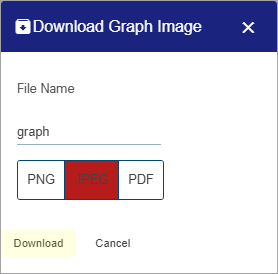
| Download Image Download an image of the current graph display. The image can be saved as a PNG, JPEG or PDF format. 1. Click the Download Image button. The Download Graph Image dialog box is displayed.
2. Enter a File Name for the resulting file. 3. Select the output format. 4. Click Download. The Windows Save As dialog box is displayed. 5. Navigate to the desired output location and click Save. The image is created according to the specified settings. |
Editing Graph Data
Users with the Editor role can edit the data in a graph to remove spikes and fill gaps in the data. Editing is done by applying mathematical algorithms to adjust point values or by removing points.
To edit data, edit mode must be enabled.
1. Click the Edit Data button  to enable edit mode.
When edit mode is enabled, an Edit toolbar is added above the graph. These tools are explained below:
Button | Description |
|---|---|
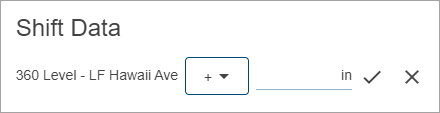
| Shift Data This tool is used to adjust the values of all selected points using one of three possible methods. The method used is determined by the mathematical operator selected in the Shift Data drop-down list: • Constant value (=): Change all selected data points to a single value • Fixed offset (+/-): Increase or decrease the selected points by a fixed amount • Multiply by constant value (x/÷): Multiply or divide the selected points by a specified constant value 1. Set the relevant dataset to the active dataset in the legend. 2. Select the points to be shifted. 3. Click the Shift Data button. The Shift Data dialog box is displayed.
4. Select an operator from the drop-down list. 5. Enter a value in the field or use the up and down arrow buttons to select a value. 6. Click the check mark button to apply the shift. |
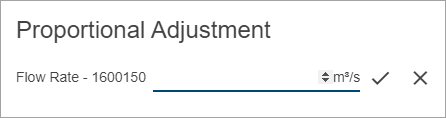
| Proportional Adjustment This tool is used to distribute a value adjustment proportionately over selected points. The proportion of the adjustment applied to each point is determined by dividing the adjustment by the number of selected points. Proportional adjustments can be positive or negative to increase or decrease point values. As adjustments are applied across the selection, the proportion allotted will increase with each point. For example, a proportional level adjustment of 1ft over three points would adjust the first point by 0.33ft, the second by 0.67ft, and the third by 1.0ft. An adjustment of 1ft distributed over five points would adjust the first point by 0.2ft, the second by 0.4ft, the third by 0.6ft, etc. Proportional adjustments can also be used to edit readings generated by a constant adjustment. For example, if points with no value have been adjusted to constant values using a constant adjustment, a proportional adjustment can then be applied to smooth the transition between the readings that preceded and followed those adjusted points. 1. Set the relevant dataset to the active dataset in the legend. 2. Select the points to be shifted. 3. Click the Proportional Adjustment button. The Proportional Adjustment dialog box is displayed.
4. Enter a value in the field or use the up and down arrow buttons to select a value. 5. Click the check mark button to apply the adjustment. |
| Auto Correct This tool is used to interpolate data values to replace incorrect values at timestamps in the data stream. Incorrect values can occur if the monitoring device recorded a spike as real data, or if data was not collected for a timestamp but the device automatically attempted to interpolate the missing data. This process will use linear interpolation to calculate an accurate value for a selected point using the values of neighboring points. 1. Set the relevant dataset to the active dataset in the legend. 2. Select the points to be shifted. 3. Click the Auto Correct button. |
| Reject Points Flag points as rejected. Rejected points will not be displayed in a graph and will not be included in any data calculations. Rejected points can be viewed by enabling the Original Data toggle in the sidebar tools. 1. Set the relevant dataset to the active dataset in the legend. 2. Select the points to be shifted. 3. Click the Reject Points button. |
| Undo Edits Undo the last edit applied to the dataset. 1. Click the Undo Edits button. |
| Save Edits Save all edits made to the graph. Once edits have been saved, they cannot be undone. 1. Click the Save Edits button. |
| Cancel Edits Undo all edits that have been applied to the dataset. If edits have been saved, this will only undo edits made since the data was saved. 1. Click the Cancel Edits button. |
2. Apply the necessary edits.
3. Click the Save Edits button to save the changes.
4. Click the Edit Data button to turn off edit mode.
Keyboard Shortcuts
A number of keyboard shortcuts are available when working in a graph view page. Different shortcuts are available for the main graph view and the table view.
Graph View Shortcuts:
Keyboard | Action |
|---|---|
z | Enable/Disable Zoom In |
x | Enable//Disable Zoom Out |
Esc | Disable Zoom In / Zoom Out |
a | Zoom to full extent |
h | Set Home |
s | Enable/Disable Select points by rectangle |
↓ | Move point selection forward in time |
↑ | Move point selection backwards in time |
Esc | Discard selection |
Shift+click | Select more points - continuous |
Ctrl+click | Select more points - discontinuous |
Table View Shortcuts
Keyboard | Action |
|---|---|
↓ | Move table selection forward in time |
↑ | Move table selection backwards in time |
Esc | Discard selection |
Shift+click | Select more rows in table - continuous |
Ctrl+click | Select more rows in table - discontinuous |


 in the control.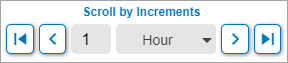
 and
and  can be used to scroll backward and forward according to that increment.
  and
and  buttons can be used to jump to the beginning or end of the data available in the dataset currently selected in the legend.