Each user account on a server is assigned:
• a unique username and password
• privileges to the node manager
• roles for the databases on the server
In order to function properly, the username and password for each account must be unique and they must meet specific naming restrictions for both BDB and the RDBMS in use. For details on the restrictions, refer to Naming Restrictions.
Node manager privileges are used to define what a user can or cannot do in the Administration Tools. The available node manager privileges are:
Properties | Description |
|---|---|
Login | The user can log into the Node Manager through the BDB Administration Tools as well as connect to databases through BASE Editor. This option is selected by default. |
Start Database | The user has permission to start a database. |
Stop Database | The user has permission to stop a database. |
Backup Database | The user can perform a backup of a database. |
Restore Database | The user can restore a backup copy of a database. |
Create Database | The user can create a new database. |
Register Database | The user can add an existing (but not yet registered) database to the Node Manager. |
Unregister Database | The user can remove a database from the list of available databases on the Node Manager. |
Manage Users | The user has permission to create, edit and delete user accounts. Note: Users with this permission cannot edit their own privileges or database roles, nor can they delete their own account. |
The user roles define what a user can or cannot do with database objects and their associated data when connected to a database in BASE Editor. There are eight predefined user roles available:
Role | Description |
|---|---|
Browse Database | Users have read-only access to the database catalogue and database objects, which allows browsing and retrieving of the objects. |
Create Objects | Users can create feature objects on a database object layer or import feature objects from an existing feature layer into a database object layer. This only adds a geometry and attributes; no coverage data is involved. Users with this role also have Update. |
Update Objects | Users can edit the attributes of database objects. |
Delete Objects | Users can delete database objects. |
Purge Database | Users can delete database objects and empty the database recycle bin, which purges the database immediately. See Purging Database Objects for information on purging a database. |
Source Data Administrator | Users can perform tasks in BASE Editor involving the source data in a database object, such as adding coverages to a database, replacing the coverage associated with a database object and combining coverages in the database. Users with this role also have Create, Update and Delete. |
Catalogue Administrator | Users can upload custom catalogue files to a database using the BDB Administration Tools. See Catalogue Maintenance for more information. Users with this role MUST have the Start Database and Stop Database node manager privileges assigned since uploading a catalogue requires restarting the database. |
System Administrator | Users with this role have all available permissions. This role is required if the user will be editing user accounts. This role also allows access to some database system tables. |
Certain roles are dependent on other roles, for example, Browse Database is required for all other roles. If a role is dependent on another role, and the dependent role is removed from the user, the higher role will also be removed. For example, removing Update from a user with Create Objects will also remove the Create role.
The table below provides a list of some common tasks and the roles needed to perform them.
| Browse | Create Objects | Update Objects | Delete Objects | Purge Database | Source Data Admin | Catalogue Admin | System Admin |
|---|---|---|---|---|---|---|---|---|
Connect to a database | x | x | x | x | x | x | x | x |
Create database queries | x | x | x | x | x | x | x | x |
Select data from a database layer | x | x | x | x | x | x | x | x |
Open selected coverages from a database | x | x | x | x | x | x | x | x |
Create/Import database objects | x | x | x | |||||
Edit database objects (attributes) | x | x | x | x | ||||
Delete database objects | x | x | x | x | ||||
Empty database recycle bin | x | x | ||||||
Add coverages to a database | x | x | ||||||
Associate coverages to database objects | x | x | ||||||
Combine coverages in a database | x | x | ||||||
Export/extract coverages from a database | x | x | x | x | x | x | x | x |
Download catalogues | x | x | x | x | x | x | x | x |
Upload catalogues | x | x | ||||||
Download portrayal files | x | x | x | x | x | x | x | x |
Upload portrayal files | x | x | x | |||||
Create user accounts | x | |||||||
Edit/delete user accounts | x |
The RDBMS will check a user’s role each time the user attempts to perform a command using data on a database. If the database coverage has been opened locally and will be saved locally, no special permissions are required to run the various commands in BASE Editor, such as contouring.
The system does not allow for custom roles to be created or for the security settings of existing roles to be changed. The system administrator can manually configure a user’s default capabilities in the support files, but this is not recommended without the assistance of a CARIS Customer Service personnel.
Interface
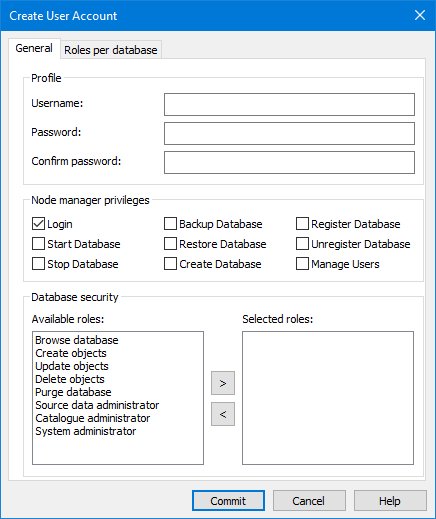
The Add and Edit commands use the Create/Edit User Account dialog boxes. These dialog boxes contain two tabs, General and Roles per database, both of which are explained below.
• General: This tab is used to define a users credentials, their privileges in the Administration Tools and the database roles that can be assigned to them.
Option | Description | |
|---|---|---|
Profile | Username | The username to assign to the user account. If a user is created with an invalid name, an error message will be displayed when you attempt to commit the new account to the server. A user name cannot be changed once the account has been committed to the node manager. |
Password | The password to assign to the user account. This field can be used to create the password for a new account, or edit the password for an existing account. It is suggested that passwords be changed when users are disconnected from the system. This ensures that the updated credentials are propagated throughout the system. | |
Confirm password | The password to assign to the account, re-entered to ensure that no errors were introduced when entering the password. | |
Node manager privileges | The node manager privileges to assign to the user account. 1. Click to populate the check box for each privilege you want to assign. | |
Database security | The user roles that can be assigned to a user for each database to which they have access. A set of roles is assigned to a user and then from the selected roles, different roles can be assigned for different databases. If you are editing an existing user account, the roles assigned to that user will be displayed in the Selected roles list when the Edit User Account dialog box is displayed. T 1. Select the desired role in the Available roles list. 2. Click the Right-Arrow button to move the role to the Selected roles list. The Left-Arrow button can be used to move roles from the Selected roles list back to the Available roles list. If the selected role is dependent on other roles, those roles will also be added to the Selected roles list. | |
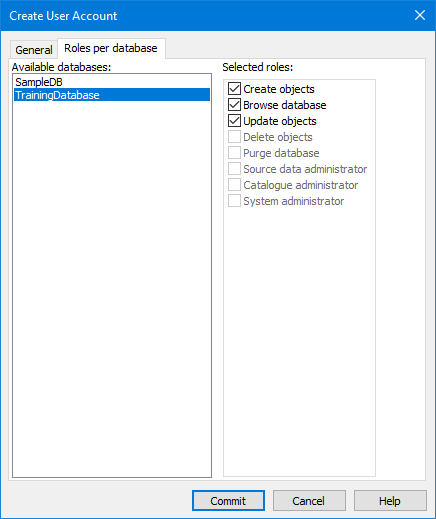
• Roles per database: This tab is used to assign roles to a user for each database to which they have access.
Option | Description |
|---|---|
Available databases | All databases that are currently started on the node manager. Different roles can be assigned to each database in the list. |
Selected roles | The roles assigned to a user for the database currently selected in the Available databases list. Only roles selected in the General tab are enabled to be selected in this tab. |
Procedure: Create a New User
1. Double-click the User Management tool.
The User Management table is displayed in the main window.
2. Click Add.
The Create User Account dialog box is displayed.
3. Type a Username.
Usernames must be unique. If you enter a username that is already in use on the node manager, an error message will be displayed when you click Commit. |
4. Type a Password.
5. Confirm (retype) the password.
6. Click the desired Node manager privileges check boxes.
7. Select the roles to be populated in the Roles per database tab.
8. Select the Roles per database tab.
The tab is displayed, populated with any databases that have been started and the roles that were set as Selected in the General tab.
9. Select a database in the Available databases list.
10. Click the check box of each role to be assigned for the selected database.
11. Repeat steps 9 and 10 for additional databases as needed.
12. Click Commit to create and save the new account.
The user account is created. All settings and roles defined for the user are committed to the node manager.
Procedure: Edit a User Account
1. Double-click the User Management tool.
The User Management table is displayed in the main window.
2. Select a user.
3. Click Edit.
The Edit User Account dialog box is displayed.
If the "dba" system administrator user is selected, the only setting that can be changed is the password; the Properties fields are disabled. For security reasons, it is recommended that you update the password from the default value. |
4. To change the password, type a new value in the Password and Confirm password fields.
5. To change the Node manager privileges, select or clear the check boxes in the list.
6. Add/remove user roles to/from the user account by selecting them in the relevant list and clicking the arrow buttons.
7. Click Commit.
The user account information is updated and committed to the node manager. You are returned to the main application window.