The Download Catalogue command allows you to save the pool and profile files for the current database to a specific directory. These files can be opened and customized, then applied to appropriate databases.
To download catalogue files:
1. Double-click the Database Properties tool to view the properties tables.
2. Select a database from the Available Databases list.
3. Select the Download Catalogue command.
Menu | Database > Download Catalogue |
Pop-up | Available Databases > selected database > Download Catalogue |
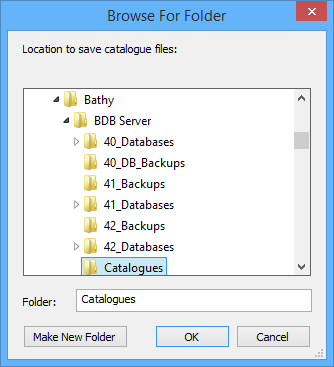
The Browse for Folder dialog box is displayed.
4. Select the directory in which to save the files and click OK.
Two files are created in the specified location, a pool file and a profile file:
• <cataloguename>Pool.xml: This file contains user definable attributes and attribute values. These attribute definitions can be changed and applied to a database.
• <cataloguename>Profile.xml: This file contains the user definable profile that enables attributes and attribute values, and defines mandatory attributes, associated controls, and relationships.
The names of these files will depend on the catalogue assigned to the database. Each file will also have the database name included as a prefix in the file name. For example, the Global_DB database, using the default BDB Server catalogue, would generate a file named "Global_DB_BathyServerPool.xml".
These files can be opened in a text editor and customized, then uploaded to the appropriate database.
See Upload Catalogue for information on uploading catalogues.