 CARIS HPD Source Editor
 CARIS HPD Source Editor
CARIS HPD Product Editor
Menu |
|
In the Feature Palette, you can associate features with other features and digitize them as though they were a single feature.The associated features are called accessories.
For example, rather than digitizing a buoy and light separately at the same location, you can associate a buoy with a light in the Feature Palette and digitize the combined feature in a single operation.
Related commands
• • • • • • | • • • • • • |
Interface
Option | Description |
|---|---|
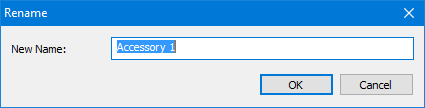
New Name | A name for the new accessory. Type in the box. |
Procedure
1. Select a feature in the palette.
2. Select Add Accessories command.
The Rename dialog box is displayed.
3. Type a new name and click OK.
A new tab with the new name is displayed in the Feature Palette. You can use existing features or create a new one:
Feature Selection | Description |
|---|---|
From layer | 1. Select the feature in the layer. 2. In the Feature Palette, select Tools > Load > From Selection. |
From catalogue | 1. Select the feature icon in the catalogue. 2. Right-click and select Copy from the pop-up menu. 3. In the Accessory tab, select Paste. |
New feature | 1. Select the Tools > New > Feature command. See Create Custom Features for more information. |
The feature is displayed in the Accessory tab.
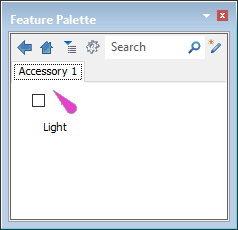
By default, you can choose to digitize the accessory from the accessory tab.
4. Enable the check box to digitize the accessory with the feature.
If you want the accessory to always be associated with the feature:
5. Right-click and select Properties from the pop-up menu.
6. In the Feature Template Properties dialog box, enable Always selected and click OK.
The check box on the icon is now enabled and cannot be disabled.
This feature is now associated with the feature that was initially selected. The original feature is now displayed with a + icon.
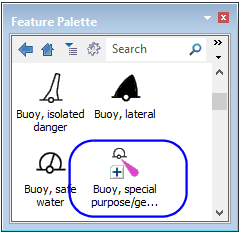
When the feature is selected, the two features are shown in the Feature Preview window as joined.

You can digitize the combined feature or save it in a template group.
 > Add Accessories (Feature Palette)