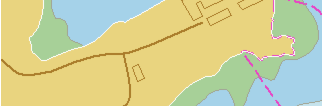
The cursor changes (  ).
).
Pop-up | Edit Line > Trim/Extend |
Shorten or lengthen an edge of a selected line. You can start the trim/extend operation from anywhere along the edge, not necessarily at a vertex.
Related commands:
Procedure: Trim edge
1. Select the feature.
2. Select the Edit Mode command.
3. Select the Trim/Extend an Edge command.
The cursor changes ( ).
By default, trimming removes the shorter portion of the edge. To keep the short portion, press and hold <Shift> while trimming the edge. You can also use snap to trim an edge to an existing vertex. See Snap.
4. [Optional] Press and hold <Shift> to retain the short edge.
5. Click the vertex where you want to trim the edge.
The display is refreshed. The portion of the edge that is removed is visible but not highlighted.
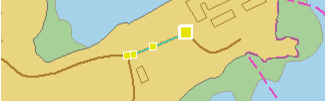
6. Select the Edit Mode command a second time.
7. Refresh the display.
The new trimmed edge is displayed.
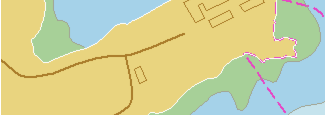
Procedure: Extend edge
When an edge is extended, the direction of the extension is determined by the last two vertices. You can use snap to extend an edge to an existing vertex. See Snap.
1. Select the feature.
2. Select the Edit Mode command.
3. Select the Trim/Extend an Edge command.
4. Position the cursor over the end point of the edge.
5. Press and hold the mouse button and drag the point to a new location.
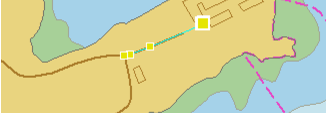
6. Select the Edit Mode command a second time.
7. Refresh the display.
The extended edge is drawn in the Display window.