Tool |
|
Pop-up | Edit Line > Merge |
Tool |
|
Pop-up | Edit Line > Merge |
Merge two or more edges in a feature into a single edge.
This command works on selected nodes in a single feature. It is only available when Edit Mode is active.
Nodes are the divisions between edges. Nodes are indicated by large yellow squares. Ordinary vertices are indicated by small yellow squares.
Related commands:
Procedure
1. Select a line or area.
2. Select the Edit Mode command.
3. Select one or more nodes.
To select multiple nodes, press and hold <Ctrl> and click once on each node. To select a range of nodes, press and hold <Shift> and click on two nodes. All vertices between the two will be selected. |
If you also select vertices, only the nodes will be modified.
4. Select the Merge Edges command.
The edges are joined. The nodes are converted to vertices.
Example
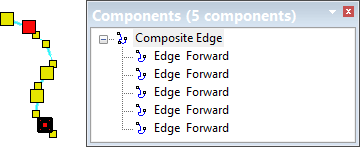
In this example, the line being edited has four nodes (five edges). Two of them are selected.
After Merge Edges is applied, the selected nodes are converted to vertices and the line has only two nodes (three edges).
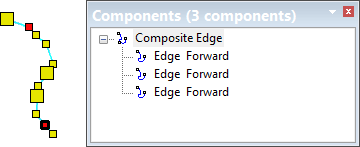
The edges are listed in the Components window.
