Menu | Start menu > BASE Editor <version> Command Prompt |
Tool |
|
This is a command line tool that allows users to load survey and surface objects into BDB Server. When loading a surface, the following formats are supported:
• Bathymetry Attributed Grids (BAG)
• CARIS Spatial Archives (CSAR)
• ESRI ASCII Grids (ASC)
• ESRI Binary Grids (ADF)
• ESRI FLT Grids (FLT)
• GeoTIFF Surfaces (TIFF, TIF)
• Hydrographic Navigation Surfaces (HNS)
• IGA Surfaces (IGA)
• USGS ASCII Grids (DEM)
There are four possible methods for populating the metadata for the resulting surface:
• surfacename.object.xml file: This is a metadata file generated automatically if the surface being loaded has previously been exported from another database. To populate attributes with this method, the /af parameter must be define.
• attribute plugin: An attribute plugin can be used to retrieve metadata from an external source and map the values to the attributes of the surface in the database. Any registered plugin that retrieves attribute data can be used. For convenience, a Simple Attribute Plugin can be downloaded from the CARIS Online Customer Services Web site and installed on your machine. To populate attributes with this method, the /guid parameter must be defined.
• style sheet: A style sheet is an XML, XSL or XSLT file in a database that maps CSAR metadata to the attributes of any surface added to the database. Style sheets can be downloaded, customized and uploaded back to a database using the Bathy DataBASE Administration Tools. Attribute values in these files will overwrite any values populated through a metadata object.xml file or an attribute plugin.
• manual entry: The /o (OBJNAM) and /d (description) parameters can be used to manually define the name and description to assign to a new surfac object during the load process. Values defined in the command line will overwrite all other population methods.
System attributes are automatically populated by the application. These attributes are read-only and cannot be changed using any of the attribute population methods. |
This tool provides functions similar to the Add Survey and Add Surface to Database tools found in BASE Manager. See Add Survey and Add Surface to Database for more information on the functionality and the various attribute mapping methods.
The following is the command line format for the BathyDB tool:
BathyDBServerLoader [/h] /l <str> /s <str> [/o <str>] [/d <str>] [/cs] [/rs] [/min <str>] [/max <str>] [/id <str>] [/f <str>] [/guid <str>] [/af] [/re] [/st]
Parameters in square brackets (“[...]”) are optional. |
The following table describes the parameters available for this tool.
Parameter | Description |
/h | Display the help message (command format and descriptions of the available parameters) |
/l | The credentials used to login to the Node Manager. They must be entered in the format of: • username/password, or • username/password@hostname, where hostname is the name or IP address of the computer on which BDB Server and the Node Manager service are installed and running. When hostname is not specified, it is assumed to be the local machine. |
/s | The name of the database to which data is to be loaded. |
/o | The name to be assigned to the new object. This value will be populated in the OBJNAM attribute of the surfac object. If this parameter is not specified, the filename will be used by default. |
/d | A brief description of the new object. This information will be populated in the INFORM attribute of the surfac object. |
/cs | Create a new survey in the specified database |
/rs | Register a surface to the specified database. This parameter is required for all surfaces, regardless of whether it is being registered to a survey or just the database. |
/min | Specify the minimum latitude and minimum longitude of the survey extents (required if you use the /cs parameter) |
/max | Specify the maximum latitude and maximum longitude of the survey extents (required if you use the /cs parameter) |
/id | Specify the FOID of the survey on which to register the surface (Add Surface to Survey) |
/f | Specify the name and location of the surface file to be loaded into the database. A wildcard can be used to load multiple files of the same format from the same location. The wildcard is used in place of the filename, however, an extension is still required (for example, *.csar). |
/guid | Specify the identifier of the registered plugin program that is being used to retrieve values for the attributes of the objects being loaded, if a plugin is being used. See Importing with an Attribute Plugin for more information on using this simple plugin. To use the simple plugin provided with BASE Manager, enter: |
/af | Specify this option to automatically populate surfac object attributes from an associated XML file. The XML file, generated when a CSAR dataset is exported from a database, must use the same naming convention as the associated CSAR file. |
/re | Specify this option to search all subfolders of the path defined by /f for all files of type defined in /f. All files found will be loaded into the database. |
/st | Specify this option to perform strict validation on attribute values when loading metadata. If any of the surfaces being loaded contain attributes that do not exist in the catalogue, or contain attribute values that do not conform to the data types specified for the attributes, the load process will skip these surfaces and display an error message. See Importing with an Attribute Plugin for more information on this parameter. |
/ao | Specify this option to add the original dataset to the new surface as an attachment if the original data was in a format other than CSAR. Original files are not added by default. See Attachments for information on attachments. |
To use this command:
1. Launch the BASE Editor <version> Command Prompt window.
Menu | Start menu > BASE Editor <version> Command Prompt |
Tool |
|
2. Type “BathyDBServerLoader” followed by the appropriate parameters.
3. To finish, press <Enter>.
If you are loading multiple objects and the loader encounters an invalid file, it will display an error for that file and move on to the next file. |
If all mandatory attributes are defined, the surfac object is created and the CSAR file is loaded into it. The following message will be displayed in the command console.
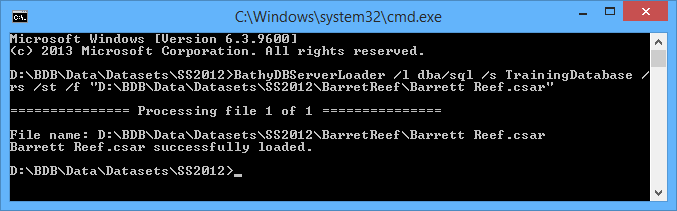
If a surface cannot be loaded for any reason, an error message will be displayed and the problematic surface will be skipped by the load process.
If the CSAR file is corrupt, an error message will be displayed in the console. The example below would be displayed if the surface’s archive file (*.csar0) were missing.

If any of the attributes defined as mandatory in the database catalogue are missing from the surface metadata, the following message will be displayed in the command console.
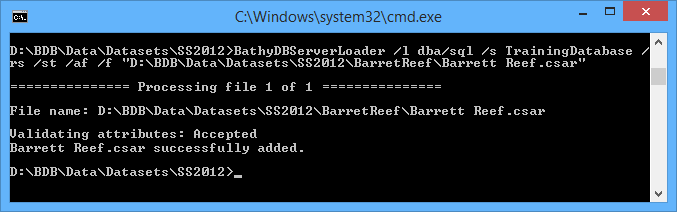
If you call to an external metadata source, the attributes and attribute values of the surface will be validated against the database catalogue during the load. The output message will indicate whether validation passed or failed. In the example below, attribute validation was successful (Accepted).
 o
o
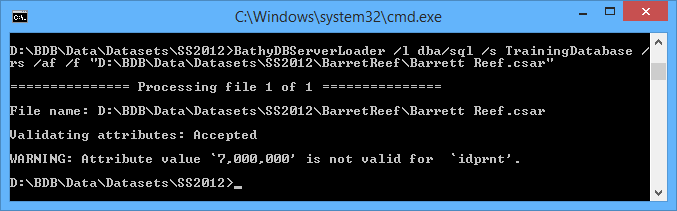
If you call to an external metadata source and the attributes do not match the catalogue, a warning will be displayed explaining the problematic value(s). In this situation, the surface will still be loaded to the database, but without the problematic attributes.
Below are two examples of successful loads with failed attribute values:
• The surface contains attributes that are not present in the catalogue.

• The attribute value of an attribute in the surface is not supported in the catalogue.
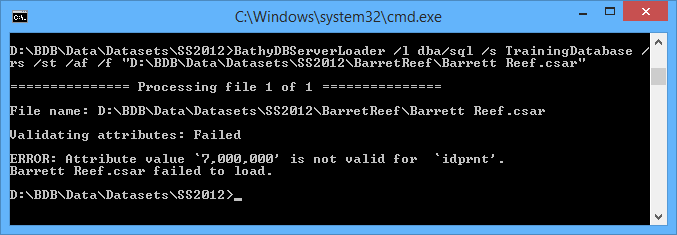
If you call to an external metadata source with the strict validation flag (/st) included, attributes and their values must be an exact match to those in the catalogue. Any missing or mismatched attributes or values will cause both attribute validation and the load to fail. In this situation, an error message is displayed stating that the load failed and which attribute(s) caused it to fail.
Below is an example of a load that failed because the surface contained an attribute that was not present in the catalogue.

Example: Create a survey
You need to create a survey, where:
• the user name and password values are "loader" and "loader" respectively,
• the name of the login server is loaderTestDB, and
• the minimum and maximum extent positions are "45, -73.5" and "46.5, -72.8" respectively.
Type the following:
BathyDBServerLoader /l="loader/loader" /s="loaderTestDB" /o="test_survey_01" /d="Test survey 01 created" /cs /min="45, -73.5" /max="46.5, -72.8"
Example: Create a surface
You need to add a surface to the database, where
• the user name and password values are "loader" and "loader" respectively,
• the name of the login server is loaderTestDB,
• the value to assign to the Object Name (OBJNAM) attribute for the surfac object is test_surface_01,
• the INFORM attribute should read Test description, and
• 3005010.csar in the BathyTesting\Survey_1 directory on drive D: is used as the source surface file.
Type the following:
BathyDBServerLoader /l="loader/loader" /s="loaderTestDB" /o="test_surface_01" /d="Test description" /rs
/f="D:\BathyTesting\Survey_1\3005010.csar"
