When loading surfaces into a database using the BathyDBServerLoader command, you have the option of using a plugin to load the metadata that accompanies the bathymetry rather than defining it manually. This is done by specifying the /guid parameter in the command line. The /guid parameter is a mechanism that calls to any plugin that has been created to retrieve attribute values from an external source. A plugin of this type would function similarly to the "associatedcontrol" entries in a Profile.xml file in that it tells the application how to populate an attribute value with the data from the source. To use a plugin, it must be registered in Windows and associated with BASE Manager. For assistance in using a custom plugin, contact CARIS Customer Service.
For convenience, CARIS provides a Simple Attribute Plugin, available for download from the CARIS Online Customer Services (OCS) Web site (http://support.caris.com/).
The plugin reads a Comma Separated Value file (.csv) containing metadata and applies it to the surface(s) being loaded. The information in these files is in comma-delimited format, with each column representing an attribute in the surface(s).
A plugin can also be used when loading data through BASE Manager using the Add Surface command. See Using an Attribute Plugin for more information. |
Creating a .csv file
You can create a .csv file in any text editor or spreadsheet application; simply save the file with the .csv extension.
In the .csv file:
• The first record in the file is always the list of attribute acronyms to be populated.
• The first attribute in the first record is always the filename attribute, which identifies the surfaces to which the attribute values will be applied.
If this field is empty, default attribute values will be used. |
• References do not need to be made to all acronyms in the database's catalogue that are assigned to the surfac object.
• Values do not need to be provided for all acronyms listed in the first record. Values not provided result in consecutive commas.
• Enumerated or list type attributes must be entered using their catalogue index numbers. For example, the Technique of Sounding attribute can have a value of "1:found by echo-sounder"; this would be entered in the .csv file as "1".
• Quotation marks can be processed as part of string based attributes.
• A single set of quotation marks at the beginning and end of a string is not processed as part of the string (for example, "DB" is processed as DB).
• A double set of quotation marks at the beginning and end of a string is processed as a single set of quotation marks within the string (for example, ""DB"" is processed as "DB").
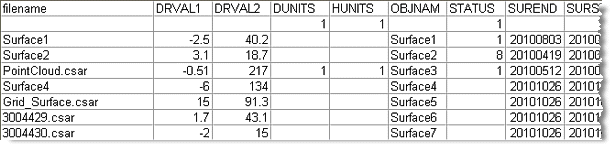
The table below is an example of an excerpt from a .csv file created in a spreadsheet application.
Example: CSV file excerpt
There are two possible methods for using the Simple Attribute Plugin:
• Method 1:
• One .csv file is prepared for each bathymetry file to be loaded.
• Each .csv file has the same name as the bathymetry file and is located in the same directory as the bathymetry.
• Method 2:
• One .csv file is prepared for all bathymetry files to be loaded.
• The .csv file can have any name and be in any location, but must be referenced by the environment variable Simple_Attribute_Plugin_Lookup, which is done by using the SET command. The variable is entered as follows prior to running the serverloader command:
SET Simple_Attribute_Plugin_Lookup=<file_location>\<file_name>.csv |
• The second record in the .csv file can optionally provide default attribute values for any surfaces not defined in the file. When the application encounters a surface that is not specified under the filename attribute, the default values will be used automatically.
When entering the environment variable, do not use quotes as would normally be used in command line syntax—they are not required. |
To ensure that the attribute values being loaded with the plugin match the attributes in the catalogue of the database, the /st (strict) parameter can be specified in the serverloader command string. This tells the application to verify the attributes in the .csv file and the surfaces.
If the strict parameter is used, any of the following conditions will cause the load to fail:
• The surface is missing mandatory attribute values.
• The surface contains an attribute that is not included in the database’s catalogue.
• The value for an enumerated or list attribute in the .csv file cannot be found in the surface.
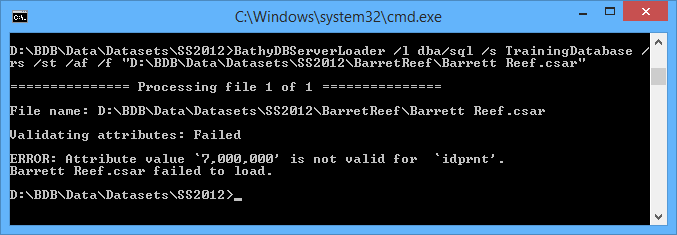
If the load fails, an error message will be displayed and the problematic surface will be skipped by the load process. Below is an example of the message displayed for a surface that is missing mandatory attributes.
Example: Load a single surface using a .csv file
You need to add a surface to the database, where:
• the user name and password values for the Node Manager are "loader" and "loader" respectively,
• the name of the login server is loaderTestDB,
• the surface is located in the Data\Surfaces\ExternalFiles directory on the D: drive,
• the surface is called Surface1.csar, and
• the BASE Manager plugin is to be used.
Type the following:
BathyDBServerLoader /l="loader/loader" /s="loaderTestDB"
/f="D:\Data\Surfaces\ExternalFiles\Surface1.csar" /rs
/guid="CARISLibrary.Simple_AttributePlugin"
Example: Load multiple surfaces using a .csv file
You need to add surfaces to the database, where:
• there are five CSAR surfaces to be loaded, using a .csv file for the metadata,
• the user name and password values for the Node Manager are "loader" and "loader" respectively,
• the name of the login server is loaderTestDB,
• the surfaces are all located in the Data\Surfaces\ExternalFiles directory on the D: drive,
• the Metadata.csv file (shown in the example above) is located in the same folder as the surfaces,
• the BASE Manager plugin is to be used for the import, and
• attributes need to be verified during import.
Type the following:
SET Simple_Attribute_Plugin_Lookup=D:\Data\Surfaces\ExternalFiles\Metadata.csv
BathyDBServerLoader /l="loader/loader" /s="loaderTestDB"
/f="D:\Data\Surfaces\ExternalFiles"\*.csar" /rs
/guid="CARISLibrary.Simple_AttributePlugin" /st