Menu | Database > Add Survey |
Tool |
|
Pop-up | New Survey (database layer) |
Create a new survey for your workspace. You must first have a connection to an open database (see Connect to a Database).
1. Connect to a database.
2. In the Layers window, select the database layer.
3. Select the Add Survey command.
Menu | Database > Add Survey |
Tool |
|
Pop-up | New Survey (database layer) |
The New Survey dialog box is displayed with the Attributes section visible.
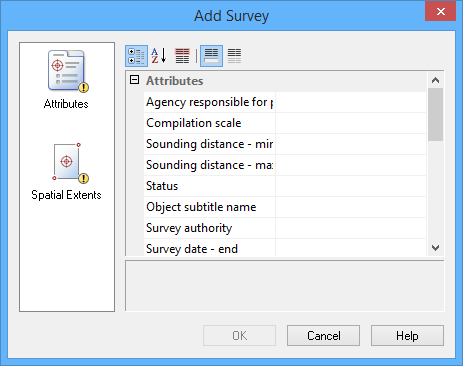
It is mandatory that values be entered for all fields that are coloured pink. All other fields are optional or are populated by the application (greyed-out).
4. For each required field, type or select a value, then press <Enter>.
5. [Optional] Type or select values for each field desired.
6. From the list on the left, select Spatial Extents.
The Spatial Extents section is displayed in the dialog box.
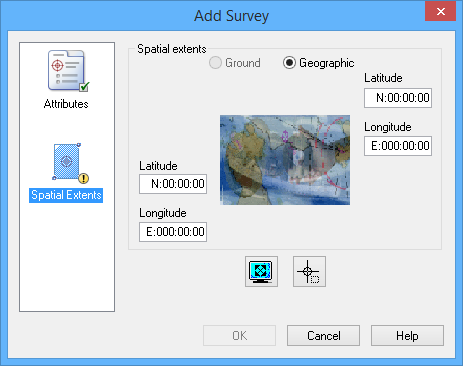
The following table shows the methods available for defining surface extents.
Method | Steps |
Enter Manually | 1. Select Ground or Geographic as the coordinate type. 2. Type a value in each of the Coordinate fields. You can use the Tab button (keyboard) to toggle between the entry fields. |
Display Window | 1. Select Ground or Geographic as the coordinate type. 2. Click the Display Window Extents button. The Display window extents are copied into the Coordinate fields. |
Bounding Box | 1. Select Ground or Geographic as the coordinate type. 2. Click the Bounding Box button. The cursor in the Display window changes to a crosshair. 3. Press and hold the mouse button, then drag the cursor across the Display window. A rectangular bounding box is drawn around the area you selected. This defines the extents. 4. If necessary, move the bounding box as follows: • Position the cursor inside the box. The cursor changes to a four-headed arrow. • Press and hold the mouse button and drag the box to a new location. 5. If necessary, resize the bounding box as follows: • Position the cursor on any of the box handles. The cursor changes to a two-headed arrow. • Press and hold the mouse button and drag the handle. The bounding box extents are copied into the Coordinate fields. |
7. Define the extents of the surface.
8. Click OK.
The new survey is created. Be sure to save the changes to the database. If you close the database connection without saving, a message will be displayed prompting you to save.
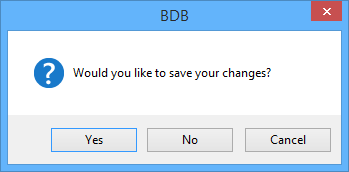
Click Yes to save the new survey or click No to close the database without saving. Any new objects that were added, but not saved, will be moved to the Recycle Bin layer.


