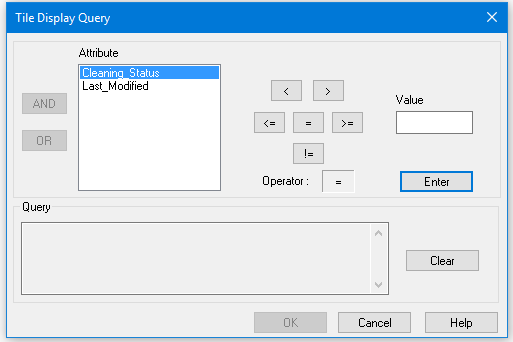
The last field in the Properties for subset tiles enables you to create an SQL-type query based on selected tile attributes and defined values. Only those tiles that meet the search criteria will be shown in the Display window. The query parameters are saved in the Properties window when the session is saved.
The Tile Query dialog box is opened from the Properties window, when the tile layers are selected.
1. Select the tile layer in the Layers window.
2. Open the Properties window for the tiles layer.
3. In the Tile Display Query field, click Browse (...) to open the Tile Display Query dialog box.
The Attribute fields displays the attributes of the selected tile layer.
4. Select an attribute from the list to filter by.
5. Click one of the following operator buttons:
• (<) less than (e.g., to select attributes that have a value less than the entered amount)
• (>) greater than
• (<=) less than or equal to
• (=) equals
• (>=) greater than or equal to
• (!=) not equal to
6. Type a value for the attribute in the Value field, and click Enter.
The search criteria you selected in the dialog box are displayed in the Query section.
7. To add other search criteria, click either of these logic operators:
• AND: This operator combines two queries together so the results of both are shown in the Display window.
• OR: This operator searches and displays either one of two search criteria in the Display window.
For example, if one of the attributes is “Count”, to set a query string to select only the tiles with more than 2500 soundings that also have a resolution of 500, use:
Count < 2500 AND MinRes = 500
8. Repeat Steps 3 through 6 to add as many search criteria as needed.
9. Click OK.
The Display window is refreshed to show only the tiles that meet the criteria you entered.
The Query string is displayed in the Tile Display Query field in the Properties window.
10. Save your session so the query will be saved and restored when that session is loaded again.
To clear the Tile Display Query field:
11. Select the tile layer.
12. Click the Browse button in the Tile Display Query field.
13. In the Tile Display Query dialog box, click Clear.
14. This will remove the criteria and display all the attributes for the selected tile layer.
Edit tiled subset data
Once the tracking tiles are created, you can examine and edit the data by opening Subset Editor and defining a subset. (See Open Subset Editor). As you clean data from the open subset you can track the progress of cleaning by setting status from the Subset Editor toolbar to Incomplete, Partially Complete or Complete.