Menu | Tools > Subset Editor |
Tool |
|
Pop-up | Tools > Subset Editor |
Menu | Tools > Subset Editor |
Tool |
|
Pop-up | Tools > Subset Editor |
Subset Editor can be used to:
• view data in a three-dimensional mode so features such as depressions and rises are visible, by rotating data to view it from different angles.
• edit CUBE surfaces, using subset tiles to track the areas that have been completed.
• use hypothesis editing to process data Hypothesis Editing
• calibrate vessel sensor settings for correct processing of data.
• flag soundings status as:
• rejected
• accepted
• outstanding
• examined
• designated. Set Status Flags
• view and manipulate water column imagery WCI Workflow - Subset Editor.
• apply a datum shift
Track lines should be Merged before Subset Editor is opened. See Merge.
Procedure
1. Select the Subset Editor command.
The cursor changes shape so you can select specific data.
2. Create a subset of the data.
• Click in the Display window, and drag the cursor across the area you want to examine in the editor.
As the cursor is dragged across the window, a bounding box is drawn to show the subset area. 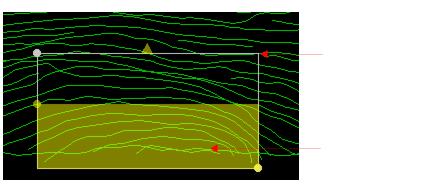
3. Select the Load Subset command.
Menu | Tools > Subset Editor > Load Subset |
Tool |
|
The subset is generated and displayed in the Subset Editor windows.
See also:
Lock Subset Area (Subset Editor).
Subset Controls
When you close Subset Editor and changes have been made to the data, you are prompted to save them. Saving means the |

