 CARIS HPD Paper Chart Editor
 CARIS HPD Paper Chart Editor
CARIS Paper Chart Composer
Menu | File > Export > Sheet > CMYK TIFF |
Generate a CMYK TIFF file where all four CMYK bands are encoded in a single output TIFF file.
Colours for which there is no direct match in the colour mapping file (e.g ih_colour.xml) are mapped to an .rgb2cmyk file that is saved in the same location as the exported chart.
This file contains colours from the chart and any external objects, such as images or text, that are added to it. You can use this mapping file to update the colour mapping file, if necessary.
A specific area can be exported by using the Set Export Area command.
• • • • • | • • • • • |
Interface
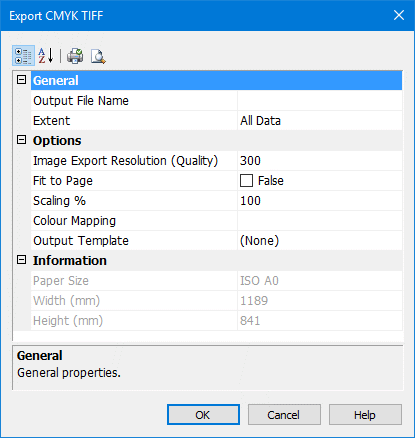
Properties | Description |
|---|---|
Output Name | The name of the CMYK file. Select an Output Name by clicking Browse and choosing a folder and name for the file. |
Resolution | This is the resolution for any raster images associated with the chart (not the chart itself). Type a value in the field. |
Extent | The view area of the chart. This can be All Data , Current View or Export Area (if an export boundary has been created). The Current View option should be chosen if you are not sending the chart to a plotter. Select a extent from the list. |
Fit to page | Fit the chart to the selected paper size. If this option is selected, the Scaling option is unavailable. Click the check box to switch the value from False to True. |
Scaling | Print the chart as percentage of its original size. Type a value. |
Colour Mapping | The RGB2CMYK file is an XML file that defines specific RGB values to colour tokens. If no file is selected then the application will automatically map colours to a matching token. The file is stored in the same location as the image and has .rgb2cymk extension. An existing file can be used to map colours. This will overwrite the automatically generated file. Click Browse to select an existing RGB2CMYK file. |
Output Template | Use an output template file to determine what layers are included in or omitted from an exported chart. For more information, see Output Templates. Select a file from the list or select <Create and Manage> to create a new file or edit an existing one. |
Procedure
1. Select the Sheet layer.
2. Select the Export Sheet to CMYK TIFF command.
The Export CMYK TIFF dialog box is displayed.
3. Define any necessary properties and click OK.
A progress bar appears.
To cancel the export at any time, select the Esc key and confirm your action by clicking Yes in the pop-up window.