 CARIS HPD Paper Chart Editor
 CARIS HPD Paper Chart Editor
CARIS HPD Product Editor
CARIS HPD Source Editor
CARIS S-57 Composer
CARIS Paper Chart Composer
Menu | Help > Catalogue Browser > Objects |
Menu | Create > [create feature commands] |
Object acronyms can be viewed or selected as follows:
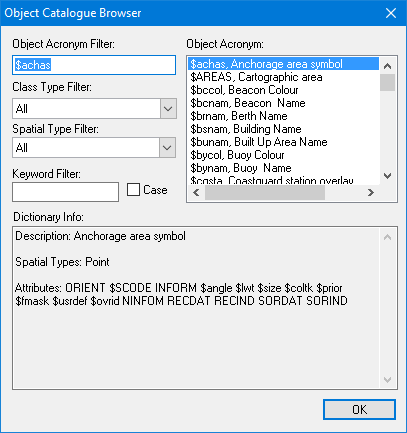
• Object Catalogue Browser displays information on feature acronyms in the Objects dictionary.
• Select Object Acronym dialog box is displayed when you create a new feature.
These two dialog boxes are almost identical.
Related commands:
• • • • • | • • • • • |
Interface
Option | Description |
|---|---|
Object Acronym Filter | Type the first few letters of the acronym you are looking for. The Object Acronym list changes to match. |
Class Type Filter | Select a class from the list. The Object Acronym list changes to match. |
Spatial Type Filter | Select a spatial type from the list. The Object Acronym list changes to match. When creating a feature, this option is read-only. |
Keyword Filter | Filter on all fields that define the acronym. The Object Acronym list changes to display acronyms that contain your text anywhere in the definition. Case: • On: The filter is case sensitive. • Off: The case of the search term will be ignored. |
Object Acronym | The list of acronyms. This list changes as you use the filter options. Click on a item in this list to display its data in the Dictionary Info box. |
Dictionary Info | The acronym information. The information includes a description, attributes, and remarks. Information about attributes includes name, type, and values. |
Procedure: View catalogue
1. Select the Object Catalogue Browser command.
The Object Catalogue Browser dialog box is displayed.
2. Set any necessary filters to locate the acronym of interest.
Information about the selected acronym is displayed.
Procedure: Create feature
1. Select one of the create feature commands.
The Select Object Acronym dialog box is displayed.
2. Set any necessary filters to locate the acronym for the new feature.
3. Click OK.
The Set Attributes or Properties dialog box is displayed.
4. Continue to add the feature.