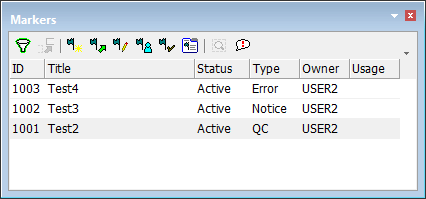
The Markers window displays information about markers that are visible in the Display window.
At the top of the window is a toolbar containing commands relating to markers. You can also right-click to select commands from a pop-up menu
Below the toolbar is a table of marker features. You can centre the Display window on a marker by double-clicking the row
Information about a selected marker is displayed in the Marker Details window (see Marker Details).
The information in the Markers window can be saved to a text file. Right-click and select Save All from the pop-up menu.
The markers that can be displayed in the window are determined by these factors:
• The filter selection.
• The current extent of the Display window.
For example, if the entire dataset is visible in the Display window, all markers associated with the dataset are displayed. If only part of the dataset is visible, only markers in the visible extent are listed.
All commands except Filter, New Marker, and Select Related Features can be accessed from both the toolbar and the pop-up menu:
• • • • • • | • • • • • |