Menu | Edit > Add |
Tool |
|
Pop-up | Add |
To add an attribute to an object selected in the Object Browser:
1. Select an object from the Object list.
2. Select the Add command.
Menu | Edit > Add |
Tool |
|
Pop-up | Add |
The Add Object attribute dialog box is displayed.
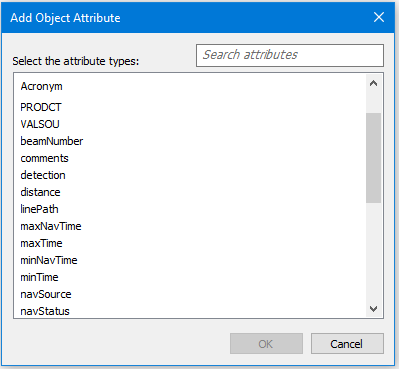
3. Select one or more attributes to add.
4. To search a long list, use the Search window to find a specific attribute.
5. Click OK.
These attributes are listed below the selected object in the Object Browser, and will be displayed in the Attributes window in the main HIPS and SIPS application.
Each of the attributes added to an Object has two editable fields:
• Mandatory: Default value is “False”. If set to “True”, then a value should be entered for that attribute in the Attributes window.
• Read-Only: set to “True” to ensure that the value entered for the attribute cannot be cannot be changed in the Attributes window. Set to “False” by default.
This can be useful for attributes used in Critical Sounding Detection, to set values that cannot then be changed in HIPS and SIPS directly.
6. Save the file. (You will also be prompted to Save when you exit Catalogue Editor.)
