pop-up | Edit |
A selected mosaic can be edited for brightness and contrast using fields in the Properties window. Any properties changed in the Properties window apply to the entire mosaic.
To adjust brightness and contrast for specific parts of a mosaic, the parts contributed by component lines, the Edit command must be activated.
To use the Edit command, these criteria must be met:
• The Enable Mosaic Editing option must be set when the mosaic is created, and
• Edit mode must be enabled using the Edit command.
Mosaics created with the SIP Backscatter (WMA with Area Based AVG) engine cannot be edited because that engine does not have the Enable Mosaic Editing option. Mosaics created as field sheet layers in HIPS and SIPS prior to version 9.0 can be opened for comparison purposes, but they cannot be edited |
The Edit command will be displayed in the pop-up menu in the Layers window when a mosaic (that was created with the Enable Mosaic Editing option turned on) is selected.
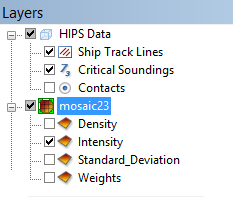
The icon for the selected mosaic layer will be highlighted in green indicating that the mosaic is now in Edit mode.
The ability to remove a line/component is only available if the mosaic was created with the Enable Mosaic Editing option enabled.
Related commands
Procedure
While you may have more than one mosaic open in the display, only one mosaic can be edited at a time.
1. Open a mosaic that was created with the Enable Mosaic Editing option turned on.
2. In the Layers window, right-click on the mosaic and select Edit from the pop-up menu. The mosaic icon next to the layer will indicate editing is enabled.
3. Choose whether you want to edit the whole mosaic or just a specific component line:
• To edit the whole mosaic, click on the mosaic in the Project window under Data Sources.
• To edit a component line, click on a track line that contributed to the mosaic in the Active Track Lines window.
To change the contrast or brightness:
4. Open the Properties window. If it is already open, click it to set the focus on it.
5. Set the desired values in the Brightness and Contrast fields in the Properties window and press Enter.
6. Refresh the display (F5 or View > Refresh) to see the changes.