Menu | Tools > SIPS Mosaics > Add to |
CARIS Batch | Add To SIPS Mosaic |
Add a line or lines to an existing SIPS mosaic.
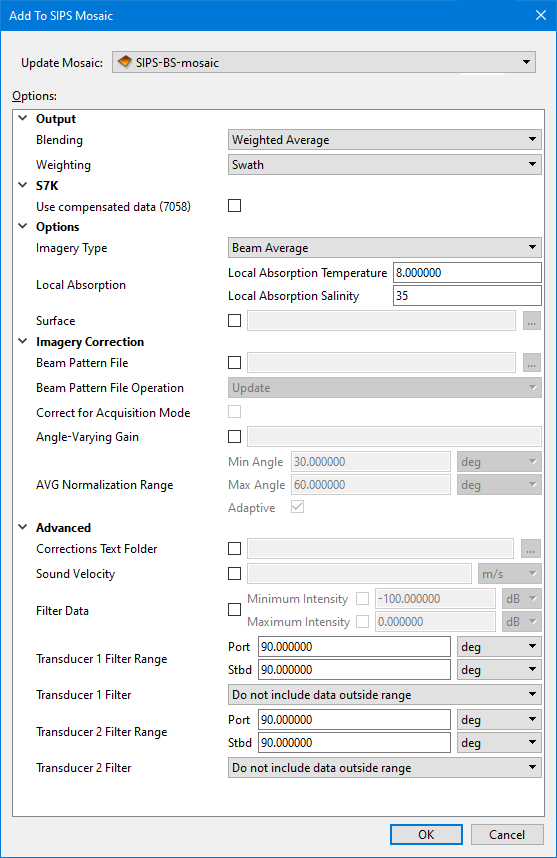
The Add to SIPS Mosaic dialog box displays the options and settings that were used to create the original mosaic. By default, the Source field is set to Selection, so that only the selected lines are added.
If you add a line that is already part of the mosaic, and data for this line has been updated since the mosaic was created, the line is effectively removed and then replaced in the mosaic with its updated values. |
Related commands:
Interface
Use the Add to SIPS Mosaic dialog box to add to an existing mosaic.
Option | Description | |
|---|---|---|
Common Options | ||
Update Mosaic | The mosaic to be updated. This can be any SIPS mosaic currently open in the application. | |
GeoCoder Options | ||
Output | Blending | The method used to blend pixels together. The default value is Weighted Average. Select from: • Weighted Average: Blend overlapping pixels based on a weighted average value • Highest weighted: Use only the highest-weighted pixel in the output, no blending • Overwrite: Use the last input pixel value in the output, no blending |
Weighting | The method used to weight pixels across a single ping. The default value is SWATH. Select from: • Swath: Weighting is based on sonar geometry where Nadir has a low weight, off-nadir has the highest weight, and a decay function is used to decrease weighting out to the swath edge • Fixed: All values are weighted equally across the ping (primarily for SAS imagery). | |
Options | Channel | The data channel of the input sources that will be read for processing. The options include Port, Starboard or Both. |
Imagery Type | The type of imagery to be processed. The options include Time Series, Beam Average or Side Scan. The default value is Time Series. | |
Imagery Correction | Anti-Aliasing | Enable this option to apply anti-aliasing when creating the mosaic. This can smooth the mosaic and minimize distortion artifacts when representing the high resolution imagery at a lower resolution. |
Gain | Enable this option to apply a uniform gain correction. | |
Time-varying Gain | Gain varied by time values is applied so that inner-most samples have the least gain and the outer-most samples have the highest gain correction. 1. Enable the check box to apply TVG. | |
Angle-varying Gain | Use a moving average filter to remove the angular response of sediment from the imagery. 1. Enable the check box and then select the type of filter from the list. | |
Window Size | The window size, in pixels, used for angle-varying gain. This sets the number of across track samples to include in the moving average filter. | |
Despeckle | Smooths imagery by removing “noise”. Pixels are removed If they have an intensity level outside a specified strength compared to their neighbouring intensity levels. 1. Select Weak, Strong, Moderately Strong or Very Strong from the list. Default is None. | |
Advanced | Smooth Gyro | Select the check box to apply smoothing to the gyro data. |
Surface | The path to the surface used to compute the local bottom slope used in the calculations of real incidence angle and ensonified area. The default elevation band will be used. 1. Click Browse and locate surface to be used. If a surface is not set, the default value is to use the processed bathymetry. | |
Filter Data | Enable the check box to filter the final compensated intensities of the mosaic using range values. • Set Minimum value for the range (default value is -100dB) • Set Maximum value for the range (default value is 0dB. | |
Filter Angle from Nadir | Enable the check box to use an angle across-track from directly below the ship (0 degrees) to set how much data is included in the beam pattern file. Value applies to both port and starboard angles. Set minimum value in degrees of the angle from nadir. Default is 0 degrees. Set maximum value in degrees of the angle from nadir. | |
SIPS Backscatter Options | ||
Output | Blending | The method used to blend pixels together. The default value is Weighted Average. Select from: • Weighted Average: Blend overlapping pixels based on a weighted average value • Highest weighted: Use only the highest-weighted pixel in the output, no blending • Overwrite: Use the last input pixel value in the output, no blending |
Weighting | The method used to weight pixels across a single ping. The default value is SWATH. Select from: • Swath: Weighting is based on sonar geometry where Nadir has a low weight, off-nadir has the highest weight, and a decay function is used to decrease weighting out to the swath edge • Fixed: All values are weighted equally across the ping (primarily for SAS imagery). | |
S7K/PDS | Use compensated data | Teledyne RESON s7k format can store Beam Average and Time Series data in raw and compensated intensity datagrams. • If option is enabled the mosaic will use compensated data from any line containing it. • If compensated data is not found the line will not be used in the mosaic. |
Options | Imagery Type | The type of imagery to be processed. 1. Select either Beam Average or Time Series. The default value is Beam Average. |
Local Absorption | Correction for transmission loss using temperature and salinity values. • Set temperature value in degrees. Default value is 8.00. • Set salinity value as parts per thousand. Default value is 35 parts per thousand. | |
Surface | The path to the surface used to compute the local bottom slope used in the calculations of real incidence angle and ensonified area. The default elevation band will be used. 1. Click the check box to enable the option. 2. Click Browse and locate surface to be used. If a surface is not set, the default value is to use the processed bathymetry. | |
Imagery Correction | Beam Pattern File | 1. Select the check box to enable the Browse button. Browse to locate the beam pattern file to be applied. When a file is set here, the options to update or overwrite can be activated in Beam Pattern File Operation field |
Beam Pattern File Operation | If the beam pattern file selected in the field above already exists, you can set the fate of the existing file. • Update: Updates the file with the new line information. This option can accumulate many lines over many surveys. • Overwrite: Overwrites the existing file with a new beam pattern file from the current lines. • Use Existing: Uses the existing file and does not update it. The default value is UPDATE. | |
Correct for Acquisition Mode | Enable this option to have each acquisition mode separated into a different beam pattern based on waveform and pulse length. | |
Angle-Varying Gain (AVG) | Use a moving average filter to remove the angular response of sediment from the imagery. 1. Enable the check box and then select the type of filter from the list. | |
AVG Normalization Range | The range of values used to normalized the AVG curve. The acceptable range is defined by specifying minimum and maximum angle values and a unit of measure. The Adaptive option can be used to allow the AVG normalization range to be adapted from the defined values rather than using them as fixed values. | |
Advanced | Corrections Text Folder | Enable this option to export the raw and processed backscatter data to ASCII files. The processed data will contain any corrections that have been applied to the data. A separate ASCII file will be created for each track line included in the mosaic. If the option is enabled, but the output location was not specified, the ASCII files will be saved in the track line folder with the HIPS dataset. The ASCII files will contain a header and the following information: • Timestamp • Ping • Head • Beam • Longitude • Latitude • Depth • Easting • Northing • Rx Angle • Incident Angle • Frequency • BL0 • BL1 • BL2A • BL2B • BL3 |
Sound Velocity | Enter a numeric value for the sound velocity in distance per second. The default value is in metres/second. | |
Filter Data | Enable the check box to filter the final compensated intensities of the mosaic using range values. • Set Minimum value for the range (default value is -100dB) • Set Maximum value for the range (default value is 0dB. | |
Transducer 1 Filter Range | This field is used to define an acceptable range of angle values to filter data from transducer 1. The range is based on the angle values between port and starboard (stbd). 1. Enter an angle value for both Port and Stbd. 2. Select the unit of the angle values. | |
Transducer 1 Filter | This option is used to specify whether to filter data inside the angle range or outside the angle range. 1. Select an option from the drop-down list. | |
Transducer 2 Filter Range | This field is used to define an acceptable range of angle values to filter data from transducer 2. The range is based on the angle values between port and starboard (stbd). 1. Enter an angle value for both Port and Stbd. 2. Select the unit of the angle values. | |
Transducer 2 Filter | This option is used to specify whether to filter data inside the angle range or outside the angle range. 1. Select an option from the drop-down list. | |
SIPS Backscatter (WMA with Area Based AVG) Options | ||
No options. | ||
SIPS Side Scan Options | ||
Output | Blending | The method used to blend pixels together. The default value is Weighted Average. Select from: • Weighted Average: Blend overlapping pixels based on a weighted average value • Highest weighted: Use only the highest-weighted pixel in the output, no blending • Overwrite: Use the last input pixel value in the output, no blending |
Weighting | The method used to weight pixels across a single ping. The default value is SWATH. Select from: • Swath: Weighting is based on sonar geometry where Nadir has a low weight, off-nadir has the highest weight, and a decay function is used to decrease weighting out to the swath edge • Fixed: All values are weighted equally across the ping (primarily for SAS imagery). | |
Options | Channel | 1. Select the Port, Starboard or Both channels to be read to mosaic. Deafault value is Both. |
Imagery Correction | Beam Pattern | Set which channel will have beam pattern applied to it. 1. Select Port, Starboard or Both. (Default is None.) |
Beam Pattern File | 1. Select the check box to enable the Browse button. Browse to locate the beam pattern file to be applied. When a file is set here, the options to update or overwrite can be activated in Beam Pattern File Operation field | |
Gain Normalization | The number of pings used to set the window size for the moving-average window filter. The window size, in pixels, determines the number of across track samples to include in the moving average filter. | |
Despeckle | Smooths imagery by removing “noise”. Pixels are removed If they have an intensity level outside a specified strength compared to their neighbouring intensity levels. 1. Enter a numeric value specifying the strength of the despeckle filter as a percentage for despeckling the output mosaic pixels. | |
Time-Varying Gain | Gain varied by time values is applied so that inner-most samples have the least gain and the outer-most samples have the highest gain correction. 1. Enable the check box to apply TVG. 2. Select to apply to Port, Starboard or Both. | |
Gain | Apply a uniform gain correction without applying the any time-dependent gains by using only the Gain controls. 1. Enable the check box to apply Gain. 2. Select to apply to Port, Starboard or Both, in side scan. | |
Advanced | Correct for Pitch | Correct for platform pitch when side scan profiles are georeferenced when they are added to a mosaic. |
Use Bathymetry to Register Imagery | If imagery is acquired at the same time as bathymetry, the bathymetry can be used to register the imagery. 1. Enable the check box to register the imagery using co-acquired bathymetry. This is only applicable if the lines contain processed bathymetry. | |
Gyro Source | Set the heading source to be used for processing a side scan mosaic. Default setting is Automatic, which will apply Towfish gyro first, then Ship gyro, then Course Made Good. Any of these options can be applied instead: • CMG: Course made good, calculated from position • SHIP: Ship gyro sensor • FISH: Towfish gyro sensor | |
Smooth Gyro | Select the check box to have smoothing coefficients applied to gyro data. | |
Sound Velocity | Enter a numeric value for the sound velocity in distance per second. The default value is in metres/second. | |
Extrapolate Time | 1. Enable the check box to extrapolate heading and navigation data at the beginning and end of lines. 2. Set a value for the time. | |
Filter Data | 1. Enable the check box to filter the final compensated intensities of the mosaic using range values. • Set Minimum value for the range (default value is -100dB) • Set Maximum value for the range (default value is 0dB. | |
Across- track / Altitude Ratio | Enable the check box and enter the values for the ratio of across-track distance to altitude (minimum/maximum) for which imagery is clipped (i.e., nadir and swath edge filter, respectively). 1. Set the minimum across-track distance to altitude ratio to filter by. 2. Set the maximum across-track distance to altitude ratio to filter by. If not set, no clipping is applied. | |
Across- track / Altitude limit | Only active if Across- track / Altitude Ratio is enabled. 1. Enable the check box and enter values to limit the across- track / altitude ratio to a minimum/maximum range. | |
Across-track Distance Filter | Use this filter to exclude a fixed distance across-track from nadir, regardless of altitude. 1. Enable the check box and set the • Minimum values below this distance from nadir will be filtered. • Maximum- values greater than this distance from nadir will be filtered | |
Altitude Offset | Enable the check box to enter offset values for the altitude data in time and height. Default units are in seconds and metres. | |
Procedure
To add line data to an existing mosaic:
1. Open HIPS data.
2. Open the mosaic.
3. Select a line or lines to be added to the mosaic.
4. Select the Add to Mosaic command.
5. Select the relevant mosaic from the Update Mosaic drop-down list.
6. Define any necessary options.
7. Click OK to add the lines to the original mosaic.
The mosaic will be regenerated to include the selected line or lines.