 CARIS HPD Paper Chart Editor
 CARIS HPD Paper Chart Editor
CARIS HPD Product Editor
CARIS HPD Source Editor
CARIS S-57 Composer
CARIS Paper Chart Composer
Menu | Tools > Reports > Validation |
Tool |
|
Test product features and external S-57/HOB files for data structure and logical consistency.
Many tests are based on the Recommended ENC Validation Checks (S-58 Ed. 7.0) standard from the International Hydrographic Organization. Remaining tests have been developed by Teledyne CARIS.
There are four types of validation tests:
Test type | Description |
|---|---|
QC Tests: | QC Tests are built in and cannot be modified. These are listed at the top of the Validation Checks dialog box. See QC Tests for details. |
Customized QC Tests | These tests are not available in CARIS HPD Paper Chart Editor and CARIS Paper Chart Composer. Customized QC Tests can be modified or new ones added. These are listed at the bottom of the Validation Checks dialog box. Tests are in XML files. Supplied tests are located in It is recommended that you do not edit these files directly. Instead, copy any files you wish to change to the folder defined by the Customized QC Tests option, and then edit the copy. New tests should also be placed in that folder. See Quality Control in Support Files for details. |
Combination S-58 QC Tests | These tests are not available in CARIS HPD Paper Chart Editor and CARIS Paper Chart Composer. These tests are listed with the QC Tests: • S-58 Features and Attributes • S-58 Geometry. These are special tests that run all generic QC tests that represent S-58 tests, that is, all tests with names that do not start with S-58 in the QC Tests list. You can run all S-58 tests by selecting and running these two tests plus all other tests that start with S-58 in both the QC Tests and Customized QC Tests lists. Do not include S-58 Critical Errors, S-58 Errors and S-58 Warnings. |
S-58 Error Level QC Tests | These tests are listed with the QC Tests: • S-58 Critical Errors • S-58 Errors • S-58 Warnings. These are special tests that run all standard S-58 tests that match an S-58 error category: critical errors, errors or warnings. This includes all tests with names that start with S-58 in both the QC Tests and the Customized QC Tests lists. A warning message such as the following is displayed if any of the standard S-58 tests do not exist: Warning: The Customized QC Test, S-58 7.0 Level 5 - Metadata (General), does not exist. Validation may be incomplete. If you modify the S-58 Customized QC Tests, S-58 compliance cannot be guaranteed. The standard S-58 Customized QC Tests are: • S-58 7.0 Level 1 - Feature Tests • S-58 7.0 Level 2 - Spatial Tests • S-58 7.0 Level 3 - Spatial Relationships • S-58 7.0 Level 4 - Feature Relationships • S-58 7.0 Level 5 - Metadata (General) • S-58 7.0 Level 6 - Product Metadata • S-58 7.0 Level 7 - Catalogue Tests |
Interface

Option | Description |
|---|---|
Test type | Choose from: • QC Tests: Built-in QC tests. Select one or more tests, • Customized QC Tests: New or modified tests, customized to your own environment. |
Validation Report | File name: • On: Save a copy of the output of the validation test as a stand alone text file. Click browse (...) to select a folder and file name. • Off: No report file will be saved. Attach to HPD project: • On: The output of the validation tests is saved as a text file that is attached to the HPD project. The following options become active: • Label: [Optional] A prefix for the file name. the file name will be • Replace previous attachments: On: Any previous attached files will be deleted. The current file will be the only attached log. Off: A new file will be attached each time tests are run on this project. The project will therefore have multiple attached files. You can change the label, if any, for each file. • Off: No validation file will be attached to the project. You can save the text output as both a stand alone file or an attached file if you want. |
Command buttons:
Button | Description |
|---|---|
Options | Display the Validation Check Options dialog box. Only active if the selected test has options associated with it. See Procedure: QC Tests for more information. |
Large Icons | Display the QC tests as large icons. |
Small Icons | Display the QC tests as small icons. |
Details | Display the QC tests as a list. |
Test Info | Display information about one or more selected Customized QC test. See Procedure: Customized QC Tests for more information. |
This dialog box can be resized to display more tests.
Procedure: QC Tests
1. Select the Validation command.
The Validation Checks dialog box is displayed.
2. Enable QC Tests.
3. [Optional] Change the appearance of QC Tests by clicking any of the buttons on the right: Large Icons, Small Icons or Details.
4. Select one or more tests using any of these methods:
• Select a single test by highlighting it.
• Select a range of tests by selecting the first test in the range and using <Shift+Click> to select the last test. All tests between the first and last are selected.
• Select multiple tests using <Ctrl+Click>.
If there are additional options that can be applied to a test, the Options button becomes active.
5. Click Options.
The Validation Check Options dialog box is displayed.
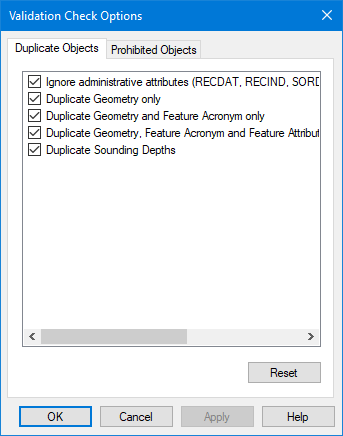
6. Enable or disable the option and click OK.
The Validation Check Options dialog box is closed and you are returned to the Validation Checks dialog box.
7. Set any necessary Validation Report options.
8. Click Begin.
The validation checks are run. The results are displayed in the Validation window and are saved to text files if any Validation Report options are set. The Validation Checks dialog box remains open to let you run more tests or modify the existing ones.
If necessary, you can stop the validation process by pressing <Esc>. You are asked if you want to cancel. Click OK to cancel. If a test is in progress when you press <Esc>, it will be completed. |
9. Run any more required tests.
10. Click Close.
Procedure: Customized QC Tests
These tests are not available in CARIS HPD Paper Chart Editor and CARIS Paper Chart Composer. |
1. Select the Validation command.
The Validation Checks dialog box is displayed.
2. Enable Customized QC Tests.
The list of custom QC test files becomes active. The QC Tests list becomes inactive.
3. Select one or more test files.
4. [Optional] Click Test Info to view information about the custom test file
The Selected QC Test Information dialog box is displayed.
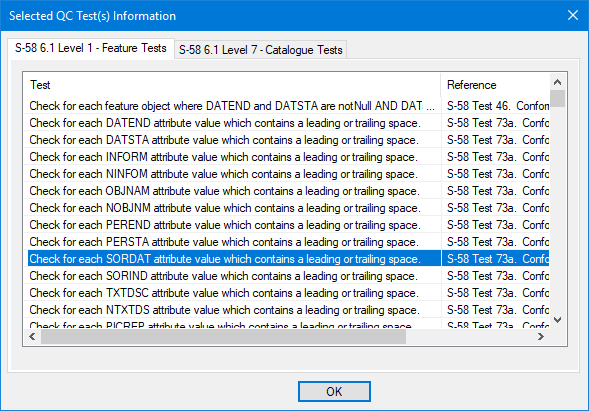
Each test is displayed in its own tab.
5. Click OK.
You are returned to the Validation Checks dialog box.
6. Set any necessary Validation Report options.
7. Click Begin.
The validation checks are run. The results are displayed in the Validation window and are saved to text files if any Validation Report options are set. The Validation Checks dialog box remains open to let you run more tests or modify the existing ones.
If necessary, you can stop the validation process by pressing <Esc>. You are asked if you want to cancel. Click OK to cancel. If a test is in progress when you press <Esc>, it will be completed. |
8. Run any more required tests.
9. Click Close.
Procedure: View attached log files.
1. In the Project window, select the HPD Project layer.
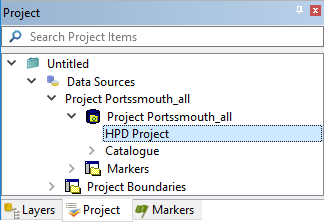
The properties of the HPD Project layer are displayed in the Properties window.
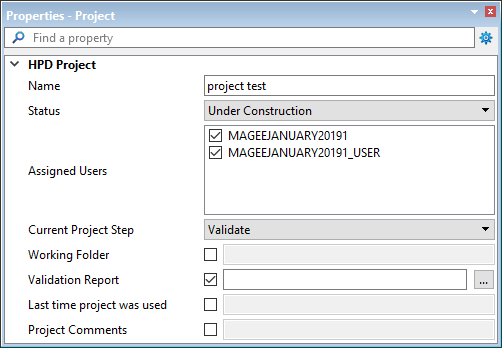
2. Select the Validation Report property and click browse (...).
The Manage External Files dialog box is displayed.

This displays all the validation reports associated with the HPD project.
3. Double-click on a file name.
The file is opened in the default text editor.
Output
The feature object ID of each feature that fails a test is listed in the Validation window and hyperlinked.
The following terms are used to describe attribute values in S-58 specific messages: • Present: The attribute has a value, including Unknown. • Null: The attribute has an Unknown value. • notNull: The attribute has a value that is not Unknown. |
1. Click a link.
The feature is superselected. You can examine the feature and make any required changes.
When a feature is edited, the link in the Validation window becomes invalid. You must run the validation test again to generate a new list.
