Menu | Tools > Features > Create Features Inside Contours > Superselection/Selection |
Similar to the Quick Creator command, the Create Features Inside Contours command allows users to manually create features or designate soundings using the existing values in an area. Instead of using a cursor-defined area, the application analyzes the data within enclosed contours and creates features or designates soundings based on user-defined criteria.
Point and sounding features can be created directly on several vector format datasets, such as HOB and Shapefile, and on BDB Server databases. Soundings can be designated in point clouds, raster surfaces and variable resolution surfaces.
This tool is useful for identifying areas where there is an unidentified difference in depth or height in relation to the areas surrounding the contours.
Related commands:
• Create Features from Selection
• Quick Creator
Interface
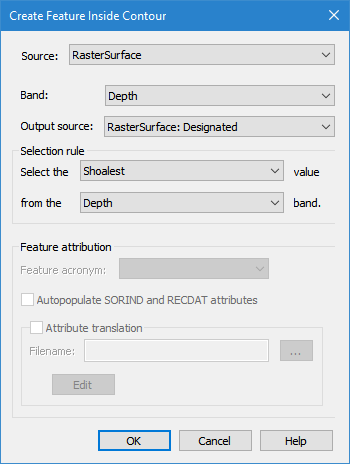
The Create Features Inside Contours command uses the following dialog box.
Option | Description |
|---|---|
Source | The coverage containing the elevation data that will be used as the data source for the process. This can be any point cloud, raster surface or variable resolution surface open in the application. |
Band | The band in the source coverage from which Z-values will be read for the designated soundings or new features. |
Output source | This field controls which function will be performed and where new features will be created. • Selecting a vector data source will cause new soundings or point features to be created on the selected source. To do this, the source must be using a catalogue that supports point type features. • Selecting the Designated band of a coverage will apply the Designated flag to points in the coverage based on the settings in the Selection rule fields. The Designated band of the current coverage is selected by default. If the current coverage does not have a Designated band, but the Designated option is selected, the band will be created in the coverage when you click OK on the dialog box. Designated soundings can only be created from the primary elevation band of the source dataset. If creating designated soundings and the Source is anything other than the primary elevation band of the dataset, an error message will be displayed when the process is run. |
Selection rule | The Selection rule fields define how soundings will be selected for the designation or creation when an area is analyzed. 1. In the first drop-down list, select Deepest or Shoalest to define whether the command should look for the deepest or the shoalest value in the area of the selected contour. 2. In the second drop-down list, select the band of the coverage from which data will be collected. Only bands of the Source coverage are available. |
Feature attribution | The Feature attribution fields allow you to define the type of features to create and metadata values to assign to the features. If you do not wish to create features or populate attributes, these fields do not need to be populated and will be disabled if a Designated band is selected as the Output source. The feature type of the new features is controlled by the Feature acronym field. The drop-down list for this field is populated according to the feature catalogue of the selected Output source. The default selection will be the first sounding type feature in that catalogue. |
Autopopulate SORIND and RECDAT attributes | The source (SORIND) and date (RECDAT) attribute values for the new features are populated automatically if this option is enabled. |
Attribute translation | This option allows a translation file (.bsst) to be applied to the data to map attribute values. You can choose to use an existing translation file or create a new one. 1. Click the check box to enable this option and its related fields. Attribute translation is not supported for all file formats. If the selected format is not supported, the Feature attribution fields will be disabled. |
Filename | The BSST translation file to use for attribute mapping. An existing file can be used or a new file can be created. 1. Click the browse button (...) to open or create a file. 2. To select a file either: • select an existing file by navigating to the file and clicking Open, or • create a new file by navigating to the location in which to store the file, entering a name for the file in the File name field and clicking Open. |
Edit | Launch the Edit Translation File tool to edit the settings of the selected translation file. If a new file is being used, this tool is used to define the settings of the new file. See Edit Translation File for more details on this tool. |
Procedure
1. If performing a sounding selection or creating point features, open a vector data source or create a feature layer.
2. In the Layers window, select the coverage to use as the source for data values.
3. In the Display window, select the contours for which you want to create features/designate soundings.
4. Select the relevant Create Features Inside Contours command based on your selection.
5. Select the coverage to use as the Source data for the process.
6. Select the Band from which data values will be used.
7. Select an Output source.
8. Define the Selection rule settings.
9. Select the Feature acronym to use if creating new feature objects.
10. Define any other necessary options.
11. Click OK.
If you chose a Designated band as the Output source, a Designated band now exists in the coverage if one did not exist before and is displayed in the Layers window. This layer can be used to view the designated soundings. If you chose to create features, the feature layer is selected in the Layers window by default and the features are visible in the 2D view.