The Edit Translation File tool is used to create BSST translation files. These files are used by certain commands to map attribute values during feature creation.
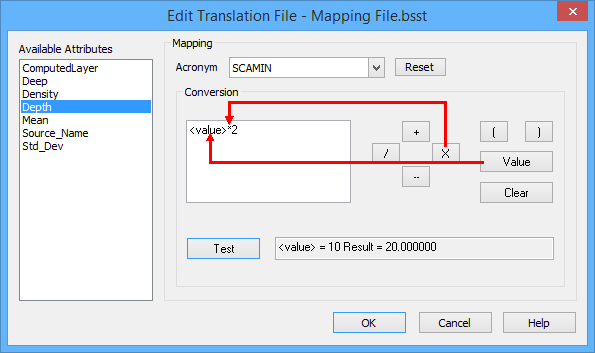
The following is an example of a translation file where the value of SCAMIN is multiplied by 2.
<?xml version="1.0" encoding="UTF-8"?>
<Selected_Sounding_Conversion>
<Depth New_Acronym="SCAMIN">
<Conversion_Factor><value>*2</Conversion_Factor>
</Depth>
</Selected_Sounding_Conversion>
Mapping can be applied for both enumerated and numeric attributes.
• Enumerated attributes contain numerical codes that precisely define the attribute. For example, choosing 3 for VERDAT represents a Vertical Datum of Mean Sea Level.
• Numeric attributes contain values that are Integer, Float or Double types.
The fields included in the mapping dialog box differ depend on the acronym being mapped.
Related commands:
• Create Features from Selection
• Create Features Inside Contours
• Quick Creator
Interface
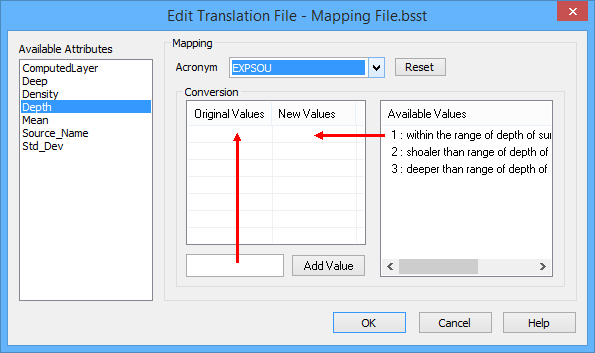
The Edit Translation File tool uses the following dialog box. The Conversion table differs for enumerated attributes and numeric attributes.
Enumerated attributes:
Option | Description |
|---|---|
Available Attributes | The attribute values present in the source dataset. Select an attribute from the list to map it to a different attribute and value. |
Acronym | The acronym that will be mapped to the attribute currently selected in the Available Attributes list. Select an object acronym from the drop-down list. A set of Conversion fields will be displayed below the Acronym list to define the mapping criteria. The fields provided will differ depending on the type of acronym selected. If there are no attributes associated with the selected object acronym, the Conversion section will remain empty and a message will be displayed stating that no conversion is available. |
Reset | Reset the mapping and conversion settings for the currently selected attribute. This will clear any settings entered in the current session. |
Conversion | The conversion criteria to use when mapping enumerated attribute values. 1. Type the existing attribute value in the Add Value field. 2. Click Add Value to move the value to the Original Values field. 3. Double-click an S-57 attribute value in the Available Values list. |
Available Values | The attribute values available for the attribute selected in the Acronym drop-down list. When added to the Conversion table, this value will be mapped to data using the original value indicated in the table. |
Add Value | The original value from the source data to be mapped to the new S-57 attribute value. 1. Enter a value in the field. 2. Click Add Value. The value entered is added to the Conversion table under Original Values. |
Numeric attributes:
Option | Description |
|---|---|
Available Attributes | The attribute values present in the source dataset. Select an attribute from the list to map it to a different attribute and value. |
Acronym | The acronym that will be mapped to the attribute currently selected in the Available Attributes list. 1. Select an object acronym from the drop-down list. A set of Conversion fields will be displayed below the Acronym list to define the mapping criteria. The fields provided will differ depending on the type of acronym selected. If there are no attributes associated with the selected object acronym, the Conversion section will remain empty and a message will be displayed stating that no conversion is available. |
Reset | Reset the mapping and conversion settings for the currently selected attribute. This will clear any settings entered in the current session. |
Conversion | The conversion criteria to use when mapping numeric attribute values. Numeric attributes are converted using a mathematical formula. • Numbers are manually typed into the formula in the Conversion area. • Mathematical operators are inserted by clicking the appropriate button on the right side of the dialog box. • The Value button inserts the value assigned to the attribute in the formula. The Clear button can be used to completely clear the formula and start over if needed. 1. Click Value to use the value of the selected Acronym in the conversion formula (<value> is placed in the Conversion area). 2. Insert operators to build the mathematical formula (for example, click X to insert the multiplication sign after <value>. 3. Type the value in the Conversion area by which to convert the original value (for example, multiply by 2). |
Test | Click to view an example of the formula and its results. For example, if mapping the SCAMIN attribute and the original value of SCAMIN is 10 and you specified to convert by adding 2, the Test output would be |
Procedure
1. Select an attribute from the Available Attributes list.
2. Select an attribute Acronym from the drop-down list.
3. Define the Conversion criteria.
4. Repeat steps 1-3 for each attribute to be mapped.
5. Click OK.
The settings are saved to the mapping file.