The BDB Administration Tools application provides tools for creating and managing databases and BDB Server users. Administration Tools is a web application accessed through a web browser.
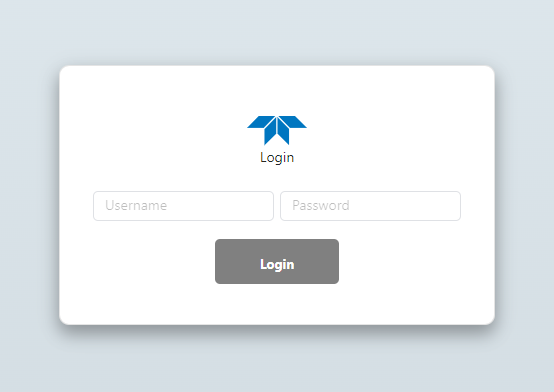
To connect to Administration Tools, you must open a web browser and enter the URL address of the server machine on which BDB Server has been installed. Once connected, a login screen is presented, as seen below.
The username and password for a user are defined when the user account is created. For information on user account creation, see Add a New User.
1. Type the Username and Password for the user account and click Login.
Note: The Username and Password fields are case sensitive. If the values entered are not an exact match to the values recorded in the user profile, the login will fail. |
Administration Tools is launched.
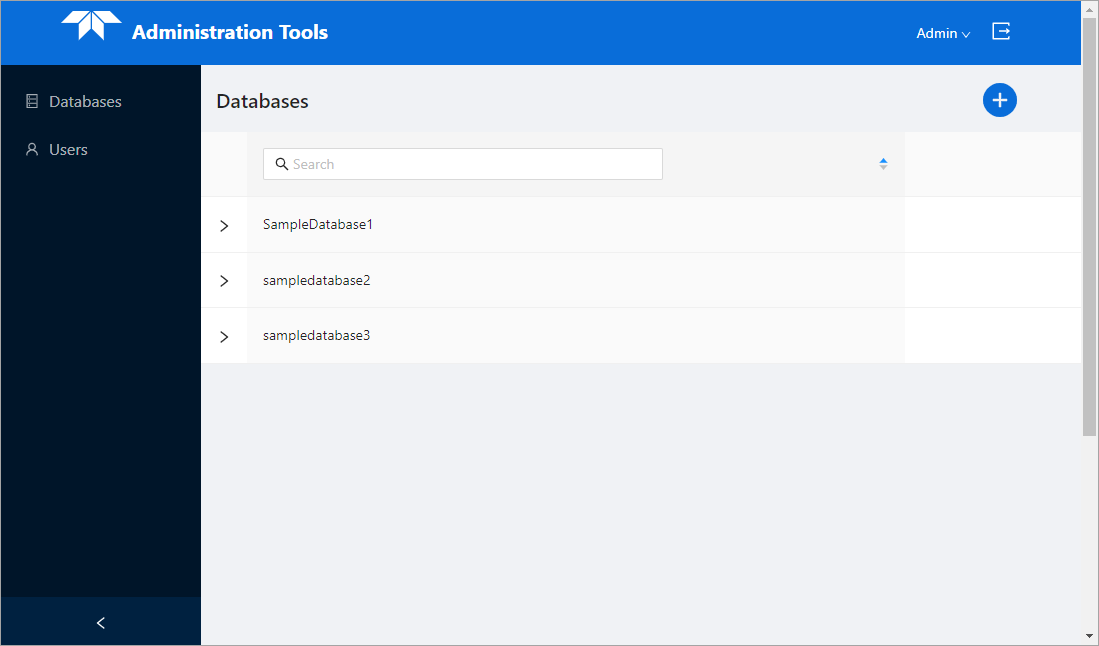
The default view of Administration Tools is the Database page, which provides a list of all databases that have been created in the server instance.
The functionality in Administration Tools is accessed through two main toolbars:
• the expanding sidebar at the left side of the page
• the title bar at the top of the page
Sidebar Tools
The buttons in the expanding sidebar provide access to each page in the application. The available pages include:
• Databases: This page is used to view, create, edit and delete databases. See Databases for information on the Databases page.
• Users: This page is used to view, create, edit and delete user accounts. See Users for information on the Users page.
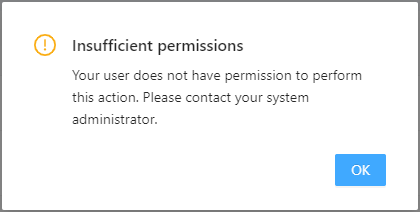
Some buttons are only accessible to users with certain permissions. If a user clicks a button but they do not have the necessary permissions for that area of functionality, an error message will be displayed.
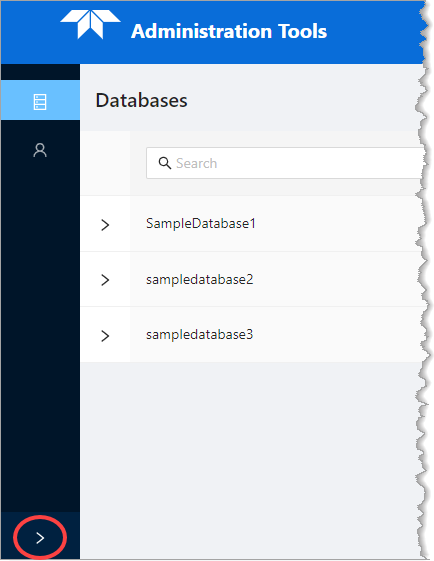
The sidebar of tool buttons can be expanded and collapsed by clicking the arrow at the bottom of the panel. When expanded, each tool displays a button icon and a textual name. When collapsed, only the button icon is visible.
Titlebar Tools
The title bar at the top of the page contains the application title and a toolbar, which provide the following functionality:
• Application title: Click to return to the home page of the application when a different page is currently displayed.
• Theme: Toggle the display from Light mode to Dark mode. In Light mode, text and interface elements are displayed in a dark colour on a light background. In Dark mode, text and interface elements are displayed in a light colour on a dark background. Light mode is selected by default.
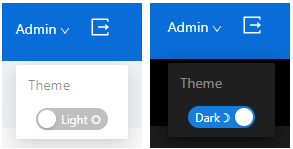
• Logout: Log the current user out of the application and return to the Login page.