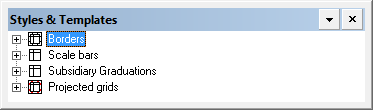
You can create or edit templates for the following cartographic features:
• Borders
• Scale Bars
• Subsidiary Graduations
• Projected Grids
These are displayed as layers in the Styles & Templates window.
When you expand a feature, a list of templates is displayed.
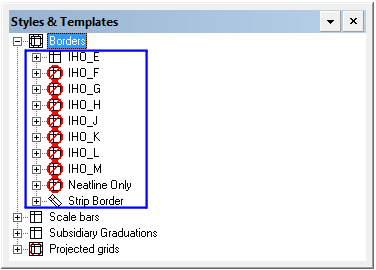
It is these templates that are created and saved when you use the various template commands.
Templates are sometimes referred to as styles.
When you expand a template, a list of components is displayed.
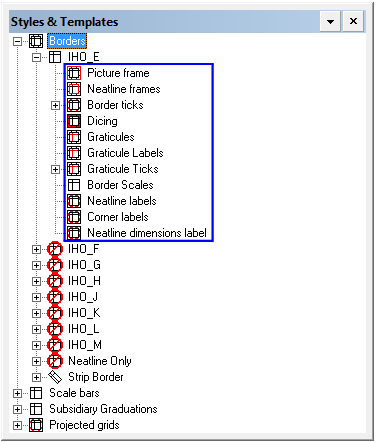
These components vary according to the type of feature. For example, the components of a scale bar differ from the components of a border. Also, the components of a strip border are different from those of a standard border.
Some components have sub-layers. For example, there are four different types of border ticks and you can define them all individually.
Every feature, template, and component has properties. These are displayed in the Properties window when you select the layer.
You edit these properties to define or change the template.
All the properties and the methods used to edit them are described in the rest of this document.
Workflow
Edit an existing template or create a new one as follows:
1. Select the appropriate command:
• To edit an existing template, select one of the Open Template commands.
• To create a new template, select one of the New Template commands.
The template is displayed in the Styles & Templates window.
2. Select and expand the layers to display component you want to define.
Component properties are displayed in the Properties window.
3. Edit the properties as necessary to define the style.
4. Select the Save Template or Save Template As command.