Many Teledyne Geospatial CARIS applications are built on a basic CARIS viewer that displays read-only raster and vector data. Application functionality is accessed through modules that create and edit a wide range of products, including nautical charts.
Application modules require licenses but other modules are unlicensed. Some modules can be activated once an application module is activated.
When a module is enabled, commands and windows related to that module become available in the application.
See the Modules command for details on available modules and how to enable them.
The basic CARIS application and the modules share common files in C:\Program Files\CARIS\<application>\<version>\system. These files control the types of data that can be opened and how that data is displayed.
Each module also has support files to display and process data required by that module. The paths for module-specific files follow this format: C:\Program Files\CARIS\<application>\ <version>\modules\<module name>\support.
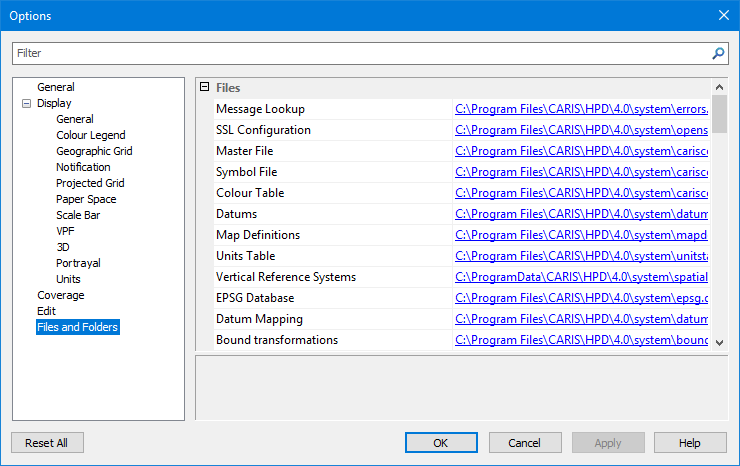
Specific system and module support files are listed in the Options dialog box in the Files and Folders section:
The information in default files can be extended with user-defined custom files that contain additional information. The application can then be pointed to these custom files.
System and module support files must never be directly modified. Copy these files to another location and modify the copies. Then, point the application to these files through the Options dialog box or environment file. For more information on modifying default settings, see Environment Settings |
This table lists files or folders that can be copied and customized with new or extended information. Other files provide additional information about the CARIS application.
File or Folder | Description |
|---|---|
Catalogue control file | The catalogue control file lists products along with the dictionaries and profiles that are associated with each product. This file can be revised or additional information can be added to it. The default file is See Catalogues for more information. |
Portrayal control file | The portrayal control file lists various portrayals along with files that make up each portrayal. Portrayals control how features are displayed. This file can be revised or additional information can be added to it. The default file is For more information about portrayals, see the Portrayal guide. |
Coordinate reference system | Files that define the coordinate reference systems. These also include datums and ellipsoids. For more information on these files, see Coordinate Reference Systems |
Utilities | The Utilities folder contains an XML-format file that lists customized macros that can be run from the Utilities list on the Interactive toolbar. See Utilities in the HPD User guide for more information. |
Validation | The Validation folder contains quality control files for checking data structure and logical consistency in S-57, VPF, and geometric data. Tests can be developed for additional file types. Default files are found in
Note that the quality assurance tests for each module are different. For more information on quality control files, see Quality Control |
Rules | The Rules folder contains mapping files that are used to convert formats (for example, GML to ENC) or to convert features (SLCON line features from LNDARE edges). Default files are found in Note that mapping files for each module are different, and not all modules have a Rules folder.. For more information, see Mapping |
Product information files | The Default files are located in For more information on product information files, see individual module support file guides. |
Third-party libraries | The The file is available in |
Environment Settings
The CARIS application and associated modules use an environment that is independent of Registry Editor. All files, folder paths and other settings are managed from a set of environment.xml files. The following table describes types of environment files.
File | Description |
|---|---|
System Environment File | This file contains basic settings that are required by all Teledyne Geospatial CARIS applications. It is the first environment file read when the application is opened. The file is located in Do not modify this file. It is always overwritten when more up-to-date versions of CARIS are installed. Any changes are lost. |
Module Environment File | A module environment file contains settings that are relevant to a specific module. Each module has its own Module environment files are read after the system environment file. A file is only read if the related module is enabled. Values in these files do not overwrite values in the system environment file. Instead the values are added to the existing environment. Do not modify this file. It is always overwritten when more up-to-date versions of CARIS are installed. Any changes are lost. |
Custom Environment File | This file stores customized system or module settings. It lets you provides organization-wide default settings that apply to all users on a system. This is the third environment file to be read when the CARIS application is opened. Values in this file override any identical settings in the system environment file or the module environment file. The file is located in No custom environment file is installed by default. This file is optional. |
User-Specific Environment File | This file contains custom settings for a single user. Changes in the Options dialog box are placed in this file. This is the final environment file to be read when the CARIS application is opened. It overrides identical definitions in the system environment file, module environment file, and custom environment file. The file is located in This file can be modified through the Options dialog box. See Setting up a CARIS Environment. |
Setting up a CARIS Environment
Custom files and modified settings can be applied to the CARIS application and its associated modules through the Options dialog box. Changes are then written to the user-specific environment.xml file. Changes can also, if needed, be copied to the custom environment.xml file so that changes can be applied to all users on a single computer.
When a change is made to a default setting, the change is bolded in the Options dialog box:
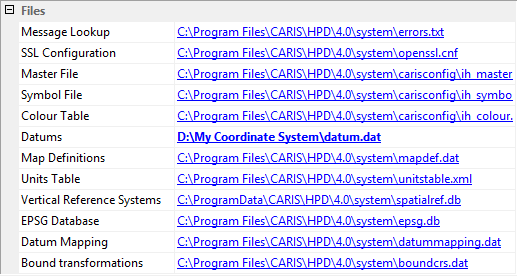
In this example, the location of the datum file has been changed from the default in the CARIS system directory to a custom file in another location.
The user-specific environment.xml file is updated and the change immediately applied to the application.
<Datums>D:\My Coordinate System\datum.dat</Datums> |
Custom files and settings for modules are also recorded in the user-specific environment.xml file. For example, the htftypes.xml file that is contained in the BASE Editor module is located in a different folder from the default.
<uslXHTFLookup>D:\My Custom Files\htftypes.xml</uslXHTFLookup> |
To return modified settings to the default settings in the system and module environment.xml files, do one of the following:
• To reset a single modified setting in the Options dialog box, right-click and choose Reset from the pop-up menu.
• To reset all user-specific settings, click Reset All in the Options dialog box. The user-specific environment file is deleted and all settings are returned to the state they were in at installation.