The Colour Range Editor is used to create and edit colour range files. The Editor is accessible from the Colour Map property list when a data layer is selected in the Layers window.
Colour range files assign colours to attribute value ranges in the current dataset. By default, colour range (.crf) files are stored in the following directory:
Two colour range files are provided with Teledyne CARIS applications. You can edit these files or create your own as needed.
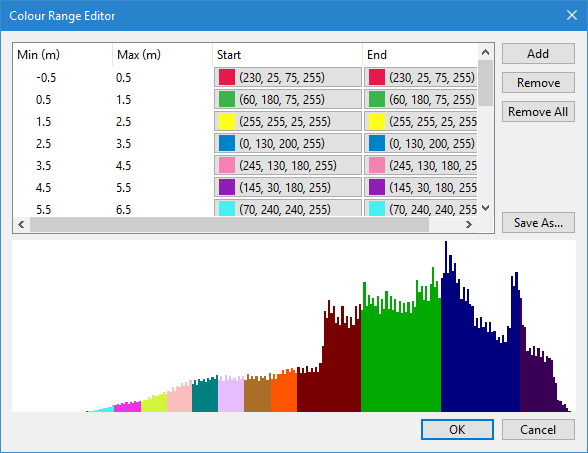
When an existing colour range file is open in the Editor, a histogram and a table of colour values are displayed. Each colour assigned to a value range in the table is displayed with the RGBA values of the colour. When creating a new colour range, the histogram and colour table are empty (no colour values displayed).
The histogram is not displayed if viewing a colour range file for vector data. It is only provided for raster data.
Procedure
To access the Colour Range Editor via raster data, see Raster Data. To access the Colour Range Editor via vector data, see Vector Data.
Raster Data
1. Select a raster data layer in the Layers window.
2. Select the Colour By property in the Properties window and choose the attribute to colour the data by. The display will be coloured according to the values of the selected attribute in the data source.
The Colour Map property is populated with a list of files that can be applied.
3. From the Colour Map list, select New Colour Range to create a new colour file, or select the colour range file you want to edit, then expand the list a second time and choose Edit.
If you chose New Colour Range, the editor is launched and is ready to begin creating the colour range. If you chose to edit the selected colour range, the editor is populated with a histogram and a table of the colour values in the selected colour range file.
The histogram is not displayed if viewing a colour range file for vector data. It is only provided for raster data.
The Editor provides the following options:
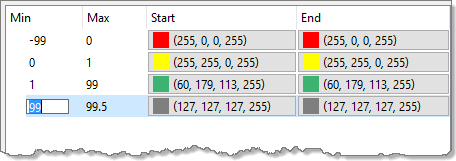
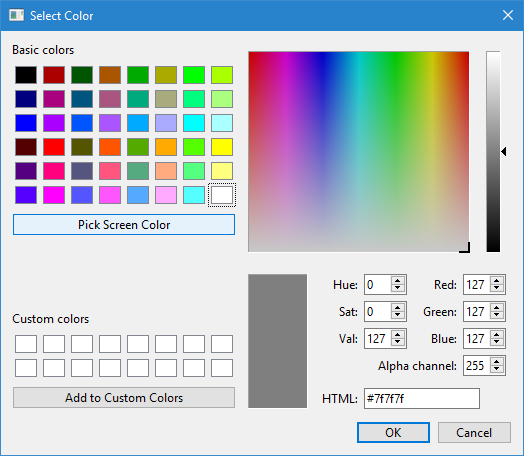
• Add a Colour: Add a custom colour to the colour list.
• Save As: Save a new or edited colour range file.
Vector Data
1. Select a vector data layer in the Layers window.
2. Expand the drop-down list for the Colour Range property in the Properties window and either:
• Select <New...> to create a new colour range file.
• Select <Browse...> to browse to the Colour directory in ProgramData and select an existing colour range file.
If you chose New, the editor is launched and is ready to begin creating the colour range. If you chose Browse, the selected file is shown in the field and applied to the data and an Edit field is added to the list of options for the Colour Range property. This option allows the selected colour range file to be edited.
3. [Optional] Select Edit from the Colour Range property.
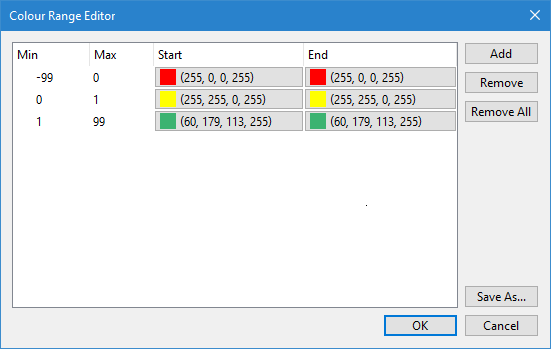
The editor is opened, populated with a table of the colour values in the current colour range file.
The Editor provides the following options:
• Add a Colour: Add a custom colour to the colour list.