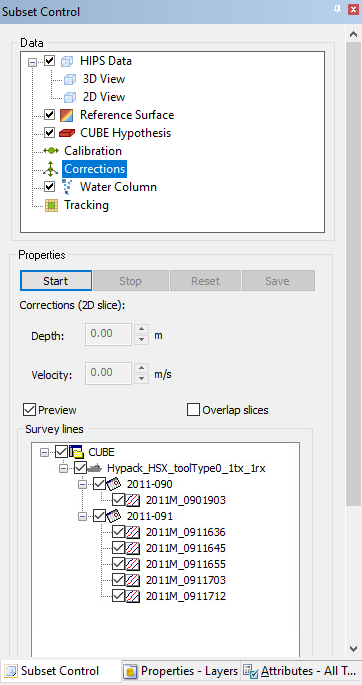
The Corrections layer for a HIPS dataset, in the Layers window, contains corrections that have been set by a user in the Subset Editor Corrections. When the Subset Editor is closed, this layer can be used to select, query and delete the corrections on the track lines. Selecting the Corrections node in the Subset Control window will display the Corrections properties for depth and velocity (refraction).
The Corrections properties can be used to preview a change in the depths or to remove refraction artifacts which may exist after incorrect or insufficient sound velocity (SV) profiles are applied in either the acquisition or post-processing phase. The properties allow a user to set a correction by a specified amount at the top profile in the 2D slice of the currently loaded subset.
• A depth correction is done by setting a positive/negative value to change the depth in the 2D slice.
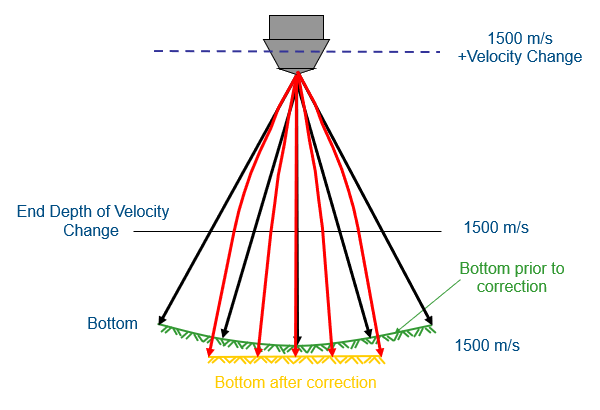
• A velocity correction is done by setting a positive/negative value to change the velocity at an automatically computed depth, half the shoalest depth in the subset. This change will remove the characteristic curved (upward or downward) refraction artifact. As the values are adjusted, the shape of the profiles will be changed in the Subset 2D View display.
For velocity corrections, slower speeds result in shorter distances travelled for the same time period. This effect is more exaggerated in outer beams due to greater influence of ray-bending/refraction.
For correction purposes, a constant sound velocity (SV) is assumed. This constant is assumed to be 1500m/s and matching travel-times are calculated to represent the same bottom that the sound velocity profile (SVP) represented. The Velocity correction depth is the depth at which the velocity will be 1500m/s again. The Velocity correction is the amount the velocity will change between the water surface and the given depth.
A positive correction at the given depth will result in a flat bottom. This correction results in an upward ray deflection and an increase in distance travelled.
When a correction is added in the 2D slice, dynamic correction values are placed at the profiles along the edges of the subset extents for each track line. If there are no other corrections between the specified value and the edge of the Subset, a Subset Extent correction will dynamically change to an interpolated value between corrections. Also, Line Extent corrections will automatically be added to the track line at both ends, matching the value of the correction nearest each end. Multiple corrections can be added to a track line within a subset or by moving the subset and adding corrections in the new subset location. Each time that additional corrections are applied, the dynamic corrections closest to the newly added correction will be re-interpolated using the value of the latest correction.
Correction values that have been added, but not saved, will be retained if another track line is selected and the user then returns to the original track line.
The Preview option in the Correction properties can be used to view the effects of the correction values as they are selected. When this option is enabled, the data in the Subset 2D View is automatically adjusted to show the data shift for the selected correction value.

Each of the corrections added will be visible in the Display window as a coloured dot on the track line. A different colour is used to represent each type or state of correction, for example unsaved corrections display with a different colour than saved corrections, by default.
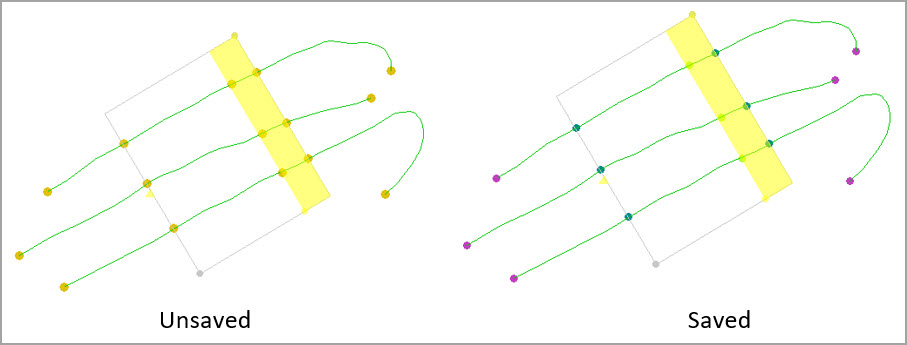
The colours used to represent each correction type can be defined in the properties for the Corrections layer when the Subset Editor is not open.

The type of corrections include:
• Line extents corrections: Dynamic corrections added to each end of the track line that ensure the entire line has a correction to interpolate along. These corrections are set based on the nearest slice value from a new subset.
• Subset extents corrections: Dynamic corrections that are added at the edges of the subset.
• If no corrections have been added to the track line, the extent corrections will match the value of the first correction added manually. As subsequent slice corrections are added closer to an extent, the subset extent correction for that extent will change to that of the newest slice correction added.
• If corrections have been added to the track line from previous subsets, the subset extents corrections are interpolated at the location of the subset extent along the track line between the existing corrections.
• Subset slice corrections: Depth/velocity value corrections that were added manually.
• Unsaved corrections: Corrections that were added but have not been saved.
• Swath Editor corrections: Any corrections that were done in Swath Editor on a line-by-line basis previous to using Subset Editor Corrections. The upgraded data will now store these velocity (depth of velocity) corrections in this layer with no depth correction.
Adding corrections only adds them to the subset, it does not apply the corrections to the data. To apply the corrections, the Georeference Bathymetry process must be run. When the subset is moved or the Stop button is clicked, a dialog box is displayed that provides options to save and run the process.
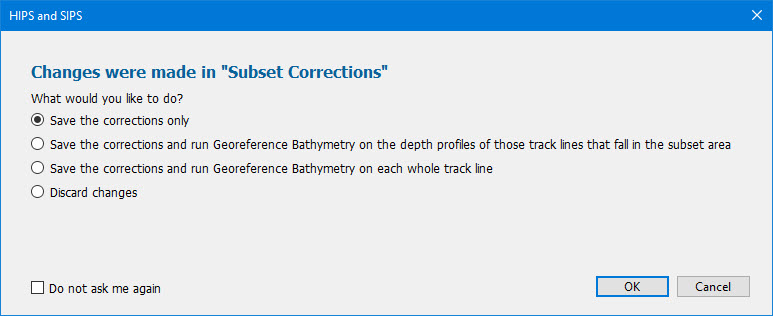
The Do not ask me again check box can be used to stop the dialog box from displaying each time and automatically use the last used option instead. The Subset Correction Save option in Tools > Options > Display > Notification can be used to change the default function, if needed.
Corrections are applied when Georeference Bathymetry is run with the correction setting enabled; it is enabled by default when run in Subset Editor. The corrections are applied by interpolating from one correction value to the next stored correction within a track line. See Georeference Bathymetry for more information on this process.
Automatic Surface Correction will apply, if it is enabled in Tools > Options > Coverages, and the surface(s) have the Keep Up to Date option enabled. To see the changes in the surface as corrections are added, applying Georeference Bathymetry to the data only in the subset is recommended.
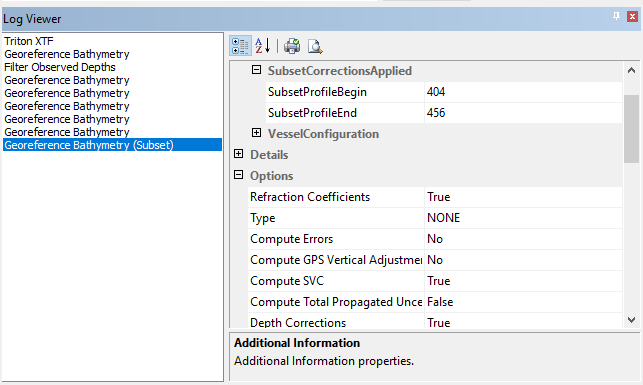
When the process is run and the corrections are applied, an entry will be added to the Log Viewer for Georeference Bathymetry for only the subset area. The entry will include the start and end profiles of the subset for which the data was processed. It will also display the options that were used when Georefence Bathymetry was run. By default, the Refraction Coefficients and Depth Corrections options are enabled when run from the Subset Editor.
Once applied, the correction values are added to the track lines as attributes. The corrections can be selected and their details viewed in the Selection and Attributes windows. Hovering the mouse cursor over a correction in the Display window will also display a tooltip with information about the correction.

The correction controls are described in the table below:
Property | Description |
|---|---|
Start/Stop | The Start and Stop buttons are used to enable or disable correction editing mode. In order to apply corrections to a track line, the Start button must be used to enable editing mode. The Stop button is used to disable correction editing mode. If the Stop button is clicked after corrections have been applied, but not saved, a message is displayed asking whether changes should be saved, saved and Georeference Bathymetry run on the track lines, or discarded completely. Note: Corrections are not applied to the data until Georeference Bathymetry has been run. If the corrections are saved, but the process has not run, it will need to be run manually to apply the corrections. If the Start button is clicked to return to corrections editing mode with the same subset still loaded, if there were corrections saved and they fall inside the 2D Slice, a message will be displayed asking if the existing corrections should be removed before continuing. Select Yes to remove the previously added corrections, or No to retain the previous corrections. Each time the 2D slice lands on existing corrections, either unsaved or saved, it will ask this question, to allow the user to change what was set in that area. |
Reset | The Reset button reverts any corrections that have been applied but not saved. If no corrections have been saved, all corrections will be reverted and the track lines will be returned to their previous state. If some corrections have been saved, only the unsaved corrections will be reverted. |
Save | The Save button is used to save any corrections that have been applied to the track lines. This changes all dynamic corrections to attributes on the track lines. |
Depth | This property is used to apply a depth correction for the currently selected track line. As a depth value is selected, the data is shifted according to the selected value. The initial value of control is set to an interpolated value at that location based on the last and next corrections. If it cannot interpolate, or no corrections have been applied, the default is 0. Click the Up or Down Arrow buttons to increase or decrease the depth value by which the data will be shifted, or type a value in the field. This value will be retained if another track line is selected, but the corrections have not been saved. |
Velocity | This property is used to apply a velocity (refraction) correction for the currently selected track line. Click the Up or Down Arrow buttons to increase or decrease the value by which the data will be shifted, or type a value in the field. This value will be retained if another track line is selected, but the corrections have not been saved. |
Preview | Enable this option to view the effects of the correction values on the track lines in the Subset 2D View. As the correction values are adjusted, the data in the 2D slice of the subset will be shifted according to the correction values. The preview includes all lines selected in the Survey lines list. |
Overlap slices | This option will turn off the overlap setting (which defaults to 20%) and each slice will move to cover new ground and not overlap the previous corrections. |
Survey lines | A list of visible track lines currently open in Subset Editor. This list is used to set the track line(s) to which corrections will be added. If the check box for a track line is not set, no corrections will be added for that track line for the subset being used. When the corrections are applied by running Georeference Bathymetry in Subset Editor, all track lines in the subset are processed, regardless of which track lines are selected in this control. |
Procedure
1. Select the Corrections item in the Subset Control window.
2. Click Start.
3. Click the check box in the Survey Lines list for each track line to be corrected.
4. Select correction values as needed.
5. Click Save.
6. If needed, move the subset and repeat steps 3 to 5.
7. Click Stop.
8. Exit Subset Editor.
9. If needed, run the Georeference Bathymetry process.