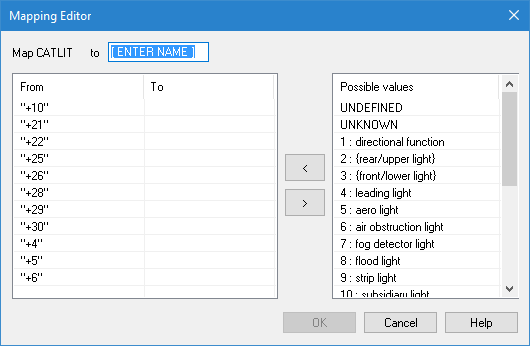
Assign number values
If the selected attribute field is text, the Mapping Editor dialog box for assigning number values is displayed.
Option | Description |
|---|---|
Map [attribute] to | The name of this option varies according to the attribute selected. Type a name for the mapping value. This name will be displayed when you return to Step 3. |
Attribute table | A table of attribute values. 1. Select a row. 2. Select a value from the Possible values list. The selected value is displayed in the To column of that attribute table. 3. Repeat for the rest of the attribute table. |
Possible values | A list of values that can be assigned to the various attributes. Select using one of the following methods: • double-click the value • select the value and click <. |
Perform mathematical calculations
If the selected attribute field is numeric, the Mapping Editor dialog box for mathematical calculations is displayed.
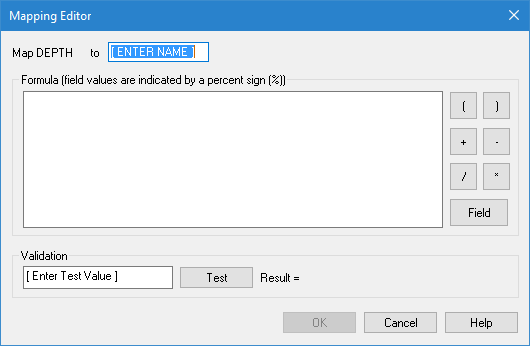
Option | Description |
|---|---|
Map [attribute] to | The name of this option varies according to the attribute selected. Type a name for the mapping value. This name will be displayed when you return to Step 3. |
Formula | Type the formula here. You can use the operator buttons on the right to insert mathematical operators. The field value is represented by the percent sign ( Equations are evaluated in the following order: • parenthesis • multiplication and division • addition and subtraction. Make sure your formula is structured to represent the precedence. |
Validation | Test the formula. 1. In the Validation field, type a test value. This value replaces the 2. Click Test. The output from the formula is displayed in Result. |
Assign number values
If the selected attribute field is text, the Mapping Editor dialog box for assigning number values is displayed.
The name of the field at the top varies according to the attribute selected. It contains a name for the mapping value.
1. Type a name for the mapping value.
2. Select an attribute value from the list on the left.
3. In the Possible Values list, double-click the numerical value or select it and click <.
The value is moved to the attribute value list.
4. Repeat steps 2 and 3 for each value in the list on the left.
5. Click OK.
You are returned to the Step 3 dialog box and the mapping value is inserted into the field.
Perform mathematical calculations
If the selected attribute field is numeric, the Mapping Editor dialog box for mathematical calculations is displayed.
The name of the at the top varies according to the attribute selected. It contains a name for the mapping value.
1. Type a name for the mapping value.
You type the formula in the large text box. You can use the operator buttons on the right to insert mathematical operators. The field value is represented by the percent sign (%).
\
Equations are evaluated in the following order: • parenthesis • multiplication and division • addition and subtraction. Make sure your formula is structured to represent the precedence. |
2. Type the formula.
Once the formula is complete, test it as follows:
3. In the Validation field, type a test value.
This value replaces the % sign in the formula.
4. Click Test.
The output from the formula is displayed in Result.
5. Repeat as often as necessary.
6. Click OK.
You are returned to the Step 3 dialog box and the mapping value is inserted into the field.
7. Assign any necessary default values to class attributes.
If you selected any attributes related to the coordinate reference system, there is one more step. If you did not, you are finished and returned to the main Object Import Utility dialog box.
8. Click Next or Finish.