The options fields are displayed. 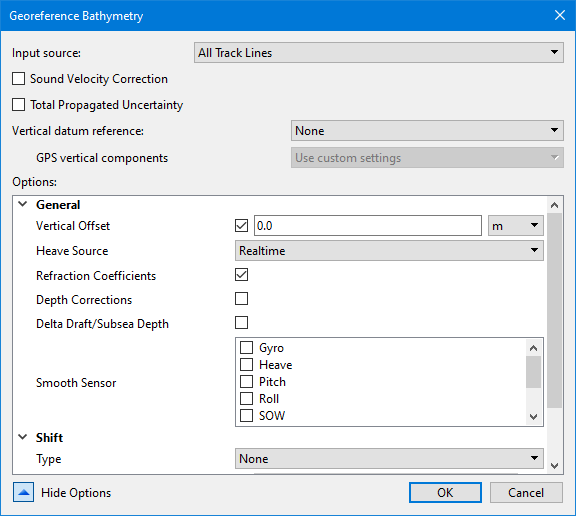
To access the optional settings for the Georeference Bathymetry process:
1. Open data.
2. Select the Georeference Bathymetry command from the Tools menu or toolbar.
3. To set SVC or TPU options, enable the check boxes for Sound Velocity Correction and Total Propagated Uncertainty. (See Interface.)
4. To set Vertical datum reference options, select the type of reference to be used (the default value is NONE):
• Select Tide to apply Observed tidal corrections
• Select GPS to apply GPS heights relative to a datum model.
5. Click Show Options.
6. Select Delayed from the Heave Source list to apply delayed heave values instead of Realtime heave.
If you choose this option, and no delayed heave data is available, there will be a warning message displayed in the Output window and regular heave data will be used instead.
The options fields are displayed.
Option | Description |
|---|---|
General | |
Vertical Offset | Set a value for the static offset to be applied to the processed depths. Default units are set as metres, but this can be changed by selecting another unit type from the drop-down list. |
Heave Source | The type of heave to be applied. The default setting is Realtime. Select Delayed from the Heave Source list to apply delayed heave values instead of realtime heave. If you choose Delayed, and no delayed heave data is available, there will be a warning message in the Output window, and realtime heave data will be used instead. Note: During Georeference Bathymetry, HIPS will apply the difference between delayed heave and realtime heave only if all of the following are true: • Data has not undergone sound velocity correction, and; • In the vessel file, the Heave sensor has Apply set to NO, and; • In Georeference Bathymetry, Heave Source is set to Delayed, and; • Both realtime heave values and delayed heave values exist for the line. If data has already undergone sound velocity correction, no dynamic heave (realtime or delayed) will be applied. |
Refraction Coefficients | Enable this option to apply refraction coefficients to the processed data. |
Depth Corrections | Enable this option to apply all depth corrections that have been set in the Subset Editor Corrections mode for the trackline being processed. See Corrections Node for information on Subset Editor corrections. |
Delta Draft/ Subsea Depth | Enable this option to apply delta draft and subsea depths to the processed data. |
Smooth Sensor | Select smoothing coefficients to apply to the selected data. |
Shift | |
Type | Apply beam shift to the processed depth solution from a beam look-up table. The beam shift look-up table consists of two columns, one contains the beam number and the other the value of the shift. Only the beams listed in the table will be shifted. For example: Beam number, Shift Value 1,2 2,2 3,2 22,3 75,1 The values can shift statically or by percentage of the water depth of the sounding being shifted. • None: No beam shift will be applied • Static: Static beam shifts will be applied - as a straight shift (positive down, depths get deeper) • Relative: Relative beam shifts will be applied as a percentage of the depth being shifted. The default value is None. |
File | Enable the check box and browse to the location of the beam shift file. |
Sound Velocity Correction | |
Sound Velocity Profile(s) (SVP) | Enable the check box and browse to the location of the file(s) or folder(s) containing the profiles. |
Use Surface Sound Speed as Backup SVP | Enable the check box to use surface sound speed (SSP), if available, as a full SVP during sound velocity correction if SVP is not available. |
Profile Selection Method | Method for selection of which sound velocity profile to apply for each ping, when multiple profiles are available. From the drop-down list, select the method to be applied to each ping. • Previous in Time • Nearest in Time • Nearest in Distance • Nearest in Distance within Time • Use Last Method (the method applied when this option was chosen when georeferencing). The default value is Previous in Time |
Nearest in Distance Hours | Specify the number of hours used with the Nearest in Distance Within Time profile selection method. The default value is 1. |
Use Surface Sound Speed | Enable the check box to insert SSP into the SVP used during sound velocity correction. When not available, SVP is used without any changes. |
Steered Beam Angle Recomputation | Enable the check box to perform an additional computation of the steered beam angles based on a new surface sound speed that will be interpolated from the sound velocity profile. This is only available when the Surface Sound Speed is applied. |
Total Propagated Uncertainly | |
Measured Tide | Select a number specifying the error value for the tide station, equivalent to the standard deviation of the tide gauge measurements. This is ignored if tide source is set to Realtime. The default value is 0. Default units set to metres. |
Tide Zoning | Select a number specifying the value for the vertical uncertainty in the range calculation for a tide zone file. The default value is 0. Change units by selecting from the drop-down list: |
GPS Height Source | Select the source of the uncertainty values for the GPS height: • Vessel (default) • Realtime |
GPS Sounding Datum | Select a number specifying the value for the vertical uncertainty in the range calculation for a GPS sounding datum model. The default value is 0. Change units by selecting from the drop-down list: |
Measured Sound Velocity | Select a number specifying the value for the uncertainty of inaccuracies in SVP measurements. The default value is 0. Change units by selecting from the drop-down list: |
Surface Sound Velocity | Select a number specifying the value for the uncertainty of the surface sound speed sensor that measures the sound speed at the transducer face. This parameter is only applicable to systems that require accurate surface sound speed measurements. The default value is 0. Change units by selecting from the drop-down list: |
Sweep Maximum Heave | Select a number specifying the maximum uncertainty value for the estimated observed heave of the transducer boom. The default value is 0. Change units by selecting from the drop-down list: |
Sweep Maximum Roll | Select a number specifying the maximum uncertainty value for the estimated observed roll of the transducer boom. default value is 0. Change units by selecting from the drop-down list: |
Sweep Maximum Pitch | Set a number to be the maximum uncertainty value for the estimated observed pitch of the transducer boom. The default value is 0. Change units by selecting from the drop-down list: |
Navigation Source | Set the source of the uncertainly values for Navigation: • Vessel (default) • Realtime |
Sonar Source | Set the source of the uncertainly values for Sonar: • Vessel (default) • Realtime |
Gyro Source | Set the source of the uncertainly values for Gyro: • Vessel (default) • Realtime |
Pitch Source | Set the source of the uncertainly values for Pitch: • Vessel (default) • Realtime |
Roll Source | Set the source of the uncertainly values for Roll: • Vessel (default) • Realtime |
Heave Source | Set the source of the uncertainly values for Heave: • Vessel (default) • Realtime • Delayed |
Tide Source | Set the source of the uncertainly values for Tide: • Static (default) • Realtime |
Tidal Observations (for Vertical datum reference) | |
Tide File | Select the check box and browse to the location of the tide station or zone file to be used. |
Weighted Average | 1. Set so that the weighted average can be calculated during multiple tide station interpolation. |
Compute Errors | 1. Set so that errors can be computed during multiple tide station interpolation. |
GPS Vertical Adjustment (for Vertical datum reference) | |
Compute GPS vertical adjustment | Enable the check box to compute a vertical adjustment for the soundings using the ellipsoid as reference. The values used for the computation depend on the GPS vertical components option selected. • If Use default system settings is selected, the adjustment will be computed using default values. • If Use custom settings is selected, enabling this option enables the Custom GPS Vertical Components options and the adjustment will be computed using the custom values. |
Sounding Datum Offset | When enabled, a single static datum offset is applied to the GPS height. 1. Click the check box to enable the option. 2. Specify a value and unit of measure for the offset. |
Model file | The datum model file to use to compute vertical adjustments. The datum model can be one of type ASCII (TIN), raster surface or point cloud. 1. Enable the check box and browse to the location of the datum model file. |
Band Name | The name of the band in the datum model to be applied. This applies to raster surface or point cloud models in CSAR format. 1. Click the check box to enable the field. 2. Type the band name in the field. |
ASCII Format Information File | The name and location of the ASCII Format Information File that will be used to read the model file during georeferencing. This option is only enabled if the Model File option has been specified. 1. Click the check box to enable the field. 2. Click the browse button (...) to launch the Open File dialog box. 3. Navigate to the relevant file and click Open. |
Coordinate Reference System | The coordinate reference system (CRS) to be used with the model and ASCII Info files. This option is only enabled if the Model File option has been specified. 1. Click the check box to enable the field. 2. Click the browse button (...) to launch the Select Coordinate Reference System dialog box. See Coordinate Reference System Selection for information on this tool. 3. Select the CRS of the model file and click OK. Note: GPS Height and Model must be in the same coordinate reference system. |
Smooth GPS Height | Enable this option to apply smoothing to GPS height. |
Output Components | Enable the check box to create an ASCII text file (GPSTideComponents.txt) in the line folder with all the components extracted/interpolated during the Georeference Bathymetry process. |
Custom GPS Vertical Components (for Vertical datum reference) | |
Antenna Offset | Enable this option to apply the offset of the GPS antenna from the reference point when computing the vertical adjustment to be applied to the soundings. |
Dynamic Heave | The type of dynamic heave to be applied when computing the vertical adjustment to be applied to the soundings. The possible values include None, Heave and Delayed Heave. |
MRU Remote Heave | Enable this option to apply remote heave to the vertical adjustments. |
Dynamic Draft | Enable this option to apply dynamic draft when calculating vertical references. |
Delta Draft/Subsea Depth | Enable this option to apply delta draft/subsea depth to the processed depths. |
Waterline | The type of waterline offset to apply. The possible values in None, Vessel and Realtime. |