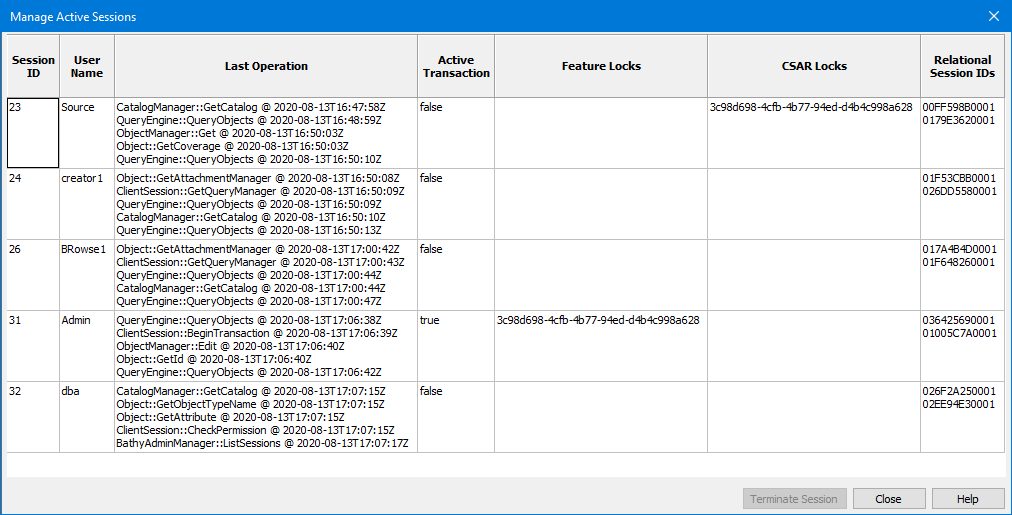
Pop-up | database > Manage Active Sessions (Database Properties tab) |
The Manage Active Sessions command allows an administrator to view and manage all connections to a database (sessions).
Each active session displays:
• the user name of the connected user.
• up to the last 5 operations performed by the user.
• feature or CSAR locks for the database. This indicates that the user has unsaved changes to database objects and/or the coverages associated with the objects.
• the internal session IDs for the connection to the RDBMS
Copy Session Details
Session information can be copied to the Clipboard and pasted into a text editor if desired.
1. Double-click the Database Properties tab.
2. Select a database in the Available Databases list.
3. Select the Manage Active Sessions command.
The Manage Active Sessions dialog box is displayed.
4. Select a session in the list.
5. Right-click on a session and selecting Copy session details.
6. Paste the content into a text editor.
Terminate Session
From this dialog box, it is also possible to manually terminate sessions. Terminating a session will force the logout of the user that the session represents and terminate all locks and active transactions for that session. Any unsaved work when a session is terminated could be lost.
1. Double-click the Database Properties tab.
2. Select a database in the Available Databases list.
3. Select the Manage Active Sessions command.
The Manage Active Sessions dialog box is displayed.
4. Select a session in the list.
5. Click Terminate Session.
A message will be displayed warning that unsaved changes will be lost.
6. Click OK to terminate the session.
The user is disconnected and the session is removed from the list.
Locks can sometimes exist that do not appear in the Administration Tools, but will show in pgAdmin4. To find these locks, go to the Dashboard tab of pgAdmin4 and locate the Server Activity table at the bottom of the dashboard. Click the Locks tab in this table to display a table of current locks in the server. These locks cannot be resolved using the Manage Active Sessions command; the only solution to unlock them is to restart the node manager. |