Backing up a database requires generating a compressed backup of the configuration, logs, and attachment data in the database root folder using the BDB Administration Tools. Once this is complete, you must also generate a backup of the objects and coverage data in the RDBMS using either pgAdmin 4 or Oracle SQL commands, depending on your RDBMS of choice.
The backup command in BDB Administration Tools allows you to schedule routine backups of your database.
If a database is stopped at the time that the backup is scheduled to run, the backup will not be created. |
To set up the backup schedule:
1. Double-click the Database Properties tool.
2. Select a registered database from the Available Databases list.
3. Select the Backup Database command.
Menu | Database > Backup |
Pop-up | Backup |
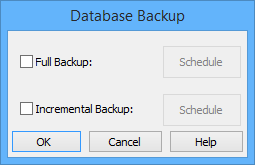
The Database Backup dialog box is displayed.
You can set the backup schedule options for both full and partial backups of a database. A full backup copies all files in the database, whereas an incremental backup only copies files that have changed since the last backup was performed.
4. Select the check box for Full Backup or Incremental Backup.
5. Click Schedule for the selected backup type.
Backup Schedule
The Database Backup Schedule dialog box is displayed. The title of the dialog box will differ depending on whether you are scheduling a Full backup, or an Incremental backup.
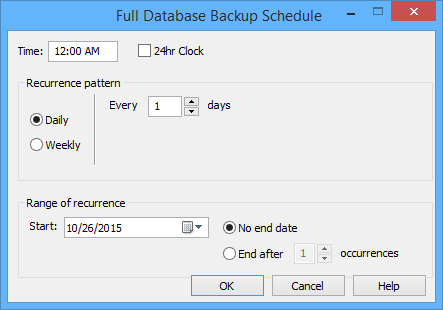
This dialog box is used to define when the backup will be performed, for example, every Friday at 6:00 pm.
6. [Optional] Click the 24hr Clock check box to set the time using 24 hour format.
7. Click in the Time field and use the <Up Arrow> and <Down Arrow> keys to adjust the values for hour, minute and (if applicable) AM/PM.
Each element of the Time field is adjustable in preset increments: hourly for the hour element and five minute increments for the minute element. The AM/PM element toggles between AM and PM. |
Recurrence pattern
Backups can be performed on a daily basis or a weekly basis.
8. Select a Recurrence pattern option.
• If you select Weekly, go to Weekly backups.
• If you select Daily (selected by default), continue with the next step.
Daily backups
The Daily backup options are displayed.
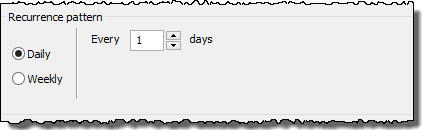
For daily backups, you need to define the number of days between each backup.
9. Type a value in the Days field and go to step 10.
Weekly backups
The Weekly backup options are displayed.
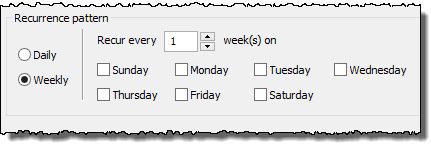
For weekly backups you need to define the number of weeks between each backup and on which days of the week you want the backups to be performed. Using the example from before, you would enter “1” for the number of weeks and select Friday to have a backup performed every Friday.
Or, if you only want to perform a backup every two weeks, but it needs to done on both Tuesday and Friday, you would enter “2” for the number of weeks and select both Tuesday and Friday.
10. Type a value in the week(s) field.
11. Select the days of the week that you want the backup process to run.
Range of recurrence
Select start and end values for the backup period.
12. For the Start field, type a value or use the calendar tool to select a start date option. This will be the first day that a backup will be performed.
13. To have the backups continue indefinitely, select No end date. To have the backups end after a certain number of backups, type a value in the End after... field.
14. To confirm settings, click OK.
You are returned to the Database Backup dialog box.
15. [Optional] Repeat steps 3 to 12 to setup a schedule for the other backup type (full or incremental).
16. To finish, click OK.
The backup schedule for the selected database is set.
Completing the process
Once a database is backed up from the BDB Administration Tools, it then needs to be backed up in the RDBMS to complete the process.
Please refer to the following resources for information on performing backups:
• pgAdmin documentation on the Windows Start menu
• http://docs.oracle.com/database/121/nav/portal_4.htm
Further details on administration tasks in the RDBMS are also available upon request from CARIS Customer Service. |