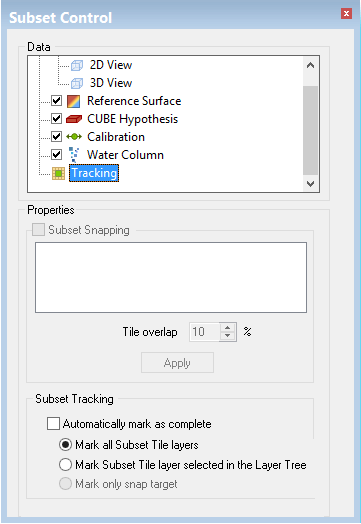
This layer controls the properties for subset tracking tiles. See Tracking Cleaning Status.
1. Select the Tracking layer in the Subset Control window.
The window is refreshed to display the tracking options.
Activate the Subset Snapping check box so that the subset bounding box encloses entire tiles.
2. Select the Subset Snapping check box.
3. Select the tile tracking layer.
4. Click Apply.
You can also set an amount by which the subset snapping will overlap tiles as you move from completed to unprocessed tiles.
This helps ensure coverage of all of the data that lies within tiles along the edges of the subset.
5. Select a percentage in the Tile Overlap field.
6. Click Apply.
7. In the Subset Tracking options, select the Automatically mark as complete check box to flag the data as examined and cleaned. This can be changed later (see Tracking Cleaning Status).
When the Automatically mark as complete check box is selected, two other options are made active.
8. Select the Mark all Subset Tile layers option to flag the tiles in ALL tile layers as completed, or select Mark only snap target to select tiles only in the selected tile layer as completed.