Menu | Tools > Report > Validation |
Tool |
|
Menu | Tools > Report > Validation |
Tool |
|
Test database features and S-57 or HOB files for data structure and logical consistency. These tests can also be used (where applicable) for VPF data.
Many tests are based on the Recommended ENC Validation Checks (S-58 Ed. 4.2) standard from the International Hydrographic Organization. Additional tests developed by CARIS and some S-58 quality control tests are also included with certain modules. If the validation check is based on the S‑58 standard, the code number is displayed on the right side of the table. Refer to the standard (available from the IHO) for more information on specific S-58 checks.
Validation tests are in the format of XML files. There are two types of validation tests:
• QC Tests: These tests are provided with the application and cannot be modified. The available tests are described at QC Tests.
Not all tests are available in all licensed modules; different tests are provided based on the functionality available in each module. |
• Customized QC Tests: With certain modules, custom tests are provided that can be modified or copied to create additional customized test. The location of custom tests can be defined in the Customized QC Tests option in the Files and Folders category of Tools > Options. The default test location is used if this option has not been defined (see Options). The default location for these files is:
C:\Program Files\CARIS\<application>\<version>\modules\<module>\support\Validation
An example of a custom test is shown below.
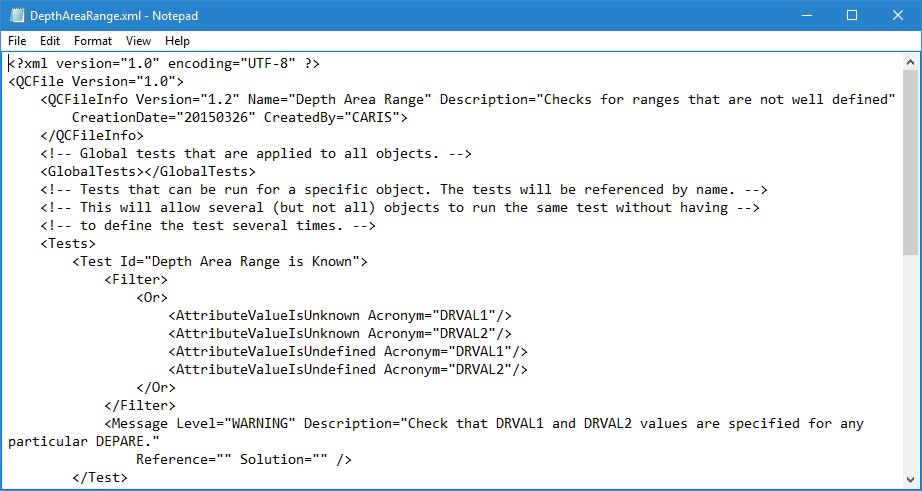
You can run QC Tests or customized QC Tests, but you cannot select and run both at the same time. If necessary, you can stop the validation process by pressing <Esc>. Any test in progress when you press <Esc> will be completed.
Validation checks are restricted to the extents of the currently active dataset. Features completely outside the boundary are excluded. |
Each feature that fails a test is listed in the Validation window and hyperlinked.
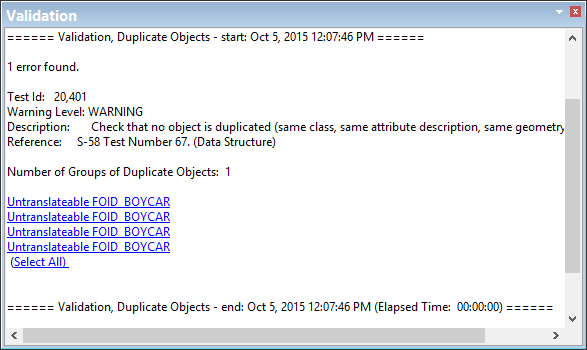
If you click a link, the feature is superselected. You can examine the feature and make any required changes.
If you edit a feature, the link in the Validation window becomes invalid. You have to run the validation test again to generate a new list.
Interface
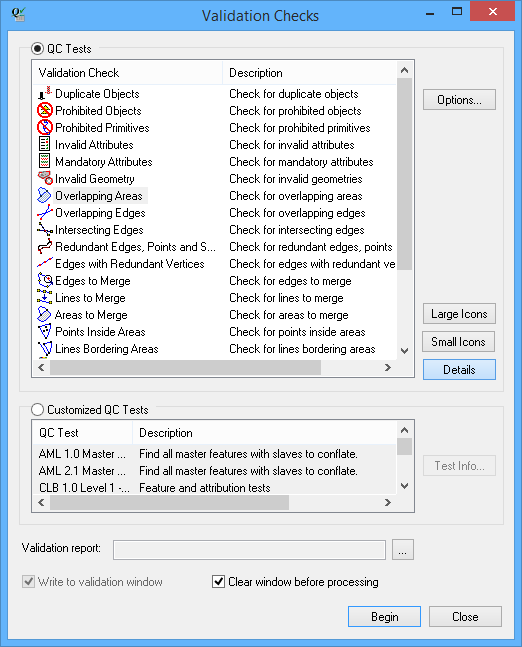
The Validation command uses the following dialog box.
Option/Command | Description |
|---|---|
QC Tests | On: You can run any of the QC tests in the list. |
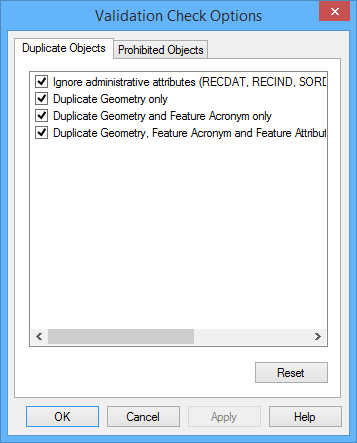
Options | If this button is active, the selected QC test has further options you can set. 1. Click Options. The Validation Check Options dialog box is displayed.
If more than one test is selected, each has its own options, displayed on a tab. For each option: • On: The specified validation check is performed. • Off: The check is not performed. 1. Select the appropriate tab. 2. Enable or disable any necessary option sand click OK. The dialog box is closed and you are returned to the Validation Checks dialog box. |
Large Icons | The items in the QC tests list are displayed as large icons with the test name underneath. |
Small Icons | The items in the QC tests list are displayed as two or more columns of small icons with the test name to the right. |
Details | The items in the QC tests list are displayed as small icons, test name, and description. |
Customized QC Tests | On: You can run any of the customized QC tests in the list. |
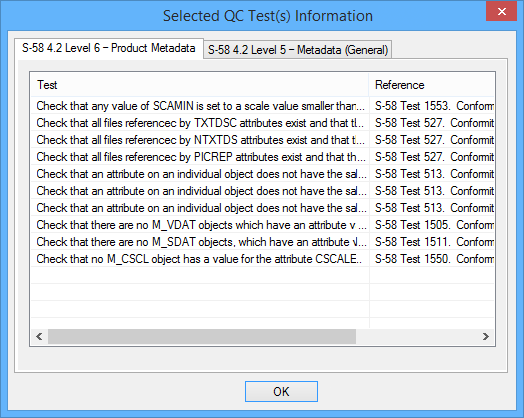
Test Info | Displays information about one or more customized QC test. 1. Select one or more tests. 2. Click Test Info. The Selected QC Test(s) Information dialog box is displayed.
If more than one test is selected, each is displayed on its own tab. 3. Click OK. The dialog box is closed and you are returned to the Validation Check dialog box. |
Validation Report | Save the validation report to a file. 1. Click browse (...). 2. Select a file name and path and click Save. |
Write to validation window | On: The report is displayed in the Validation window as well as written to a file. Off: The report is written only to the file. This option is only active if you select a report file in the Validation Report option. If no report file is selected, the report is always displayed in the Validation window. |
Clear window before processing | On: Any existing contents of the Validation window are cleared before the validation report is written. Off: The existing contents of the Validation window are retained. The new report is added to the end. |
QC Tests
The following QC tests are available.
The list of available tests will differ based on the licensed modules installed on the computer. |
| |
Description | Check that no feature is duplicated (same class, attribute description, geometry) and no spot sounding coincides with another spot sounding. |
Option | • Ignore administrative attributes (RECDAT, RECIND, SORDAT and SORIND) when comparing objects • On: Do not compare administrative attributes. • Off: Compare administrative attributes. • Duplicate Geometry only • On: Check for duplicate geometry, ignoring acronyms and attributes. • Off: Ignore duplicate geometry, depending on the settings of the other options. • Duplicate Geometry and Feature Acronym only • On: Check for duplicate geometry and acronyms, ignoring attributes. • Off: Ignore duplicate geometry and acronyms, depending on the settings of the other options. • Duplicate Geometry, Feature Acronym, and Feature Attributes only • On: Check for duplicate geometry, acronyms, and attributes • Off: Ignore duplicate geometry, acronyms, and attributes, depending on the settings of the other options. |
S-58 Check Number | 67, 81 |
| |
Description | Check for all objects of the following type: • CANBNK • LAKSHR • RIVBNK SQUARE • M_HDAT • M_PROD • M_UNIT • C_STAC • $AREAS • $LINES • $CSYMB • $COMPS • $TEXTS |
Option | • Check for edges with too many coordinates • On: Check that no edges contain more than 1,000,000 coordinates and report them as errors. • Off: Do not check for the number of coordinates in edges. |
S-58 Check Number | 504 |
| |
Description | Check that geometry primitive is compatible with the object class. |
Option | [none] |
S-58 Check Number | 20 |
| |
Description | Check that attributes of type “L” (list) and “E” (enumerated) for any objects contain only allowable values. |
Option | • Allow Unicode characters in National Attributes • On: Unicode characters will not be considered invalid. • Off: Unicode characters will be flagged as errors. • Allow standard (ASCII) characters only • On: Only standard ASCII characters will be considered valid. All other characters are flagged as errors. • Off: All characters will be valid, depending on the setting of Allow Unicode characters. |
S-58 Check Number | 26, 46, 91, 512, 541, 542, 543, 557, 558, 1515, 1516, 1517, 1673, 1766, and 2000 |
| |
Description | Check all mandatory attributes. |
Option | [none] |
S-58 Check Number | 507, 509 |
| |
Description | Check that spatial relationships between features are valid. |
Option | • Find lines with self crossing edges • On: Self-crossing edges will be reported • Off: Self-crossing edges will not be reported. |
S-58 Check Number | 43, 51, 52, 53, 54, 55, 56, 57, 58, 59, 60, 61, 62, 63, 64, 70, 74, 75, 76, 77, 81, 513, 550, 1500, 1506, 1507, 1508, 1512, 1524, 1527, 1528, 1529, 1530, 1531, 1533, 1534, 1535, 1536, 1537, 1538, 1539, 1541, 1542, 1543, 1547, 1551, 1563, 1565, 1566, 1568, 1569, 1573, 1577, 1580, 1581, 1584, 1590, 1592, 1595, 1597, 1599, 1602, 1604, 1605, 1606, 1607, 1609, 1612, 1613, 1614, 1617, 1619, 1620, 1630, 1637, 1641, 1651, 1652, 1653, 1655, 1662, 1671, 1672, 1674, 1689, 1690, 1692, 1700, 1729, 1735, 1743, 1754, 1755, 1758, 1762, 1767, 1775 |
| |
Description | Check overlapping area features with the same feature class or overlapping area features with the same feature class and attributes. |
Option | • Ignore all attributes • On: Overlapping areas must have the same acronym but can have different attributes. • Off: Overlapping areas must have the same acronym and attributes. • Ignore administrative attributes (RECDAT, RECIND, SORDAT and SORIND) when comparing objects • On: Do not compare administrative attributes. • Off: Compare administrative attributes. • Ignore feature acronyms and all attributes • On: Overlapping areas are identified only by their geometry. Acronyms and attributes can all be different. • Off: Overlapping areas must have the same acronym and attributes. |
S-58 Check Number | [none] |
| |
Description | Check that no part of an edge is duplicated (that is, a pair of coordinates identical for two edges). |
Option | [none] |
S-58 Check Number | 1 |
| |
Description | Check that no two segments overlap without an end node between them. This test does not work with geodesics and loxodromes. |
Option | • Check by feature class • On: Check only features with the same feature class. • Off: Check all features regardless of feature class. • Find near intersections only: Applies to area features only. • On: Only near intersections will be located. Near intersections occur when a point on one edge is very close to another edge, usually closer than the X/Y resolution of the map. The finer the X/Y resolution, the smaller the distance between edges with near intersections will be. • Off: Near intersections will not be located. |
S-58 Check Number | [none] |
| |
Description | Check for edges, points or soundings that completely overlay each other. These tests are performed at the spatial level so that individual edges that make up a line or area can be tested. |
Option | • Find near duplicate edges only: Applies to area features only. • On: Only near duplicate edges will be located. Near duplicate edges occur when points on one edge are very close to another edge, usually closer than the X/Y resolution of the map. The finer the X/Y resolution, the smaller the distance between edges will be. • Off: Near duplicate edges will not be located. |
S-58 Check Number | [none] |
| |
Description | Check all lines with redundant points. A redundant point is one that does not change the path of a line.
|
Option | [none] |
S-58 Check Number | [none] |
| |
Description | Check for all edges with pseudonodes that can be merged. A pseudonode is a node at which only two edges meet and which is therefore unnecessary. When a pseudonode is removed, the two edges are joined to form one edge. A pseudonode does not exist if the two ends of the same edge meet to form an island. This test does not report edges with different spatial attributes or different masking or closing flags. |
Option | [none] |
S-58 Check Number | [none] |
| |
Description | Check all lines joined by a node that share the same feature code and attributes. |
Option | [none] |
S-58 Check Number | [none] |
| |
Description | Check if two or more adjacent areas with the same attributes share common edges that could be removed. This option also checks if the area has incomplete geometry that prevents it from being merged. Note: Attributes RECDAT, RECIND, SORDAT and SORIND are ignored when option is selected. |
Option | • Ignore administrative attributes (RECDAT, RECIND, SORDAT and SORIND) when comparing objects • On: Do not compare administrative attributes. • Off: Compare administrative attributes. • Ignore Dividing Lines and Overlapping Areas • On: Dividing lines and overlapping areas will be ignored when checking if areas can be merged. • Off: Dividing lines and overlapping areas will be considered when checking areas. Merging such areas would result in invalid topology in VPF. |
S-58 Check Number | [none] |
| |
Description | Check for the occurrence of any point feature lying inside an area feature of the same class and attribute values, except for WRECKS and OBSTRN objects. Note: Attributes RECDAT, RECIND, SORDAT and SORIND are ignored when option is selected. |
Option | • Ignore administrative attributes (RECDAT, RECIND, SORDAT and SORIND) when comparing objects • On: Do not compare administrative attributes. • Off: Compare administrative attributes. |
S-58 Check Number | 1672, 55 |
| |
Description | Check for any line feature whose geometry is coincident with the geometry of an area feature of the same object class and attribute values. Note: Attributes RECDAT, RECIND, SORDAT and SORIND are ignored when option is selected. |
Option | • Ignore administrative attributes (RECDAT, RECIND, SORDAT and SORIND) when comparing objects • On: Do not compare administrative attributes. • Off: Compare administrative attributes. |
S-58 Check Number | 1671 |
| |
Description | VPF only. Check for lines that share edges. The lines must have the same acronym. |
Option | • Ignore all attributes • On: Shared edges will be reported even if the lines have different attributes. • Off: Shared edges will be reported only if the lines have the same attributes • Ignore administrative attributes (RECDAT, RECIND, SORDAT and SORIND) when comparing objects • On: Do not compare administrative attributes. • Off: Compare administrative attributes. |
S-58 Check Number | [none] |
| |
Description | Check all edges in an area feature and report if an edge is not shared with a line feature. |
Option | [none] |
S-58 Check Number | [none] |
| |
Description | VPF only. Check for areas that are divided by lines. |
Option | [none] |
S-58 Check Number | [none] |
| |
Description | This function runs three related tests: • Check all sounding features to see if they are meet the criteria for grouping. • Check soundings in groups for same spatials and attributes. • Check that number of soundings in groups is 8,000 or less. |
Option | [none] |
S-58 Check Number | [none] |
| |
Description | Check that all collections contain a minimum of two features. |
Option | [none] |
S-58 Check Number | 517, 1683, 1788 |
| |
Description | Check that all slave features are associated to a master feature and that all relationships between master/slave features are correct. |
Option | [none] |
S-58 Check Number | 72, 89, 516, 1721, 1722, 1723, 1724, 1725, 1750, 1775, 1793 |
| |
Description | Check for validity of orientation, usage, and mask. |
Option | [none] |
S-58 Check Number | 9, 10, 11, 19, 71, 88 |
| |
Description | This function runs four related tests: • Check DEPARE area features and report on those features that do not share edges with DEPCNT line features. • Check that all DRVAL1 and DRVAL2 values (except the shallowest or deepest) of a DEPARE feature are also values of VALDCO. • Check that for any edge which is shared by a DEPCNT (VALDCO) and two area DEPARE (DRVAL1, DRVAL2), but by no line DEPARE, that: • (Maximum value of DRVAL2) > VALDCO > (Minimum value of DRVAL1), and • (Minimum value of DRVAL2) = VALDCO > or = (Maximum value of DRVAL1). • Check that the overall succession of DRVAL1 and DRVAL2 in the whole maritime area is continuous. |
Option | [none] |
S-58 Check Number | 44, 1771 |
| |
Description | Check the coverage of M_COVR objects. |
Option | [none] |
S-58 Check Number | 501, 505, 544, 548, 554, |
| |
Description | Check the coverage of meta objects (excluding the M_COVR objects). |
Option | [none] |
S-58 Check Number | 505, 1726, 1765 |
| |
Description | Check the coverage of group 1 (skin of the earth) area features. |
Option | [none] |
S-58 Check Number | 42, 519, 549, 1551, 1644, 1727 |
| |
Description | Check if overlapping areas with a colour or pattern fills have the same display priority. If the areas do have the same priority, a conflict is reported. Also, check if edges shared by the same feature have the priority level. |
Option | [none] |
S-58 Check Number | [none] |
Procedure: Run QC Tests
1. Select the dataset that you want to validate.
2. Select the Validation command.
3. Enable QC Tests.
4. Select one or more tests from the list.
If there are additional options that can be applied to a test, the Options button becomes active.
5. Click Options and set any necessary options.
6. [Optional] Select a validation report.
7. Click Begin.
Procedure: Run Customized QC tests
1. Select the dataset that you want to validate.
2. Select the Validation command.
1. Enable Customized QC Tests.
2. Select one or more tests from the list.
3. [Optional] Click Test Info to display information on the selected tests.
4. [Optional] Select a validation report.
5. Click Begin.
Procedure: Create Custom Tests
1. Copy an existing QC test to the location defined in Tools > Options for custom tests.
2. Rename the file to reflect the purpose of the new test.
3. Open the file in an XML editor.
4. Make any necessary edits to the test functions, including changing the test name and description in the header of the file, as these things are displayed in the Customized QC Tests list in the Validation Checks dialog box.
5. Save the changes to the file.
6. Launch the CARIS application for which the test was created and select the Validation command.
The new test should be visible in the Custom QC Tests list.

 Duplicate Objects
 Prohibited Objects
 Prohibited Primitives
 Invalid Attributes
 Mandatory Attributes
 Invalid Geometry
 Overlapping Areas
 Overlapping Edges
 Intersecting Edges
 Redundant Edges, Points and Soundings
 Edges with Redundant Vertices
 In this example, the top edge has no redundant points while the lower edge has three redundant points. If you remove the three middle points, the shape and direction of the line is not changed.
 Edges to Merge
 Lines to Merge
 Areas to Merge
 Points Inside Areas
 Lines Bordering Areas
 Lines Sharing Edges
 Edges Only Used by Areas
 Areas Divided by Lines
 S-58 Grouped Soundings
 S-58 Collection Features
 S-58 Master/Slave Relationships
 S-58 Orient/Usage/Mask Flags
 S-58 Depth Areas and Depth Contours
 S-58 Data Coverage
 Presentation Conflicts