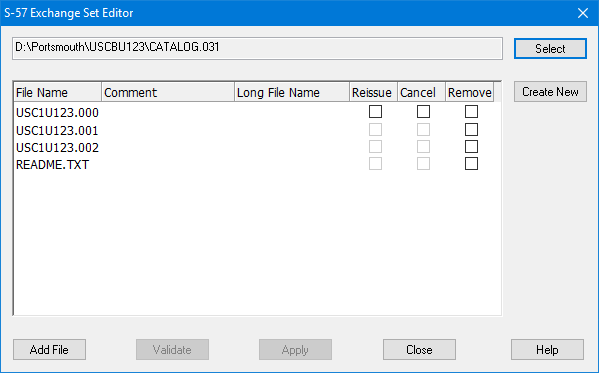
From the S-57 Exchange Set Editor:
1. Click Select.
A Browse for Folder dialog box is displayed.
2. Select the folder or paste the path in the box.
3. Click OK.
If no product catalogue for the files is found, the Select Catalogue dialog box is displayed.
4. Select a catalogue from the list and click OK.
The exchange set is displayed in the Exchange Set Editor.
The base cell is listed first, followed by any updates then any external files.
You can perform the following edits:
• Add File
• Create ENC Cancellation Update
Remove File
Remove any file in the exchange set. If you remove the base cell, all updates and linked external files are also removed.
1. Enable the check box in the Reissue column of the file you want to remove.
2. Click Validate.
If any messages are generated, they are displayed in the Validation window.
3. Click Apply.
The file is removed and the changes are written to the CATALOG.031 file.
Add File
Append S-57 or external files to the exchange set. The files are copied to the exchange set folder.
1. Click Add File.
A file open dialog box is displayed. Only .000 files and external files with the correct extensions are displayed.
2. Select a file and click Open.
The file is displayed in the Exchange Set Editor.
3. Repeat to add more files if necessary.
4. Click Validate.
This checks to make sure that the file is the correct type for the exchange set. For example, a CLB .000 file cannot be included in a exchange set for an ESB AML.
The results are displayed in the Validation window.
5. Click Apply.
The file is added and the changes are written to CATALOG.031.
Create ENC Reissue Cell
An ENC reissue cell is a single file that contains all information from the current edition plus all updates. ENC reissues do not contain any information that is not already provided in the current edition and its updates.
Reissue cells are created by merging the update instructions in ENC update files with an S-57 base cell file, creating a single ENC reissue file (.000). This is useful when the ENC has many updates because everything is written to a single .000 file.
It is recommended that you copy the exchange set and modify the copy: |
Select the existing S-57 ENC Exchange Set:
1. Click Select.
2. Navigate to the ENC_ROOT folder of the exchange set and click OK.
The Select Catalogue dialog box is displayed.
3. Select S-57 ENC 3.1 and click OK.
The contents of the exchange are listed in the dialog box. The base cell (.000) is in the first row.
Now create the ENC reissue:
4. Enable the check box in the Reissue column of the base cell row.
5. Click Validate.
If any messages are generated, they are displayed in the Validation window.
6. Click Apply.
Messages are displayed in the Output window.
The ENC reissue file is created, the contents of the ENC exchange set are updated, and the information is recorded in the file called CATALOG.031.
The ENC base cell is updated and any update files are removed from the exchange set.
7. Click Close.
The update process is completed.
The ENC_ROOT folder now contains:
• The updated ENC catalogue file, CATALOG.031.
• The updated S-57 ENC cell file, 1Cxxxxxx.000.
• External text or image files (if any) associated with ENC objects in the original file and ENC updates file.
• An optional text file which contains information about the exchange set, such as name, location, content, and other general notes of help to end users. This is called README.TXT and can be edited using a text editor.
S-57 ENC reissue exchange sets can be opened as backdrops for viewing, selecting, filtering, and so on.
Create ENC Cancellation Update
A cancellation update is created to cancel an ENC. This resets the edition number to zero. A cancellation update indicates that the ENC base cell is cancelled.
Cancellation updates do not modify the information in the database. They operate on files that have already been exported from the database. |
A cancellation update cancels the base cell, updates, and reissue cells. This might be needed when:
• An existing ENC is completely replaced by a re-schemed ENC cell
• A single ENC cell has become too large and needs to be split into two
Cancelled ENC cells are not designed to be viewed and therefore cannot be opened in HPD editors.
It is recommended that you copy the exchange set and modify the copy: |
From the Exchange Set Editor:
1. Click Select.
2. Navigate to the ENC_ROOT folder of the exchange set and click OK.
The Select Catalogue dialog box is displayed.
3. Select S-57 ENC 3.1 and click OK.
The contents of the exchange set are listed in the dialog box. The base cell (.000) is in the first row.
4. Enable the check box in the Cancel column of the base cell row.
5. [Optional] Click in the Comment field and type a comment about the cancellation.
6. [Optional] Click in the Long File Name field and type a name for the cancellation file.
7. Click Validate.
If any messages are generated, they are displayed in the Validation window.
8. Click Apply.
A message box asks if you want to continue.
If you click Yes, the base cell and any updates are replaced with a single new ENC cancellation update (.00x) file.
9. Click Close.
The cancellation update is completed.
The S-57 ENC exchange set now contains only a special ENC cancellation update file.
The ENC_ROOT folder now contains:
• The updated ENC catalogue file, CATALOG.031.
• A new S-57 ENC cancellation update file which contains the cancellation instructions. If the last update was .003, this will be .004.
• An optional text file which contains information about the exchange set, such as why it was cancelled. This is called README.TXT and can be edited using a text editor.
S-57 ENC cancellation exchange sets cannot be displayed as backdrops in HPD editors. If you try to open the ENC base cell, a message is displayed in the Output window to the effect that this ENC is a cancellation and cannot be opened.
To complete the cancellation process:
1. Start HPD Product Management Centre.
2. Select the HPD version of the ENC base cell which was cancelled.
3. Update its Product Status to Retired.
The product can now be opened as read-only but cannot be updated further.