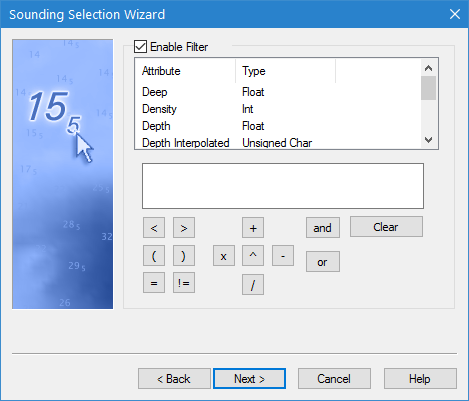
The third step of the Sounding Selection Wizard can be used to filter the data that will be included in the sounding selection. Using the options available, you create a filter expression which gets applied during sounding selection. Only soundings that meet the conditions of the filter will be included in the output. For example, if you only want soundings with a depth value of less than 8 metres, you would enter the expression “Depth < 8”.
Interface
Step 3 of the Sounding Selection Wizard is shown below.
Option | Description |
|---|---|
Enable filter | Click to enable the filter fields and buttons to define a filter expression for the process. If no filter is needed, leave the check box empty and click Next to go to the next step of the wizard. |
Attribute list | The list of bands present in the source data. Double-click an attribute in the list to add it to the filter expression at the current cursor location. |
Filter expression field | The filter expression to be applied during sounding selection. Click in the field to enter or edit the expression manually. |
Operator buttons | The mathematical operators available for use in the filter expression. Click a button to add it to the filter expression at the current cursor location. |
Clear | Click to completely clear the filter expression field. |
Procedure
1. Click the Enable filter check box.
2. Populate the filter expression field.
3. Click Next.