Menu | Edit > Track Lines > Move To |
Key | <M> |
Move selected track lines or track lines layers to an existing or a new HIPS file. This process can also carry over auxiliary files as well as raw data. Data that is moved maintains the folder structure from the original data. The new location will have the HIPS file up-dated to work with the Track Lines.
This process can also be applied in a process model and in CARIS Batch.
Related Commands:
• Copy To
See also:
Interface
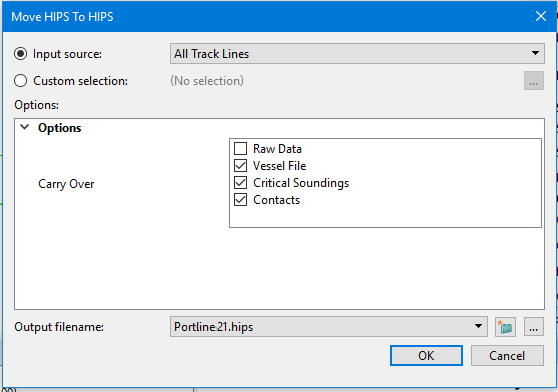
HIPS files and individual track lines are moved using the Move HIPS to HIPS dialog box.
Field | Description |
|---|---|
When selecting the track lines to copy or move, you can use the Input Source option and select from the items listed there, or you can make a custom selection from the existing HIPS file. | |
Input Source | This field is used to select the data to be moved. • If no specific lines are selected, the All Track Lines option is displayed. • If specific lines have been selected in the display, they are displayed on a drop list the Input source field. |
Custom selection | 1. Click the Browse button (...) which opens the Line Selections dialog box. 2. Select the lines to be moved and click OK. The field will display the number of lines being moved, e.g., ( |
Carry Over options | You can move one or more of these types of data to a new file location: • Raw data • Vessel File • Critical Soundings • Contacts These data types will be moved to their respective folders, e.g., Raw data to 1. Click the check box for each of the data types you want moved. |
Output filename | Either select an existing HIPS file or create a new one to be the destination location of the data being moved. 1. To create a new HIPS file, click 2. To select an existing HIPS file folder, click the Browse (...) button to locate the folder. |
Procedure
To move track line data to a different location:
1. Select the lines to be moved.
2. Select the Move HIPS to HIPS command.
The Move HIPS to HIPS dialog box is displayed.
3. Select an input source from the list or make a custom selection.
4. [Optional] Select one or more types of data to carry over to the new file.
5. Set the output file name and location.
6. Click OK.
The data will be moved to the new location.
Unique naming: Track lines within the HIPS file must have unique names. If the HIPS file you are saving to already contains track lines with the same names as those being copied or moved, these will be detected and you will be given the following options: -- if you select Update, the incoming new line will be renamed by adding a number to the end of the line name, and the older already duplicated line will be deleted, -- Skip will cause the incoming duplicate line to be ignored -- Cancel will cancel the process completely. |
 , which opens the New HIPS File dialog box. (See