If you selected the Local license type in the License Setup wizard, the Activation step is displayed.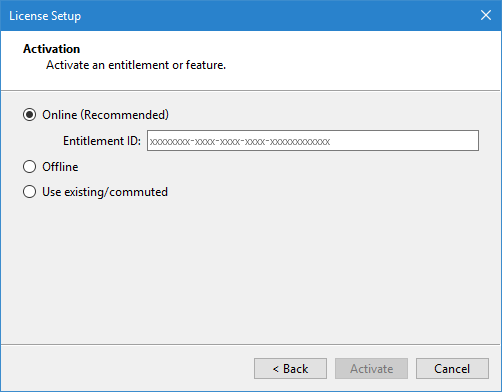
If you selected the Local license type in the License Setup wizard, the Activation step is displayed.
Local licenses must be activated before they can be used. Online activation can be completed using the Entitlement ID provided in the entitlement certificate email included with the purchase of a Teledyne CARIS application.
If you are using a computer that is behind a firewall and does not have access to the Internet, Offline activation will need to be performed. In this situation, the license will need to be activated on another machine with internet access and then entered in this wizard.
Online Activation
For online activation:
1. Select Online (Recommended).
2. Enter the Entitlement ID from your email.
3. Click Activate.
The license is applied to the application and a dialog box is displayed identifying the modules included in the license.
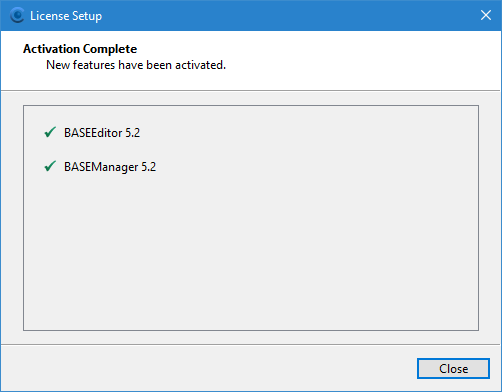
4. Click Close to close the License Setup wizard.
The application now has an active license and the application is launched.
Offline Activation
For offline activation:
1. Select Offline.
2. Click Next.
The Offline Activation step is displayed.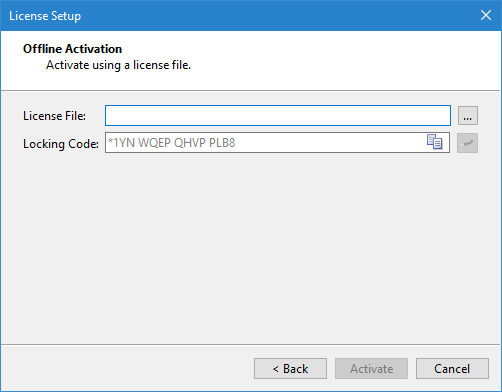
To complete this step, an administrator must first activate the license with the locking code provided. This generates the license file needed to activate the license on the local machine. See Offline Activation of Licenses for more information on this process.
3. Click the Copy Locking Code button to copy the code to your Windows Clipboard.
4. Email the locking code to your administrator, who will provide you with a license file in return.
5. Click the browse button (...) and navigate to the license file associated with the locking code.
6. Select the file and click Open.
7. Click Activate.
The license is applied to the application and a dialog box is displayed identifying the modules included in the license.
8. Click Close to close the License Setup wizard.
The application now has an active license and the application is launched.
Existing/Commuter License Activation
The Use existing/commuted option checks the local computer for a license file from either:
• an existing license that has been activated previously, or
• a commuted license that has been checked out.
If a license file is found, that license will be applied to the application. If no license is found, the application can still be run, but only unlicensed functionality will be available.
To use an existing or commuted license:
1. Select Use existing/commuted.
2. Click Activate.
A license is applied, based on whether or not a license file was found, and a dialog box is displayed identifying any modules included in the license.
3. Click Close to close the License Setup wizard.
The application is launched and running with the selected license settings.